Quick answer — what GA4 BigQuery export is best for
GA4 BigQuery export is best when the GA4 UI is too sampled, too limited, or too disconnected from the rest of your business data. The hard part is not enabling the link; it is understanding the nested event schema, writing reliable UNNEST queries, and turning raw events into reports that marketers and operators can trust.
The GA4 BigQuery export is quietly one of the most valuable toggles in a GA4 property. Flip it on, and the sampled, UI-capped view of your marketing data is replaced by raw event-level data you can query in BigQuery and join with the rest of your business data. Standard daily export still has limits, and streaming is best-effort; the important change is that the analysis happens in SQL, not inside the GA4 UI. The gap between "the export is enabled" and "I have answers I trust" is wider than most setup guides admit.
After enough queries against GA4 BigQuery tables, one honest take: the schema is powerful, and a little strange. Events live in one row each, parameters hide inside repeated RECORDs, and the first UNNEST query you write will almost certainly return more rows than you expected. This guide walks the full flow — enabling the GA4 BigQuery export, understanding the schema you get, writing the five queries that actually matter, and then the part most guides skip: how to get answers out of the exported data without spending every week writing SQL by hand.
Why Export GA4 to BigQuery?
There are three reasons a serious GA4 operator enables the BigQuery export, and you almost always hit all three eventually.
Raw event data. GA4 reports and explorations can sample large queries, while the BigQuery export gives you raw event data you can query directly. But standard daily export is capped at 1M events/day, and streaming is best-effort. UI thresholding also hides small user cohorts for privacy, whereas BigQuery shows them. If your paid-channel numbers in the UI and the CFO's dashboard don't reconcile, sampling and thresholding are usually the reason.
Historical retention without limits. GA4's standard UI retention is capped, and the Explorations builder caps at 100,000 rows per report. Once data is in BigQuery, it stays as long as you keep the dataset. If you export from day one, you can still answer "what did March 2026 look like" three years later. This matters more than people realize the first time a board meeting asks for a two-year trend and the GA4 UI shrugs.
Joining with the rest of your data. This is the one that turns BigQuery from a backup store into an analysis engine. Once GA4 events are in BigQuery, you can join them with ad-platform spend, CRM records, product telemetry, and offline conversions. The moment your attribution question needs anything that isn't already inside GA4, the BigQuery export is the cleanest path.
GA4 BigQuery Export: Daily vs Streaming
GA4 offers two export frequencies, and you can enable either or both. The choice depends on how fresh you need the data and how much you're willing to pay.
Daily (batch) export creates a table named events_YYYYMMDD once per day. Standard GA4 properties cap this at 1 million events per day — enough for most small-to-midsize sites, but not enough for high-traffic consumer or e-commerce properties. Daily export runs once per day. Google says timing is not guaranteed; it typically lands by the next day and can be delayed.
Streaming export creates events_intraday_YYYYMMDD tables that are populated continuously as events are collected. There's no event-volume cap on streaming export, but it costs $0.05 per GB of data streamed, which works out to roughly $0.05 per 600,000 events. For a property doing 10 million events per day, that's about $25 a month for streaming — usually worth it for near-real-time visibility.
Fresh Daily is a GA4 360-only option for eligible Normal and Large 360 properties. It delivers the daily-style schema sooner than standard daily export. See the BigQuery Export SLA reference for the exact eligibility rules.
In my experience, most teams enable both Daily and Streaming. Daily gives you the stable, reconciled dataset to run reports against; streaming gives you the last few hours of behavior when an on-call page arrives or a campaign just launched. You pick per query, not per account.
Step-by-Step: Enabling the GA4 BigQuery Export
The actual linking flow takes about five minutes once your GCP project is ready.
- In the Google Cloud Console, confirm you have a project with billing enabled. The BigQuery sandbox works for a trial, but if you want retention beyond 60 days per table, you need billing on.
- Enable the BigQuery API on that project.
- In GA4, go to Admin → Product Links → BigQuery Links → Link.
- Pick the GCP project you just prepared. You'll need to confirm the location for the dataset — pick the region closest to where you'll run queries from.
- Choose your export frequency: Daily, Streaming, or both. If you're on GA4 360 and your property is eligible, you may also see Fresh Daily as a separate toggle under Daily.
- Click Submit.
Daily export typically starts by the next day, but Google does not guarantee an exact time. For Streaming, the events_intraday_* table shows up almost immediately, though the first few hours may be sparse until the link is fully propagated. The dataset name is analytics_PROPERTY_ID — that PROPERTY_ID is your GA4 numeric ID, not the measurement ID (G-XXXX).
One thing the official setup docs don't emphasize: the export is forward-only. You only get events from the moment the link is active. There is no backfill option, so if the export matters for a business question, turn it on the day the property is created, not the day the CFO asks.
Understanding the GA4 BigQuery Schema
The GA4 BigQuery schema trips people up on the first query. It's event-level, deeply nested, and uses repeated RECORDs where a traditional warehouse schema would use wide columns. Once you understand the shape, it's clean. Before that, it feels like a puzzle.
Every row in events_YYYYMMDD represents one event. The top-level columns include:
event_name — the event type (page_view, purchase, session_start, and so on)event_timestamp — microseconds since the Unix epochevent_date — string in YYYYMMDD formuser_pseudo_id — GA4's anonymous user identifieruser_id — your first-party User-ID, if your implementation sets onedevice, geo, app_info, traffic_source — nested RECORDs with context about where the event came from
The pieces people ask about most are the repeated RECORDs:
event_params — every custom parameter attached to the event, one RECORD per parameteruser_properties — user-scoped properties at event timeitems — for e-commerce events, one RECORD per line item
| Schema area |
What it tells you |
Common pitfall |
Best analysis use case |
| event_name |
The action collected by GA4 |
Treating every event as equally meaningful |
Funnels, conversions, engagement by event |
| event_params |
Page, campaign, session, and custom parameters |
Forgetting to UNNEST or pulling the wrong value type |
Landing pages, sessions, attribution, custom dimensions |
| user_pseudo_id |
Anonymous user identity |
Confusing users, sessions, and events |
User counts, repeat behavior, retention |
| traffic_source |
First-user acquisition fields |
Using streaming rows for attribution |
First-touch acquisition analysis |
| items |
E-commerce line items |
Joining items without preserving event grain |
Product revenue, cart, purchase, and refund analysis |
event_params is the critical one. When you select it in a query, you don't get a single value per row — you get the whole repeated RECORD. To pull a specific parameter, you need to UNNEST the array, often in a scalar subquery or in the FROM clause:
SELECT
  event_name,
  (SELECT value.string_value
     FROM UNNEST(event_params)
     WHERE key = 'page_location') AS page_location
FROM `your-project.analytics_PROPERTY_ID.events_*`
WHERE event_name = 'page_view'
LIMIT 100
The value RECORD has four scalar fields — string_value, int_value, float_value, double_value — and only one is populated per parameter. If you're not sure which one your parameter uses, COALESCE(string_value, CAST(int_value AS STRING), CAST(float_value AS STRING)) is the forgiving pattern.
For the full field list, the official BigQuery Export schema reference is the canonical source. It updates quietly when Google adds fields (consent mode v2 added privacy_info fields in 2024, for example), so bookmark it.
One caveat worth calling out: Streaming export does not populate traffic_source.source, traffic_source.medium, and traffic_source.name for new users. Those attributions are computed later and show up only in the Daily table. If attribution matters, run your attribution queries against the Daily tables, not the intraday ones.
Five SQL Queries Every GA4 Operator Should Know
These are the queries I reach for most often when someone asks a marketing question from a GA4 BigQuery dataset. Replace your-project.analytics_PROPERTY_ID with your own path.
1. Users by first-user acquisition source/medium, last 30 days. Note that traffic_source.* on the event row is first-user acquisition, not session-level attribution — use it for "where did this user first come from" questions, not "which campaign drove this session."
SELECT
  traffic_source.source   AS source,
  traffic_source.medium   AS medium,
  COUNT(DISTINCT user_pseudo_id) AS users,
  COUNT(*)                       AS events
FROM `your-project.analytics_PROPERTY_ID.events_*`
WHERE _TABLE_SUFFIX BETWEEN
  FORMAT_DATE('%Y%m%d', DATE_SUB(CURRENT_DATE(), INTERVAL 30 DAY))
  AND FORMAT_DATE('%Y%m%d', CURRENT_DATE())
GROUP BY 1, 2
ORDER BY users DESC
2. Top pages by pageviews, with UNNEST for page_location.
SELECT
  (SELECT value.string_value FROM UNNEST(event_params)
     WHERE key = 'page_location') AS page,
  COUNT(*) AS pageviews
FROM `your-project.analytics_PROPERTY_ID.events_*`
WHERE event_name = 'page_view'
  AND _TABLE_SUFFIX BETWEEN
      FORMAT_DATE('%Y%m%d', DATE_SUB(CURRENT_DATE(), INTERVAL 7 DAY))
      AND FORMAT_DATE('%Y%m%d', CURRENT_DATE())
GROUP BY page
ORDER BY pageviews DESC
LIMIT 50
3. Conversions by first-user acquisition campaign. Same caveat as query 1 — this attributes conversions back to the user's first-acquisition campaign, not the last-touch campaign that drove the conversion event itself. For session-level attribution, pull collected_traffic_source or the session-scoped parameters instead.
SELECT
  traffic_source.name AS campaign,
  event_name,
  COUNT(*) AS conversions
FROM `your-project.analytics_PROPERTY_ID.events_*`
WHERE event_name IN ('purchase', 'sign_up', 'generate_lead')
  AND _TABLE_SUFFIX BETWEEN
      FORMAT_DATE('%Y%m%d', DATE_SUB(CURRENT_DATE(), INTERVAL 30 DAY))
      AND FORMAT_DATE('%Y%m%d', CURRENT_DATE())
GROUP BY 1, 2
ORDER BY conversions DESC
4. Sessions per user per day. GA4 doesn't expose a session_id field directly; you derive it from ga_session_id inside event_params.
SELECT
  user_pseudo_id,
  event_date,
  COUNT(DISTINCT (SELECT value.int_value FROM UNNEST(event_params)
                  WHERE key = 'ga_session_id')) AS sessions
FROM `your-project.analytics_PROPERTY_ID.events_*`
WHERE _TABLE_SUFFIX = FORMAT_DATE('%Y%m%d', CURRENT_DATE() - 1)
GROUP BY 1, 2
5. Daily stage counts for page_view, add_to_cart, and purchase. This isn't a strict funnel — it counts distinct users per event per day without enforcing step order. For a true ordered funnel you'd enforce timestamp progression per user; the counts below are the fast-read stage-by-stage view most teams actually want day to day.
WITH ev AS (
  SELECT user_pseudo_id, event_name, event_date
  FROM `your-project.analytics_PROPERTY_ID.events_*`
  WHERE _TABLE_SUFFIX BETWEEN
        FORMAT_DATE('%Y%m%d', DATE_SUB(CURRENT_DATE(), INTERVAL 7 DAY))
        AND FORMAT_DATE('%Y%m%d', CURRENT_DATE())
    AND event_name IN ('page_view', 'add_to_cart', 'purchase')
)
SELECT
  event_date,
  COUNT(DISTINCT IF(event_name='page_view',   user_pseudo_id, NULL)) AS viewers,
  COUNT(DISTINCT IF(event_name='add_to_cart', user_pseudo_id, NULL)) AS carters,
  COUNT(DISTINCT IF(event_name='purchase',    user_pseudo_id, NULL)) AS buyers
FROM ev
GROUP BY 1
ORDER BY 1
If you want to go further — attribution windows, cohort retention, funnels with specific parameter filters — the Google Analytics advanced queries reference is the best free starting point. Most serious GA4 BigQuery work is UNNEST patterns on top of the primitives above.
Costs, Quotas, and Limitations
The GA4 side of the export is free. The BigQuery side is where the billing happens, and for most teams it's small enough that the free tier covers the early months.
- Free tier: the first 10 GB of BigQuery storage per month and the first 1 TB of on-demand query processing per month are free. A small e-commerce site exporting daily can run for months inside the free tier.
- Storage after the free tier: see the BigQuery pricing page for current storage rates — they're published per GiB-month, with long-term storage (tables not edited for 90 days) billed at a lower rate than active storage.
- Query processing after the free tier: $6.25 per TiB scanned in on-demand mode. Partitioned queries (using
_TABLE_SUFFIX) keep this low. Scanning all tables in a dataset without a partition filter is the most common source of surprise bills.
- Streaming surcharge: $0.05 per GB of data written via streaming export, on top of standard storage.
Known limitations worth knowing before you commit to a pipeline:
- Standard GA4 properties cap Daily export at 1 million events per day. Above that, you need GA4 360 or you rely on Streaming.
- Streaming export is best-effort, and attribution fields are incomplete for new users, so combining intraday with daily can produce incomplete or unstable results until the daily table lands.
- Streaming doesn't populate traffic source for new users. Attribution queries should run against Daily.
- First data takes up to 24 hours after linking. Streaming shows up sooner, but the first few hours are often partial.
- Minor UI-vs-export discrepancies are documented by Google — data freshness and SLA constraints explains why.
Common Issues When You Open the Tables
Four things come up on almost every new GA4 BigQuery setup:
"There's no data in my dataset." Wait 24 hours after linking. If the dataset exists but the events_* tables are empty, check that the GA4 property is actually receiving events — a staging property with no live traffic will produce an empty export.
"The numbers don't match GA4's UI." This is usually sampling, thresholding, or timezone. GA4's UI may sample above your property's limit; the BigQuery export doesn't. UI thresholding hides small cohorts; BigQuery shows them. And the UI uses the property's reporting timezone, while BigQuery tables are named in that same timezone but queried in UTC by default. Small drift is expected. Large drift is usually a filter or timezone issue.
"event_params is empty when I query it." You're selecting the RECORD directly. Wrap it in an UNNEST(event_params) subquery to pull the value you want, as shown in the queries above.
"Where's my session_id?" GA4 doesn't expose a direct session identifier. You build it from user_pseudo_id plus the ga_session_id parameter inside event_params. The first UNNEST query above covers the pattern.
The Analysis Layer: From Raw Export to Answers
Here's the part most setup guides skip: getting the export running is 10% of the job. The 90% is turning those tables into reports, dashboards, and decisions — without writing the same UNNEST patterns every Monday morning.
BigQuery is an excellent warehouse. It is not an analyst. Once your GA4 data is sitting in analytics_PROPERTY_ID.events_*, the usual path is Looker Studio plus a handful of hand-maintained SQL, or a data engineer building a dbt model, or — more often than anyone admits — marketing ops re-exporting to Google Sheets every week and building pivot tables. None of those paths answer the question a marketer actually has: "which paid campaigns produced conversions last week, and which are underperforming against last month?"
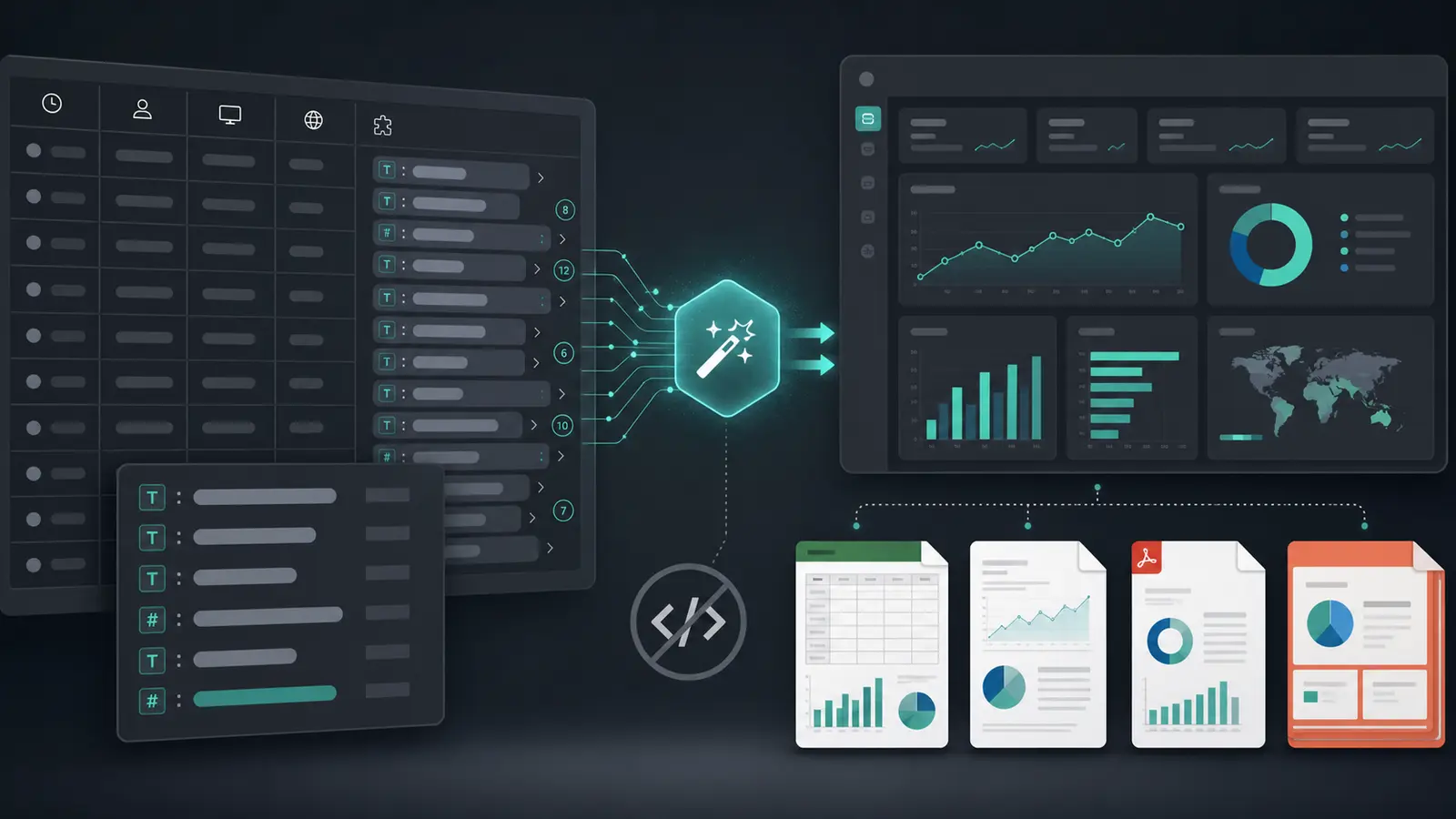
This is where Anomaly AI pays back on top of BigQuery. Anomaly AI connects directly to your GA4 BigQuery dataset. You point it at analytics_PROPERTY_ID, authenticate once, and then ask for the output you need: "build a weekly paid-channel performance dashboard", "create an Excel report comparing organic traffic this week vs last week", or "turn landing page drop-off into a PDF review pack." The output keeps the SQL, source rows, assumptions, and calculations visible so your team can review the logic before sharing the report.
Three differences matter for GA4 operators specifically:
- Traceable BigQuery logic. Every technical output can expose the underlying BigQuery SQL, source rows, assumptions, and calculations. If it UNNESTs the wrong parameter, you see it. That matters in a schema where a small mistake silently produces plausible-looking numbers.
- Joining across sources. The real analytics questions — "what's our CAC by channel, blending GA4 conversions with ad spend?" — need GA4 alongside other data. Anomaly AI supports reporting workflows across BigQuery, Excel files, Google Sheets, ad account exports, MySQL, and GA4 (via the GA4 API or the BigQuery export itself), and joins them in the same workspace. Drop a CSV of ad spend next to your GA4 BigQuery dataset and ask for CAC by campaign.
- Stakeholder-ready reporting. Turn GA4 BigQuery data into interactive dashboards, refreshable reports, source-backed summaries, and scheduled reports without rebuilding the same UNNEST logic every week.
- Pricing that matches how operators work. Free $0, Starter $16/month, Pro $25/month, Team $45/seat/month (see our pricing ladder). No enterprise sales cycle to answer a question about last week's traffic.
If you already have a GA4 BigQuery export flowing, the fastest way to get value out of it is to point Anomaly AI at the dataset and turn the raw events into dashboards, reports, and recurring review workflows.
Which Setup Is Right for You?
A short decision matrix from real conversations:
- You just enabled GA4 and want to future-proof the data. Turn on Daily export today. You can add Streaming later. The cost is tiny, the retention is unlimited, the future-you thanks you.
- You need near-real-time visibility for a launch or campaign. Enable Streaming alongside Daily. Expect a small BigQuery bill; the visibility usually pays for itself by the second decision you make off it.
- You're doing attribution modeling. Daily only. Streaming drops traffic source attribution for new users, and attribution is exactly the thing you need those fields for.
- You're joining GA4 with ad spend, CRM, or product data. BigQuery is the right backbone. Put everything in one dataset (or use BigQuery's cross-project queries) and analyze there.
- You don't have a SQL team and need reports this week. Enable Daily export, then point Anomaly AI's BigQuery connector at the
analytics_PROPERTY_ID dataset and ask for the dashboard, Excel report, or scheduled update you need. The BigQuery logic remains inspectable. For simpler reports that don't need event-level data, the GA4 API connector is the faster path.
FAQ
Is the GA4 BigQuery export free?
The GA4 side is free. BigQuery charges for storage and query processing — see current rates on the BigQuery pricing page. Most small sites run inside the free tier for months. Streaming export adds $0.05/GB on top of standard storage.
How long does it take for GA4 data to appear in BigQuery?
Up to 24 hours after you enable the link. Streaming shows up within minutes but may be partial for the first few hours. Daily batches are typically stable within the SLA window documented on the BigQuery Export SLA page.
Can I get historical GA4 data into BigQuery?
No. The export is forward-only from the moment the link is created. There is no backfill, which is why enabling the export early matters.
Do I need to know SQL to use the GA4 BigQuery export?
For hand-written queries, yes — and the schema is non-trivial because of the nested RECORDs. If you want to skip writing UNNEST by hand, point Anomaly AI at the dataset and ask for the dashboard, report, or review pack you need. The BigQuery connector in Anomaly AI keeps the SQL and calculations inspectable for technical checks.
Why don't GA4 UI numbers match my BigQuery numbers?
The three usual causes are sampling (UI samples above your property's event limit, BigQuery doesn't), thresholding (UI hides small cohorts for privacy, BigQuery shows them), and timezone handling. For large gaps, check the filter and the date range; small gaps are expected and documented.
Daily or streaming — which one should I enable?
Both, if you can afford it. Daily is the clean, reconciled dataset; Streaming gives you last-few-hours visibility. For attribution and anything reported to finance, always query Daily.
Next Steps
Once the export is running, the question is how quickly you can get it into the hands of people making marketing decisions. A few practical links:
Ready to turn your GA4 BigQuery export into dashboards and reports? Connect your GA4 BigQuery export to Anomaly AI's BigQuery connector, ask for the dashboard, Excel report, or scheduled update you need, and join it with Excel, GA4 API, ad account exports, Google Sheets, MySQL, or other database data in the same workspace. Free $0 / Starter $16/month / Pro $25/month / Team $45/seat/month — no enterprise sales cycle required.