How to Build an Accounts Receivable Aging Report From an Invoice Export
What an AR aging report is, how to read it, and how to build one from an invoice export — with age buckets, partial payments and credits, and totals that tie to your ledger.
Ash RaiTechnical Product Manager, Data & Engineering
10 min read
Quick answer — what is an accounts receivable aging report
An accounts receivable (AR) aging report groups your unpaid customer invoices by how overdue they are — usually current, 1–30, 31–60, 61–90, and 90+ days past due — so you can see who owes you, how old each balance is, and which balances to review under your collections policy. To build one, take an open-invoice export that reflects balances at your report date (or includes dated payment and credit applications), use each item's open balance — the source system's if it provides one, otherwise derived from the fields the export supplies — compute its days past due as of that report date, then total open balance by customer and bucket. The grand total should tie to the receivables figure in your ledger.
If you have an export of open invoices, you can turn it into an accounts receivable aging report — the standard view of who owes you and how overdue each balance is. This covers what the report is, how to read it, how to prepare one in Excel, and how to build it from an invoice export — with partial payments and credits handled the way your ledger applies them, under a stated report date.
For finance operators & bookkeepers · Excel, QuickBooks export, or upload
01What an AR aging report shows — and how to read it
Each row is a customer; each column is an age bucket. A balance is placed in a bucket by how many days past its due date it is, measured as of the report date — so the same invoice ages from one bucket to the next as time passes, and once it is paid its open balance is zero and it drops off the report. The point of the report is not the total (your ledger already has that); it is the distribution — how much of what you are owed is fresh versus stale.
How do I read an accounts receivable aging report?
Read a customer's row left to right to see how their balance is spread; a balance sitting far to the right is an older balance to review first. Read a bucket column top to bottom to see how much of your total receivables is that age. Newer balances in current and 1–30 are not yet due or recently overdue; older balances in 61–90 and 90+ generally warrant review under your collections policy — aging shows exposure by age, not collectibility, which also depends on terms, disputes, and customer context. Finally, check the grand total against your ledger's accounts receivable balance for the same cutoff; a mismatch usually points to the cutoff, a missing or duplicated invoice, an unapplied or omitted credit or payment, or the open-balance formula. (Aging your unpaid supplier bills is the mirror-image report, accounts payable aging, and is a separate exercise.)
02A sample accounts receivable aging report
Here is a small one built from three customers, as of 2026-03-31. Every figure is an open balance, and the row and column totals both add to the same 3,250 — the report ties out.
Sample AR aging report as of 2026-03-31
Customer
Current
1–30
31–60
61–90
90+
Total
Acme Co
—
850
300
—
—
1,150
Beta Ltd
—
—
—
1,200
—
1,200
Ceta Inc
400
500
—
—
—
900
Total
400
1,350
300
1,200
0
3,250
Sample AR aging report as of 2026-03-31, built from the invoice export below. Amounts are open balance (billed − paid); the 150 credit note nets Acme's 1–30 to 850. Synthetic example data.
Reading it: Acme's money is recent (1–30 and 31–60), and its 1–30 shows 850 rather than 1,000 because an unapplied 150 credit note nets against it. Beta's entire 1,200 sits in 61–90 — one aged invoice to review under your collections policy. Ceta's 400 is not yet due and its 500 is 1–30. Nothing has reached 90+. Download the invoice export it was built from and follow along:
Download the sample invoice export
b1_open_invoices.csv — seven rows including a partial payment, a fully-paid invoice, and a credit note. It produces the aging report above. Synthetic data, no real customers.
03How to prepare one from an invoice export in Excel
The manual method is honest work, and worth knowing. The sample export's columns are A invoice_id, B customer, C invoice_date, D due_date, E amount, F amount_paid; put your report date in one cell — say H1 = 2026-03-31 — and reference it:
Open balance in G2: =E2-F2, filled down. Use your source system's open balance if the export provides one; otherwise derive it from the columns you have — this, not the invoice amount, is how partial payments are handled.
Days past due in I2: =$H$1-D2. The absolute $H$1 lets you change one cell — but the export itself must reflect balances at that date.
Bucket in J2: =IFS(G2=0,"Paid",I2<=0,"Current",I2<=30,"1-30",I2<=60,"31-60",I2<=90,"61-90",TRUE,"90+"). Here 90 days lands in 61-90; change the last thresholds to move the boundary.
Drop the zeros: filter out rows where open balance is 0 (the "Paid" bucket) so fully-settled items do not inflate the counts.
PivotTable: customer as Rows, the bucket column as Columns, and sum of open balance (G) as Values. Handle credits the way your ledger applies them — an unapplied credit stays a negative open balance in its own bucket and nets down there.
Reconcile: the grand total must equal your ledger's receivables for the same cutoff. If it does not, check the cutoff, a missing or duplicated invoice, an unapplied or omitted credit/payment, currency/entity scope, write-offs/discounts, or the open-balance formula.
It works, and for a one-off it is fine. The friction shows up when the report is monthly, when partial payments and credits make the reconciliation stop tying, or when you need balances as of a prior close date — which needs a snapshot that reflects that date, not just a changed formula. That is where describing the rule once and letting it run pays off.
04Build it from an invoice export under your report date
Instead of building the formulas and pivot by hand, you can describe the report and let an AI data analyst like Anomaly write and run it — and, importantly, show its working so you can check the number. Import the export (New project → Import Data; .csv, .xlsx and .xls up to 1GB, reflecting balances at your report date), then state the report date and the bucket rule so there is no ambiguity:
"Build an accounts receivable aging report from b1_open_invoices as of 2026-03-31. Open balance is amount minus amount_paid. Age each open invoice by due_date into current, 1-30, 31-60, 61-90 and 90+ days past due, keep credit notes as negative balances, exclude fully-paid invoices, and give me a customer-by-bucket table with a grand total I can reconcile to the ledger."
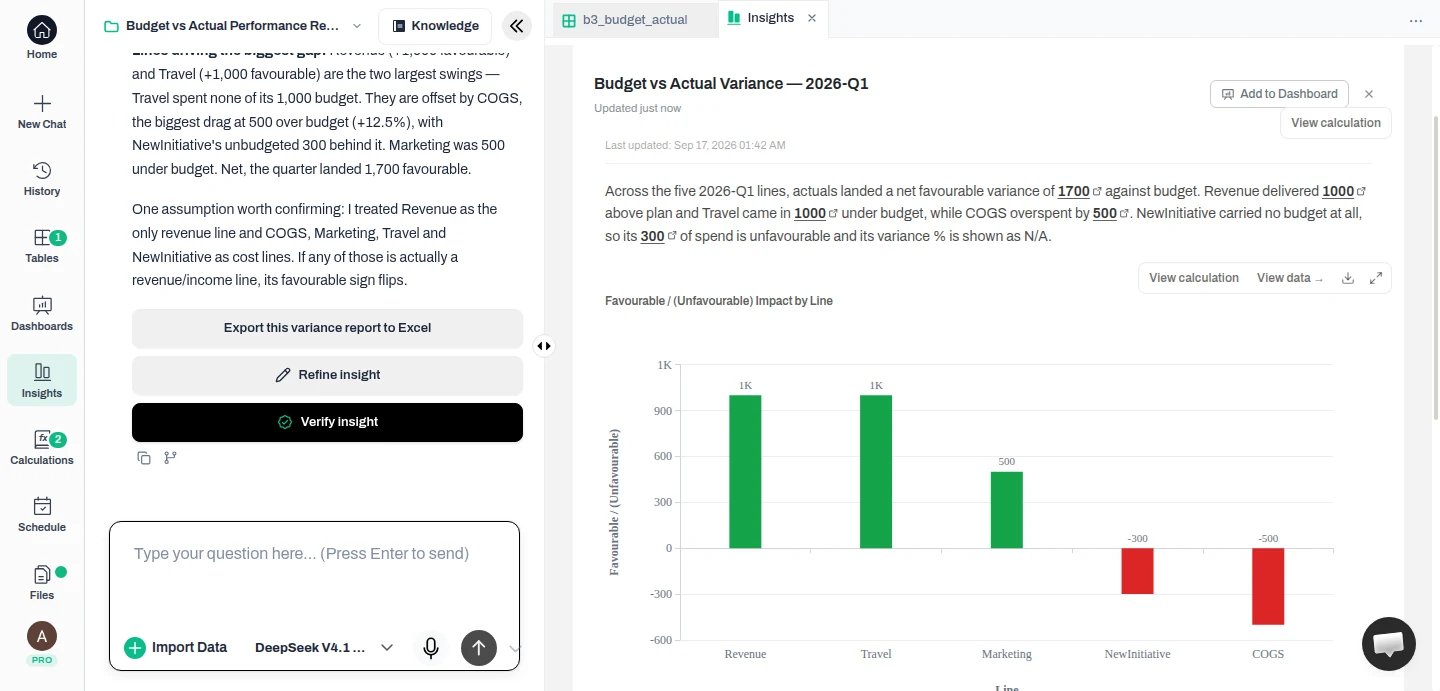
AR aging report in Anomaly — bucketed as of the 2026-03-31 report date and reconciled to a 3,250 ledger balance
Anomaly's AR aging report on the sample export: bucketed as of 2026-03-31, credit note netted, fully-paid invoice excluded, reconciled to a 3,250 open balance, with View calculation on the result. Synthetic example data.
Result — it computed the open balance per item, aged each by due date, and returned the customer-by-bucket table — reconciled to 3,250 across six open items (five invoices plus the CN-7 credit note), matching the ledger (gross 4,350 minus 1,100 paid). It excluded the fully-paid invoice, kept the unapplied credit note as a negative in Acme's 1–30, and flagged a judgment call worth knowing: one invoice falls at exactly 90 days past due, so it sits in 61–90 under the rule as written (90+ read as more than 90) — change the rule and it moves. Each figure has a View calculation showing the SQL behind it.
Treat that as the result to inspect, not a guarantee. On this run it did what the prompt asked and the total tied to the ledger with the calculation shown; before you share it, open View calculation, check the bucket boundaries and any row-level exceptions, and reconcile to your ledger for the same cutoff. A focused request like the one above — compute and show the table — is the way to ask; the same data can then become a dashboard or a scheduled report.
05From a QuickBooks export
QuickBooks Online's A/R Aging Summary and Detail already handle a standard single-book aging: you can set the report date, choose Current vs Report date aging, change the days per period and the number of periods, export the report, and even schedule it by email. Use the built-in report for that. Export the Open Invoices or A/R Aging Detail report to CSV or Excel when you need logic outside those aging controls, want to combine receivables with data from outside QuickBooks, need a separately reviewable custom calculation, or want a different output — then build from the export as above. Inspect the columns your export actually provides: QuickBooks reports typically give an open balance and due date, so use that open balance rather than assuming an amount-paid column. There is no QuickBooks connection to set up here; you work from the file you export. (See Intuit's guide to running an accounts receivable aging report in QuickBooks for the exact steps.)
06Schedule it to send automatically
Aging is a recurring report, so most teams want it on a schedule. QuickBooks can email a scheduled AR-aging report directly; and if you have built the report from an export in Anomaly, you can schedule that as a recurring email report (daily, weekly, or monthly) with the current figures rendered to PDF. In Anomaly, delivery is by email, scheduled runs use credits, and for an uploaded-file source it reflects the data you last uploaded until you re-upload the next export — a scheduled send on your close cadence, not a live feed into your ledger.
It is a summary of your unpaid customer invoices grouped by how overdue they are, as of a chosen report date. Each invoice's open balance (what is still owed) falls into an age bucket — commonly current, 1–30, 31–60, 61–90, and 90+ days past due — and the report totals those buckets by customer. It answers who owes you, how old each balance is, and which balances to review first under your collections policy.
How do I read an accounts receivable aging report?
Read across a customer's row to see how their balance is spread across the buckets, and down a bucket column to see how much of your total receivables is that old. Newer balances (current and 1–30) are simply not yet due or recently overdue; older balances (61–90 and 90+) generally warrant review under your collections policy. Aging shows exposure by age, not collectibility — that also depends on terms, disputes, and customer context. The bottom-right total is your open receivables balance and should tie to your ledger; if it does not, check the inputs (cutoff, missing or duplicated invoices, unapplied credits/payments, scope, or the open-balance formula).
How do I prepare an accounts receivable aging report?
Start from an open-invoice export with a due date per item. Use the source system's open balance if it provides one; otherwise derive it from the fields the export actually supplies (for example amount minus amount paid). Compute each item's days past due as of your report date, assign it to a bucket, and total open balance by customer and bucket in a PivotTable. The fiddly parts: use the open balance (not the invoice amount) for partial payments; handle credits the way your ledger applies them (an unapplied credit is a negative open balance in the bucket of its own date; an applied credit reduces its target invoice); and make sure the snapshot represents balances at your chosen report date.
Where does a credit note go on an aging report?
It depends on how the credit is applied. A credit applied to a specific invoice reduces that invoice's open balance; an unapplied credit sits as a negative open balance in the bucket of its own date and nets against that customer's total. In the sample here, CN-7 is an unapplied 150 credit in Acme's 1–30 bucket, which brings Acme's position there from 1,000 down to 850. In real data, preserve your ledger's credit application — or define and disclose your netting rule — so the aging still ties; dropping credits is a common reason a total fails to tie.
When should I export from QuickBooks instead of using its built-in aging?
QuickBooks Online's A/R Aging Summary and Detail already do a lot: you can set the report date, choose Current vs Report date aging, change the days per aging period and the number of periods, export the report, and schedule it by email. Use the built-in report for a standard single-book aging. Export the open invoices to CSV or Excel when you need logic outside those aging controls, want to combine the receivables with data from outside QuickBooks, need a separately reviewable custom calculation, or want a different output — which is what the rest of this page walks through. Check Intuit's current report instructions for the exact steps.
Can I schedule an accounts receivable aging report to send automatically?
Once the aging report is built as a dashboard, you can schedule it as a recurring email — daily, weekly, or monthly — with the current numbers rendered to PDF. Delivery is by email (not Slack or webhook), scheduled runs use credits, and for an uploaded-file source the report reflects the data you last uploaded until you re-upload. It is a scheduled send, not a live feed.
—Age an invoice export under your report date
Upload an open-invoice export that reflects balances at your report date, state that date and your bucket rule, and get a report that uses each item's open balance and ties to your ledger — with the calculation you can inspect before you share it.
Ash Rai is a Technical Product Manager with 5+ years of experience building AI and data engineering products, cloud and B2B SaaS products at early- and growth-stage startups. She studied Computer Science at IIT Delhi and Computer Science at the Max Planck Institute for Informatics, and has led data, platform and AI initiatives across fintech and developer tooling.