
Tools & Comparisons
12 min
Best Tableau Alternatives for Small Teams in 2026
Leaving Tableau as a small team? Match the replacement to which part of Tableau you keep and which cost, setup, or specialist burden you are trying to shed.
Read More
Tools & Comparisons — Hands-on test · 2026
 Updated 14 min read
Your monthly Excel report needs more than a chart: colleagues need filters, editable files and next month’s numbers. We tested seven tools on May and June sales data.
Quick answer. In our test, Claude Pro returned editable Excel and PowerPoint charts. Anomaly AI kept its share link current for June. Julius AI finished on a new free account before credits ran out. Anomaly AI is our product.
We checked accuracy, filters, editable exports and next month’s update.
Monthly, regional, target and change charts must match the answer key.
Both filters must reach every chart: Bikes 4,532 units; Australia 7,769.
Exported charts must be editable in Excel or PowerPoint.
The same dashboard must show June 8,260 and January–June 45,314.
| Tool | Plan and price | Best for | Right charts from the workbook | One dashboard with working filters | Editable Excel or PowerPoint file | Next month’s file |
|---|---|---|---|---|---|---|
| Claude | Tested: paid Pro Free; Pro $17/mo yearly or $20 monthly |
Editable Excel and PowerPoint files | Pass: 4 of 4 | Pass: Filters reached every panel | Pass: Excel and PowerPoint charts editable | Pass: Same page updated; June right |
| Anomaly AI | Tested: Free, extra credits Free; Pro $25/mo; Analyst $90; Team $45/seat, min. 2 |
A share link that follows next month’s file | Pass: 4 of 4 (one retry) | Pass: Filters reached all six tiles | Pass: Excel: 10 editable charts; PowerPoint pictures | Pass: Same dashboard updated; June right |
| Deepnote | Tested: Team trial Free; Team $39/editor/mo yearly |
The dashboard and its code together | Pass: 4 of 4 (one retry) | Pass: Filters reached every chart | Partial: Excel data only; PowerPoint pictures | Pass: Same dashboard updated; June right |
| Julius AI | Tested: new free account Free; Plus $20/mo; Pro $45 |
Trying the whole job before paying | Pass: 4 of 4 | Pass: Filters reached every chart | Partial: Excel and PowerPoint charts were pictures | Pass: Same dashboard updated; June right |
| Hex | Tested: Team trial Free; Professional $36/editor/mo; Team $75 |
Teams already publishing Hex apps | Pass: 4 of 4 | Not fully tested: Built, but blank in our browser | Partial: PDF, HTML, PNG and CSV only | Pass: Same dashboard switched to June; right |
| ChatGPT | Tested: Free Free; Go $8/mo; Plus $20 |
One quick chart from a workbook | Partial: 3 of 4, then the plan limit | — Not reached | — Not reached | — Not reached |
| ThoughtSpot (Spotter) | Tested: 14-day trial Pro $50/user/mo yearly, needed for Spotter |
ThoughtSpot users with a small CSV | Partial: Right from the CSV version; one wrong number in text | Fail: No dashboard; filters by prompt only | Fail: PDF without charts, plus CSV | Fail: New charts, Australia only |
Not sure a dashboard is what you need? To ask questions of a workbook, see our comparison of Excel AI data analysis tools. For a broader comparison of AI tools for data analysis and visualization, see that guide. If the deliverable is a finished report rather than a dashboard, start with AI report generators for Excel and CSV.
Six tools used XLSX; ThoughtSpot used CSV after rejecting XLSX. “Not reached” means the plan blocked that step, not a wrong answer. Share access and limits are reported separately, not scored.
The files. We assembled two monthly workbooks from the 2015–2017 CSV edition of AdventureWorks, Microsoft’s fictional sample database. Microsoft publishes the official sample; our record does not preserve the third-party CSV download URL, and we do not offer the derived files or answer key for download. Both workbooks have seven sheets. May has 24,051 sales rows (January to May 2017); June has 29,481 (January to June).
The requests. Every tool got the same fixed requests: four charts, one dashboard, category and region filters, every offered export, then June’s data with “update the same dashboard”. A failed step could get two fixed retries. We recorded the expected numbers first.
Disclosure: Anomaly AI is our product. It got the same four checks, and its tester had seen the key. We report where another tool did better, including Claude on PowerPoint.
What this test adds. Seven of ten competing articles in our 8 October 2026 web review—not a Google ranking sample—were vendor-written and vendor-first. We check fixed values, filters, opened exports, next month’s data and the limits we hit.
Claude was the only tool in our workbook test whose Excel and PowerPoint files both held editable charts. It passed all four on paid Pro. Saved test evidence
All four charts matched with no retries. Claude’s page had category and region buttons; Bikes gave 4,532 units and Australia 7,769. Because the page has no export button, Claude wrote six formula-backed Excel charts and six editable PowerPoint charts itself. One message updated the same page to “version 2” for June, with 45,314 units and a +61 May-to-June change.
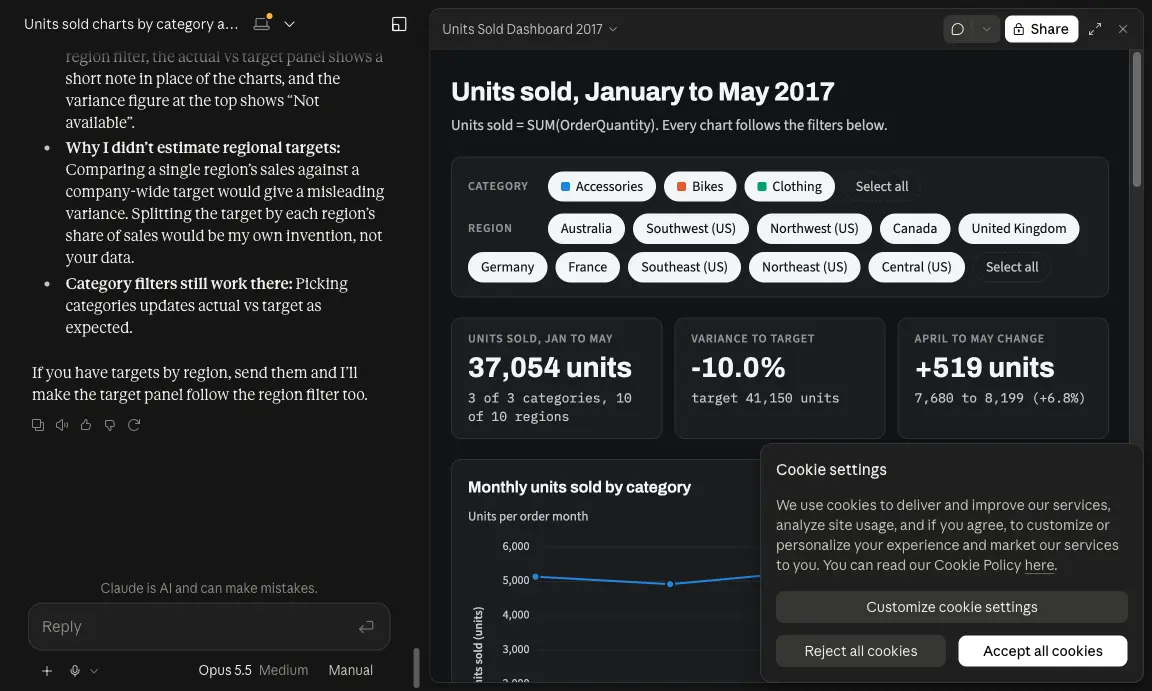
The page stayed private (“Only you”); we left the account settings alone, so no second viewer opened it. Earlier exports still showed January to May, so each month needs another export request.
Pick it if your colleagues will keep working in Excel or PowerPoint. Price (checked 10 Oct 2026): Free; Pro $200 upfront yearly (about $17 monthly) or $20 monthly; Max from $100 (Claude pricing). We tested Pro, not Free. Canonical run record (workspace access required).
Anomaly AI passed all four checks in our May-workbook test using a Free-badge account with extra credits. Its protected share link was the only signed-out link we opened that showed June after the update. Saved test evidence
The first monthly chart merged three categories; one fixed retry corrected it. One request built a six-tile dashboard whose filters reached every tile with the right Bikes and Australia numbers. Each chart has “View calculation”.
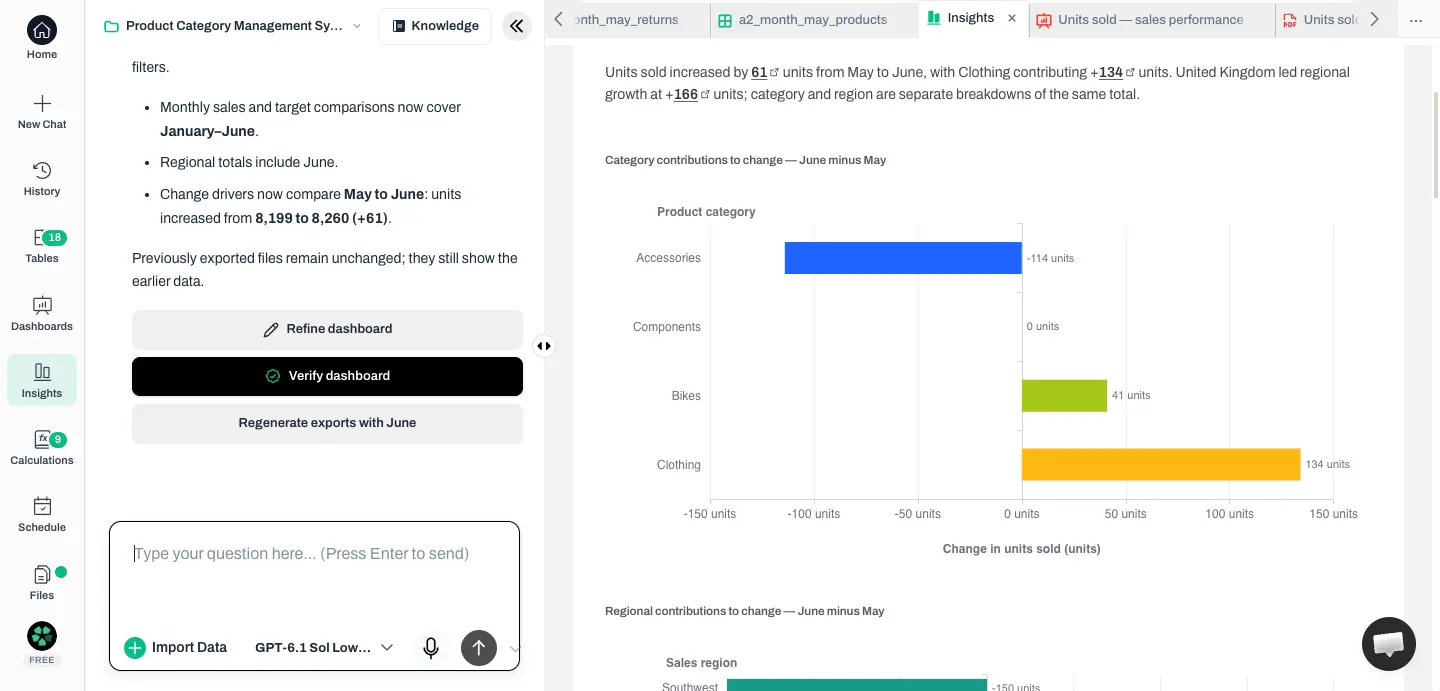
The Share button made an access-code-protected link. One message updated the same dashboard correctly for June. Excel held 10 editable charts with values rather than formulas; PowerPoint and Word held pictures. Earlier exports needed a separate regenerate step.
Anomaly can also refresh from OneDrive and schedule reports by email or Slack; we did not test those routes. See our monthly-dashboard tutorial or Excel analysis in Anomaly, which covers uploads up to 1GB.
Pick it if other people need to open next month’s dashboard without editing it. Price (checked 10 Oct 2026): Free, 30 credits every 30 days; Pro $25 a month; Analyst $90; Team $45 per seat, minimum two (pricing). The run used 29.6 credits. Canonical run record (workspace access required). Build your dashboard.
Deepnote’s result in our Team-trial test paired the dashboard with a notebook—a document containing code, data and charts. It passed three checks and partly passed the export. Saved test evidence
The workbook uploaded through the Files panel after the notebook drop area failed. All four charts were right; the last needed one retry after a machine error. Deepnote’s assistant built a page whose filters reached every chart and tile with the right Bikes and Australia numbers. One message edited that page in place for June.
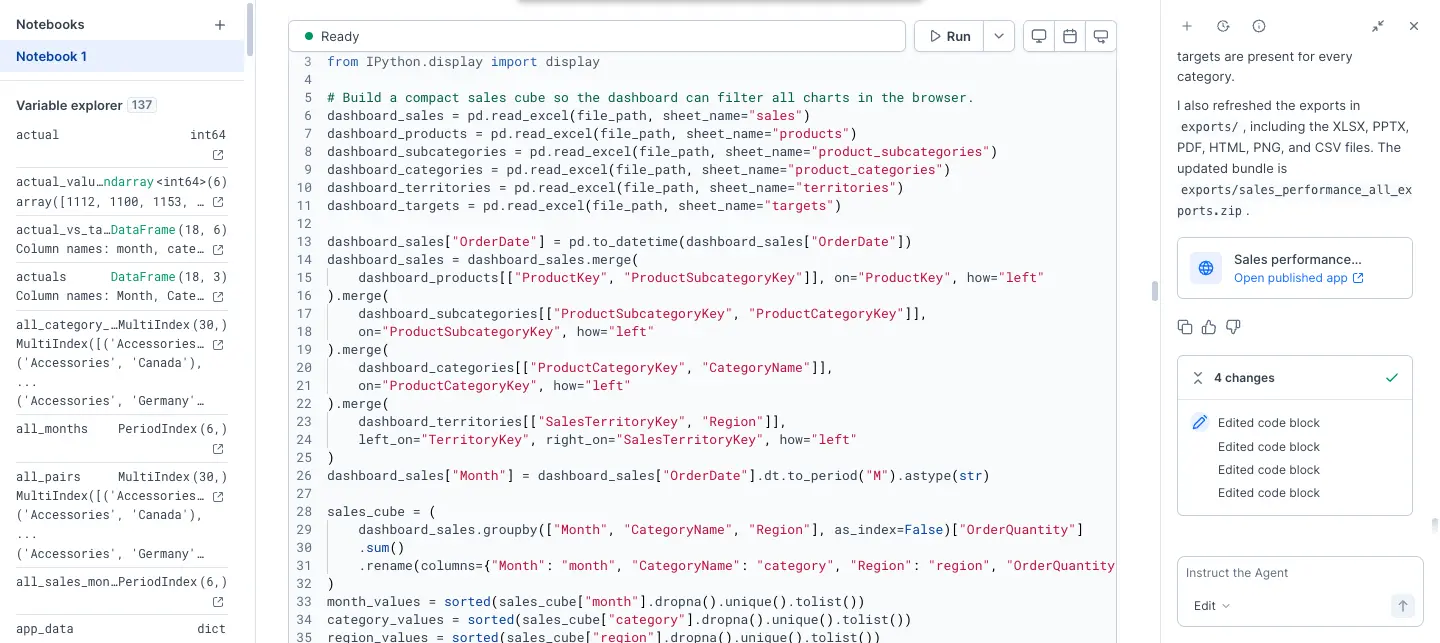
Excel held data but no charts; PowerPoint charts were pictures. The “Published” page needed a Deepnote login and link sharing was off, so no second viewer was tested. The trial run used ten Agent calls. Deepnote’s pricing comparison, checked 10 Oct, lists five monthly on Free; its plan card says “Limited Deepnote AI”.
Pick it if your team wants to see and edit the code—the instructions behind each chart. Price (checked 10 Oct 2026): Free; Team $49 per editor monthly or $39 yearly-billed (Deepnote pricing). Canonical run record (workspace access required).
Julius AI completed the dashboard and June update during our new-account test before its 100 credits ran out. It passed three checks and partly passed the export. Saved test evidence
The four charts were right with no retries, though delivered as images. The dashboard was interactive: Bikes gave 4,532 units and +160 from April to May. One click published a link that opened signed out, and one message updated the same dashboard correctly for June.
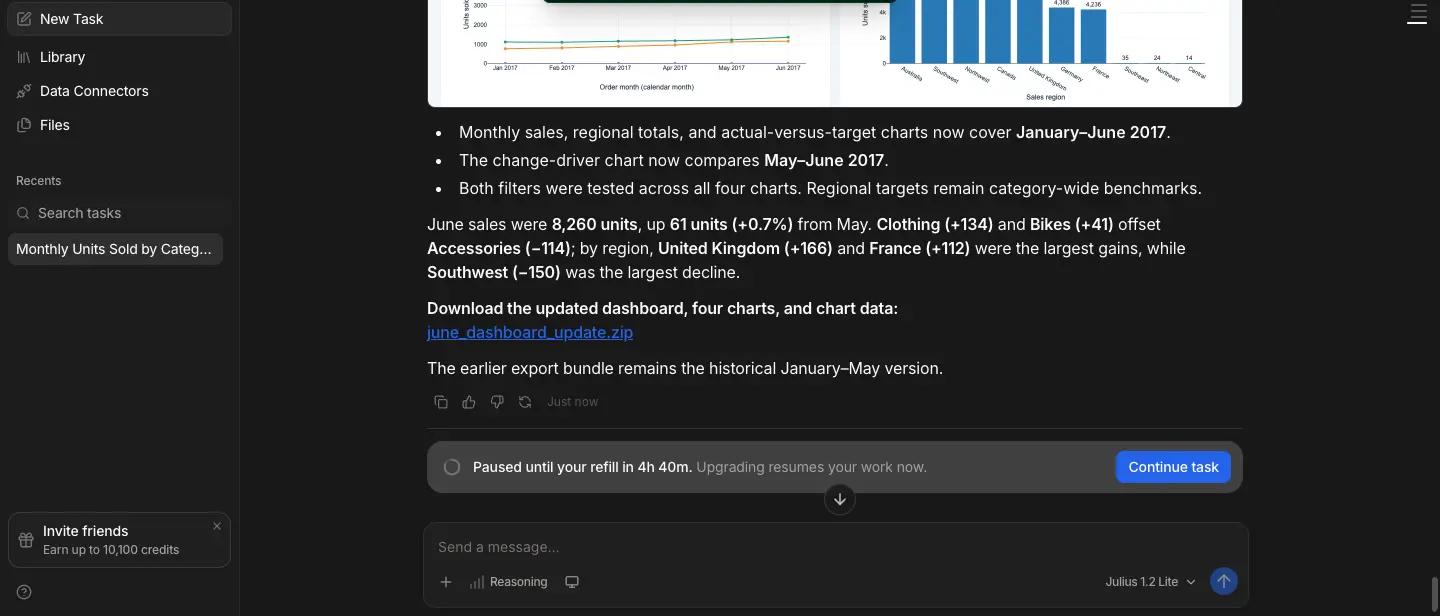
The published link was a snapshot and still showed January to May after the update. Office exports held chart pictures; only HTML kept working filters. Export cost 48 of 100 credits, and June used the rest: “Paused until your refill in 4h 40m.”
Pick it if you want to try the whole job before paying, and can live with re-publishing each month. Price (checked 10 Oct 2026): Free; Plus $20 monthly/$16 yearly-billed; Pro $45/$37 (Julius AI pricing). Canonical run record (workspace access required).
Hex’s saved Team-trial run got all four source charts right and repointed the same app—an interactive published page—to June. Its dashboard never displayed in our test browser, so the filter check remains Not fully tested. Saved test evidence
Hex’s screenshot showed an app with category and region filters, but our preview stayed blank. We never clicked them, so that check is Not fully tested; its region filter is designed to hide the two target charts. Hex required publishing before sharing. We did not publish, so there is no link result.
Hex could not export the whole dashboard. It re-created the charts as PDF, HTML, PNG and CSV, but not Excel or PowerPoint. It pointed the same dashboard to June’s workbook. When our script omitted the file, Hex replied, “I won’t make up June numbers.”
Pick it if your analysts already build and publish apps in Hex. Price (checked 10 Oct 2026): Community free; Professional $36 per editor a month; Team $75 (Hex pricing). Canonical run record (workspace access required).
ChatGPT Free drew three correct May-workbook charts in our test, then the account hit its data-analysis limit before the fourth chart, dashboard, export or June update. The message said: “You’ve reached your data analysis limit. Upgrade to ChatGPT Business or try again tomorrow after 6:56 PM.” Saved test evidence
The first two charts were interactive; the third was a static image with correct variance labels. The limit blocked the fourth chart, dashboard, export and June update. ChatGPT said publishing “isn’t available in the current session”, so there was no link. Earlier account use may have consumed some allowance.
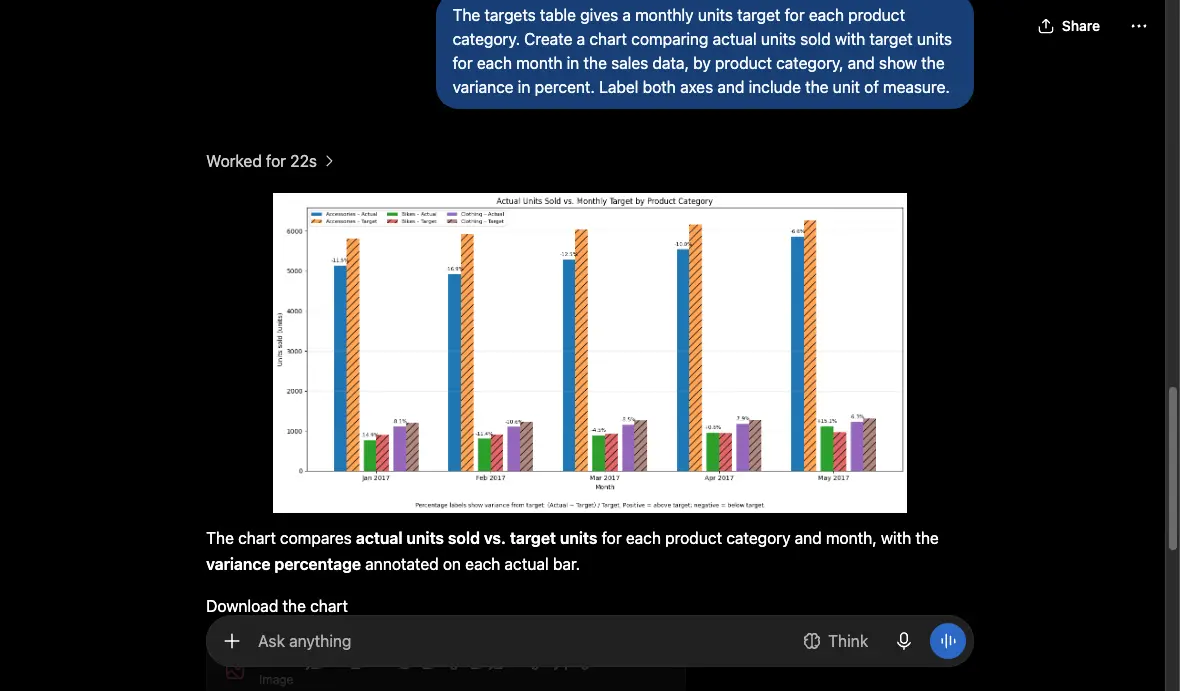
We did not test a paid plan, so we can’t say whether Plus or Business would finish the job.
Pick it if you need one chart from a workbook today. Price (checked 10 Oct 2026): Free; Go $8 a month; Plus $20; Pro from $100 (ChatGPT pricing). Canonical run record (workspace access required).
ThoughtSpot’s Spotter chat accepted the disclosed CSV adaptation in our trial test after refusing XLSX. It drew the requested charts, with one wrong target in its written table, but failed the dashboard, editable-export and next-month checks. Saved test evidence
Spotter refused the workbook (“not a supported file type”), so it got CSVs. The charts were right, but its written table gave one target as 6,290 instead of 6,270. It could not make a cross-filtered dashboard or share link, so we sent filters as prompts. Bikes and Australia were right, though each prompt reshaped the charts.
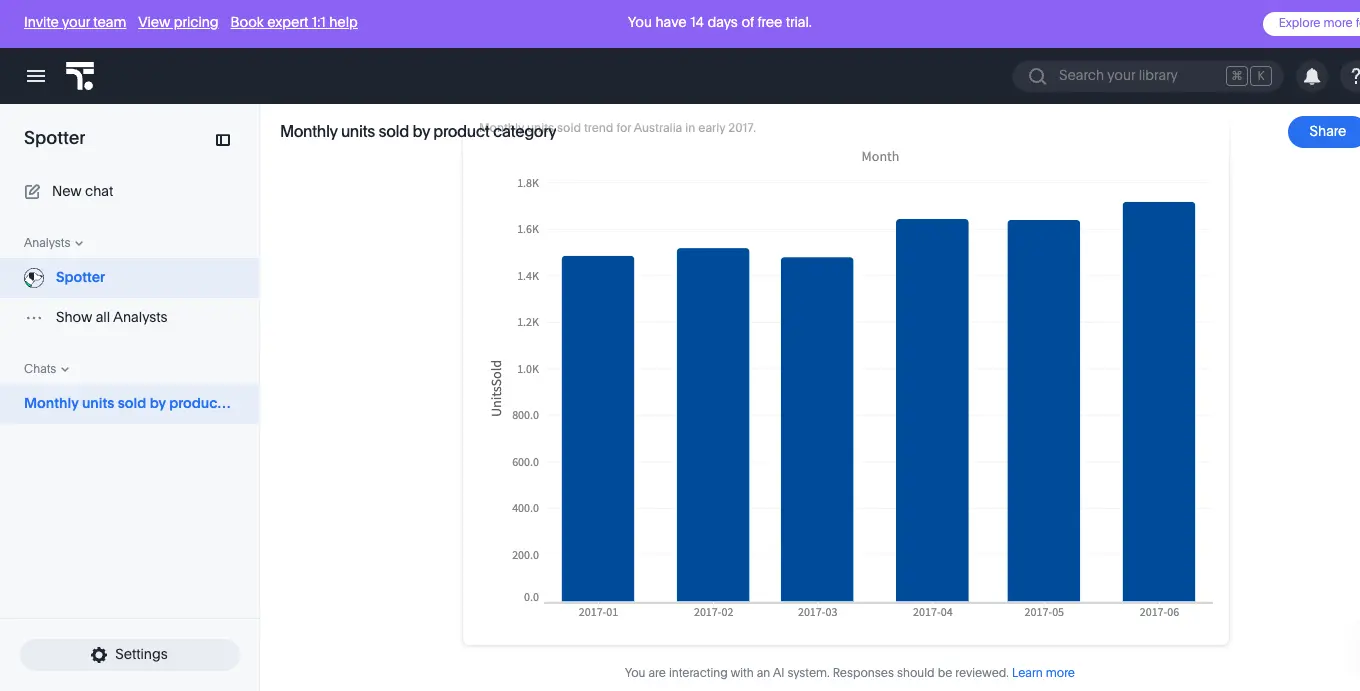
Its PDF had text and tables but no charts; the PDF and CSV both covered Australia only. For June, Spotter made new Australia charts, so the company-wide 8,260 never appeared. We did not test Liveboards or warehouse connections.
Pick it if your company already uses ThoughtSpot and you want quick charts from a small CSV. Price (checked 10 Oct 2026): Pro $50 per user a month billed yearly, which is the plan that lists Spotter; Essentials $25 does not (ThoughtSpot pricing). We used the 14-day trial. Canonical run record (workspace access required).
These are not ranked and get no verdict. Each line says what stopped us or why we left the tool out this round.
Your colleagues will keep editing the charts in Excel or PowerPoint
Claude (paid Pro).People outside the tool need a link that shows next month’s numbers
Anomaly AI.Your team wants the code—the instructions behind each chart—next to the dashboard
Deepnote.You want to try the whole job on a free account first
Julius AI.Your analysts already publish apps in Hex
Hex.You need one chart from a workbook today
ChatGPT (Free).Your company already runs ThoughtSpot and the file is a small CSV
ThoughtSpot (Spotter).If your data lives in a warehouse rather than in Excel files, building dashboards on BigQuery and Snowflake is the better guide.
In this test, we wrote down known totals first, then checked the unfiltered dashboard and both filters. Bikes had to show 4,532 units and Australia 7,769. We also opened the exported files, tried the share link signed out where possible, and gave the tool the next month’s file. Use anchors from your own workbook before you share.
No downloaded file in our test updated itself. Claude’s earlier Excel and PowerPoint files still showed May after its dashboard moved to June. Anomaly AI also required a separate regenerate step. Deepnote regenerated its exports during the update; you still need to download the new export and reopen it.
Our May and June workbooks kept the same seven sheets and columns, so we did not test a changed layout. Before replacing next month’s file, compare sheet names, column headers, data types and target ranges. If any changed, treat it as a new import and recheck the charts and filters; do not assume an automatic remap.
Save what the tool produced and note the exact step that stopped. ChatGPT Free stopped after three charts, and we did not test its paid path. Julius AI finished the dashboard and June update before its 100 credits ran out. Do not assume upgrading fixes the blocked step; verify that step on the plan you intend to buy.
You do not need coding skills to use the published filters we tested. Changing how a code-based dashboard calculates a metric is different. A notebook keeps code, data and charts together; Deepnote suited that workflow. We did not test whether a beginner could rewrite its calculations, and Hex’s filters were not fully tested because its app was blank in our browser.
Charts were the easy part: almost every tool got them right. The differences showed up afterwards — whether the filters really reached every chart, whether the exported file stayed editable, and whether June’s workbook updated the same dashboard. Run your own monthly file through your shortlist, then try the June step before you commit.
Anomaly AI is our product. It fits if other people need to open the dashboard next month without editing anything themselves; Claude is the stronger pick when the deliverable is an editable PowerPoint deck.
Founder, Anomaly AI (ex-CTO & Head of Engineering)
Abhinav Pandey is the founder of Anomaly AI, an AI data analysis platform built for large, messy datasets. Before Anomaly, he led engineering teams as CTO and Head of Engineering.
LinkedInContinue exploring AI data analysis with these related insights and guides.
Leaving Tableau as a small team? Match the replacement to which part of Tableau you keep and which cost, setup, or specialist burden you are trying to shed.
There is no single best Looker Studio alternative for GA4 reporting — the right move depends on the limit you have hit. A decision guide by constraint.

If you want answers, dashboards, reports, and alerts without dragging nodes across a workflow canvas, Anomaly AI is built for that.



