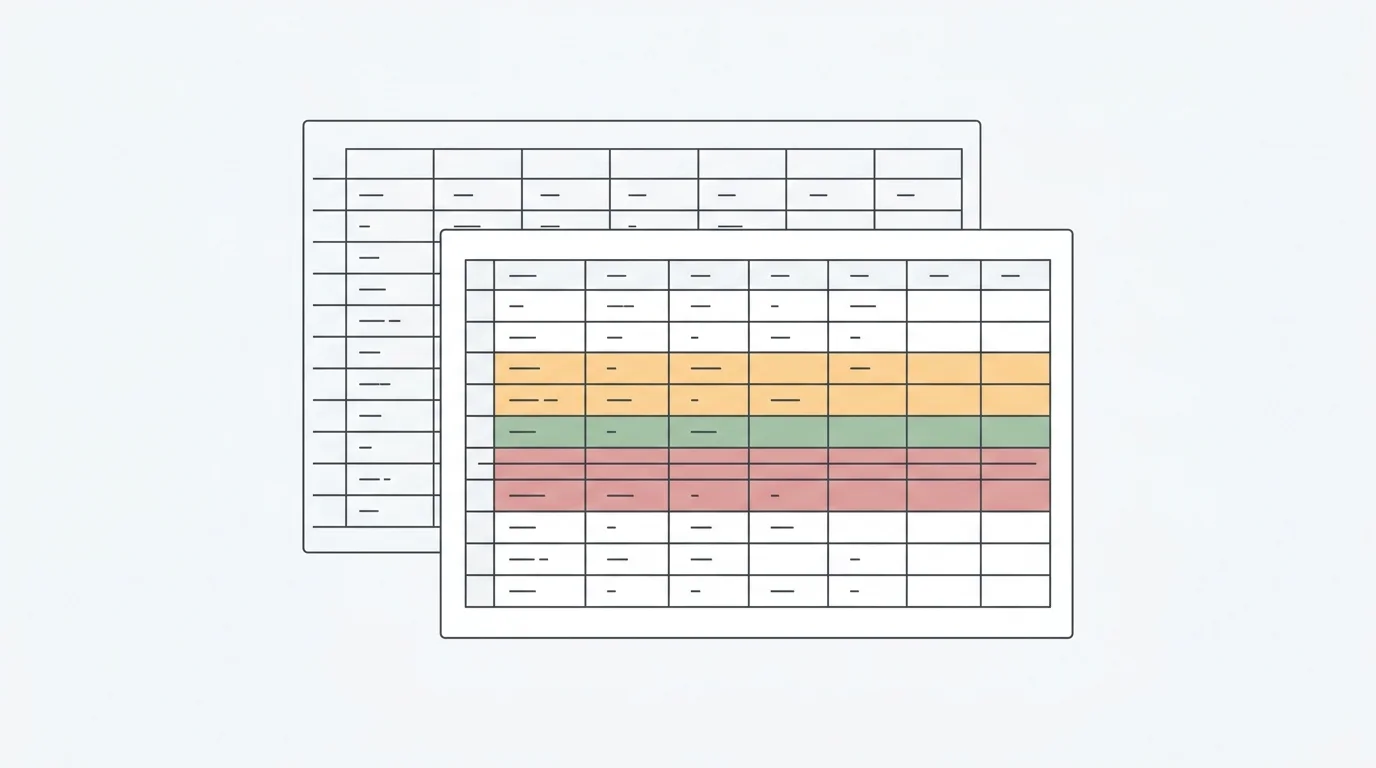
In today's data-driven business environment, the ability to quickly analyze and interpret data can mean the difference between strategic success and costly mistakes. After spending years building data engineering systems and analyzing millions of rows of business data, I've learned that data analysis tool excel remains one of the most accessible and powerful tools for professionals across industries.
According to recent industry data, 65% of data analysts use Excel daily, with particularly strong adoption in research (28.5%), accounting (28.3%), and project management (28.0%). Yet despite this widespread use, 57% of employees have only basic or no Excel skills—representing a significant opportunity for those who master advanced Excel analysis techniques.
This comprehensive guide will teach you the three fundamental pillars of Excel data analysis: formulas that automate calculations, pivot tables that transform raw data into insights, and charts that communicate your findings effectively. By the end, you'll understand not only how to use these powerful features but also when to consider modern ai data analyst tools like Anomaly AI for larger, more complex datasets that exceed Excel's capabilities.
Why Excel Remains Essential for Data Analysis in 2026
Before diving into techniques, it's worth understanding why Excel continues to dominate business analytics. From my experience working with data teams across startups and enterprises, Excel excels (no pun intended) in several key areas:
Universal Accessibility: Nearly every business professional has access to Excel, making it the common language of data analysis. Unlike specialized analytics platforms that require procurement approvals and training budgets, Excel is already installed on most corporate computers.
Flexibility for Ad-Hoc Analysis: When you need to quickly answer a business question—"What were sales by region last quarter?" or "Which products have the highest return rates?"—Excel allows you to start analyzing immediately without setting up databases or writing code.
Transparent Calculations: Every formula in Excel is visible and auditable. This transparency is crucial for financial reporting, compliance requirements, and building trust with stakeholders who want to understand how numbers were calculated.
However, Excel does have well-documented limitations. Performance degrades significantly with large files, the 1,048,576 row limit restricts big data analysis, and manual processes increase error risk. We'll discuss when to transition to AI-powered tools later in this guide.
Formulas are the foundation of any Excel workflow for data analysis. They enable automated calculations and data transformations that turn raw numbers into meaningful insights. Here are the most critical formulas every analyst should master, along with expert tips I've learned from real-world usage.
Statistical Functions: The Building Blocks
Statistical functions allow you to quickly summarize large datasets. The basics—=SUM(A1:A100), =AVERAGE(), =MEDIAN(), =MIN(), and =MAX()—form the foundation of most analyses.
Expert Tip: Use MEDIAN() instead of AVERAGE() when dealing with data that may contain outliers. For example, when analyzing sales performance across a team, one exceptional performer can skew the average upward, making it seem like everyone is performing better than reality. The median gives you the true middle performance.
The COUNT family of functions is equally important:
=COUNT() counts only cells containing numbers
=COUNTA() counts all non-empty cells
=COUNTIF(range, criteria) counts cells meeting specific conditions
For example, =COUNTIF(D2:D100,">500") counts how many cells exceed 500—useful for tracking KPIs like "How many customers spent over $500 this month?"
According to Microsoft's official Excel documentation, combining these statistical functions with proper data organization is the first step toward advanced data modeling.
Logical Functions: Decision-Making in Spreadsheets
Logical functions enable conditional analysis and automated decision-making within your spreadsheets. The IF() function is your workhorse for creating business logic.
Basic IF Syntax: =IF(condition, value_if_true, value_if_false)
Real-world example from sales analysis: =IF(B2>C2,"Over Target","Below Target") instantly categorizes performance against goals.
Expert Tip: Combine AND() and OR() for sophisticated multi-condition logic. In my work analyzing customer data, I frequently use formulas like:
=IF(AND(B2>10000, C2="Premium"), "High Value Customer", "Standard")
This identifies customers who both spend over $10,000 AND have premium status—crucial for targeted marketing campaigns.
Don't overlook IFERROR()—it's essential for professional-grade spreadsheets. Instead of showing ugly #DIV/0! or #N/A errors in your reports, use =IFERROR(formula, "Not Available") to display clean, user-friendly messages.
Lookup Functions: Connecting Data Across Tables
Lookup functions retrieve data from tables, making them indispensable for combining information from multiple sources. While VLOOKUP() is the most well-known, the INDEX-MATCH combination is more powerful and flexible.
VLOOKUP Syntax: =VLOOKUP(lookup_value, table_array, col_index_num, [range_lookup])
For example: =VLOOKUP("Widget A", A7:B9, 2, FALSE) searches for "Widget A" and returns the corresponding value from the second column.
Why INDEX-MATCH is Superior: After years of building financial models, I almost exclusively use INDEX-MATCH instead of VLOOKUP. Here's why:
1. Can look left: VLOOKUP only searches to the right, but INDEX-MATCH works in any direction
2. Survives column changes: If someone inserts a column, VLOOKUP breaks but INDEX-MATCH adapts
3. Performance: For exact-match lookups on unsorted data, Office 365 version 1809 and later can reuse a cached index across subsequent VLOOKUP, HLOOKUP, and MATCH lookups from the same range; actual INDEX-MATCH versus VLOOKUP performance still depends on the workbook and formula pattern, so neither is unconditionally faster
INDEX-MATCH Syntax: =INDEX(return_range, MATCH(lookup_value, lookup_range, 0))
Practical example: =INDEX(B:B, MATCH(A2, A:A, 0)) finds the row where A2's value appears in column A, then returns the corresponding value from column B.
For a comprehensive tutorial on lookup functions, see Microsoft's official VLOOKUP documentation.
Text Functions: Data Cleaning and Parsing
Text functions are critical for cleaning and standardizing data—often the most time-consuming part of analysis. Key functions include:
=UPPER(), =LOWER(), =PROPER() for standardizing text case
=TRIM() for removing extra spaces
=LEFT(text, num_chars), =RIGHT(), =MID() for extracting portions of text
=CONCATENATE() or =CONCAT() for combining text strings
=TEXT(value, format) for converting numbers to formatted text
Real-World Application: When importing customer data from multiple systems, names often come in inconsistent formats. I use =PROPER(TRIM(A2)) to clean names—TRIM removes extra spaces, and PROPER capitalizes correctly ("john smith" becomes "John Smith").
These formulas represent the core Excel analysis techniques that every professional analyst should master. Practice them with your own datasets to build fluency.
Mastering Pivot Tables for Data Summarization
If formulas are the foundation of Excel analysis, pivot tables are the power tool that transforms how you work with data. A well-constructed pivot table can summarize thousands of rows into actionable insights in seconds—something I demonstrate to skeptical stakeholders regularly.
What Are Pivot Tables?
Pivot tables dynamically reorganize and summarize data without modifying the source data. They answer business questions like "What are total sales by region and product category?" or "Which customer segments show the strongest growth?" without requiring complex formulas or manual calculations.
According to Microsoft's PivotTable documentation, these dynamic tools enable interactive data exploration that would be extremely time-consuming with traditional formulas alone.
Creating Your First Pivot Table: Step-by-Step
Step 1: Prepare Your Data
Before creating a pivot table, ensure your data is properly structured:
• Every column has a clear header in the first row
• No blank rows or columns within your data
• Consistent data types in each column (all dates are dates, all numbers are numbers)
• No merged cells
Common Mistake to Avoid: Don't include summary rows (like totals) in your source data. Pivot tables calculate summaries automatically, and including them leads to double-counting—an error I've seen cause serious reporting issues.
Step 2: Insert the Pivot Table
1. Click anywhere in your data range
2. Go to Insert > PivotTable
3. Excel auto-detects your data range (verify it's correct)
4. Choose where to place the pivot table (I recommend a new worksheet for clarity)
5. Click OK
Step 3: Build Your Analysis
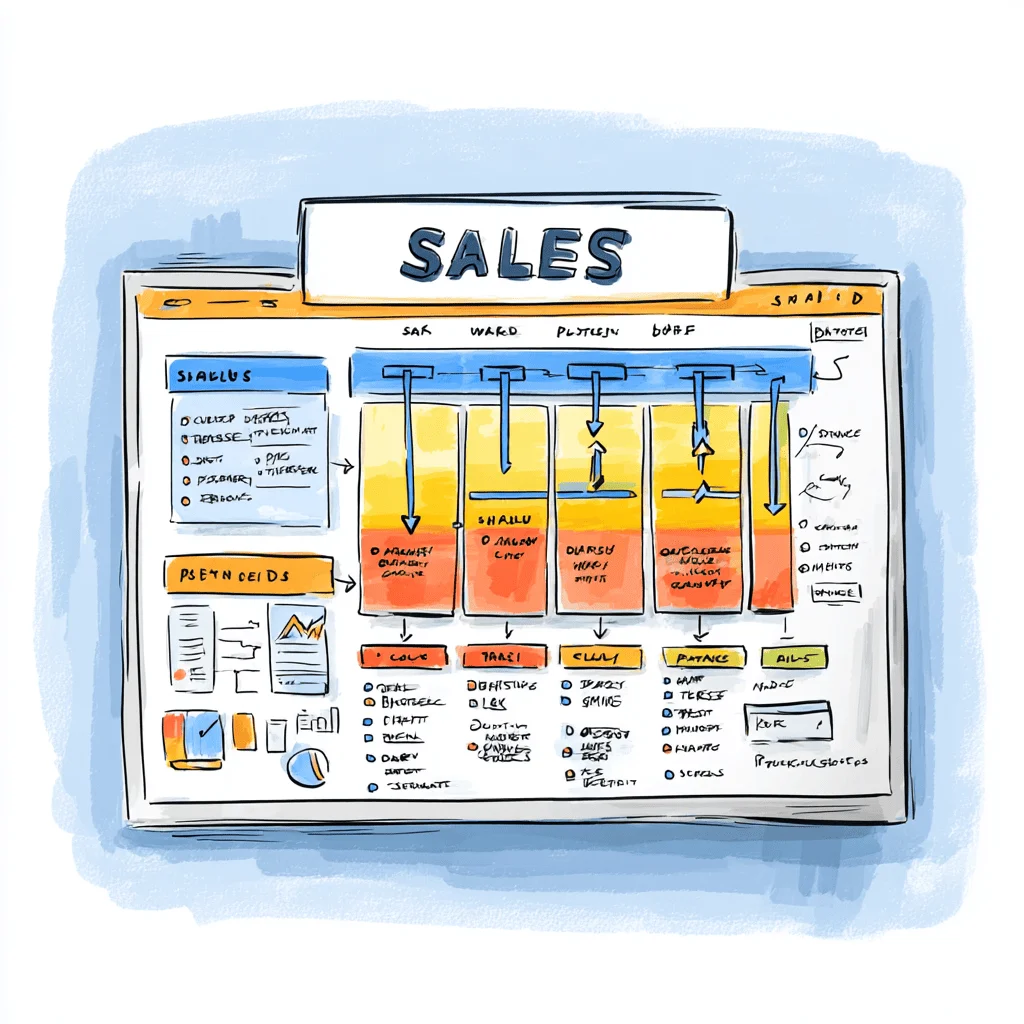
The PivotTable Fields panel has four areas:
Rows: Categories displayed vertically (e.g., Product Names, Regions)
Columns: Categories displayed horizontally (e.g., Months, Quarters)
Values: Numbers to calculate (e.g., Sum of Sales, Count of Orders)
Filters: Criteria to limit what data is shown (e.g., specific year, customer type)
Practical Example: To analyze quarterly sales by product, drag "Product" to Rows, "Quarter" to Columns, and "Sales Amount" to Values. Excel instantly creates a cross-tabulation showing each product's performance by quarter.
Advanced Pivot Table Techniques
Once you understand the basics, these advanced techniques separate novice users from Excel power users:
Grouping Data for Better Insights
Right-click any date field in your pivot table and select "Group" to automatically organize by months, quarters, or years. This is invaluable for time-series analysis—instead of seeing daily fluctuations, you can spot monthly trends.
For numeric data, grouping creates ranges. If analyzing customer orders, group by order value ranges ($0-$100, $101-$500, $501+) to understand purchasing patterns.
Slicers for Interactive Filtering
Slicers are visual filter buttons that make dashboards interactive and user-friendly. To add slicers:
1. Click your pivot table
2. Go to PivotTable Analyze > Insert Slicer
3. Select the fields you want to filter by (Region, Product Category, etc.)
4. Click OK
Slicers appear as clickable buttons. Users can filter multiple pivot tables simultaneously by connecting slicers—perfect for executive dashboards where stakeholders want to explore data themselves.
Expert Tip: Format slicers to match your company's branding. Right-click the slicer, select "Slicer Settings," then choose colors and layouts under the "Slicer" tab. Professional-looking dashboards increase stakeholder trust in your analysis.
Calculated Fields for Custom Metrics
Sometimes you need metrics that don't exist in your source data. Calculated fields create custom calculations within pivot tables:
1. Click your pivot table
2. Go to PivotTable Analyze > Fields, Items & Sets > Calculated Field
3. Enter a name and formula (e.g., "Profit Margin" = "Profit / Revenue")
4. Click OK
The calculated field appears in your field list and updates automatically as data changes.
Common Pitfall: Calculated fields use sum-of-sums logic. If you need row-by-row calculations (like growth rates), add those formulas to your source data before creating the pivot table.
Pivot Charts for Visual Analysis
Pivot charts combine pivot table flexibility with visual impact:
1. Click your pivot table
2. Go to PivotTable Analyze > PivotChart
3. Choose your chart type
4. Click OK
The chart updates automatically when you modify the pivot table structure—incredibly powerful for presentations where you want to explore different views of data on the fly.
Refreshing Data
When source data changes, right-click the pivot table and select "Refresh" to recalculate. For automatic updates, go to PivotTable Options > Data and check "Refresh data when opening the file."
For best practices on pivot table optimization, Microsoft provides comprehensive guidance on their support site.
These pivot table techniques represent essential Excel analysis techniques for anyone working with business data regularly.
Data Visualization with Excel Charts
Numbers tell stories, but charts make those stories immediately understandable. After presenting hundreds of analyses to executives, I've learned that the right visualization can transform how stakeholders perceive and act on data.
Choosing the Right Chart Type
The most common mistake in data visualization is choosing charts based on personal preference rather than data structure. Here's when to use each major chart type:
Column and Bar Charts: Comparisons
Use column charts for comparing values across categories, especially time-based data. Monthly sales trends, quarterly performance by product line, or year-over-year growth all work well as column charts.
Use bar charts when category names are long (they display horizontally, giving more space for labels) or when you have many categories (8+) that won't fit well horizontally.
Real-World Example: When analyzing customer satisfaction across departments, bar charts work better than column charts because department names like "Customer Service Operations" need horizontal space.
Line Charts: Trends Over Time
Line charts excel at showing continuous change—stock prices, website traffic, temperature data, or any metric tracked over time. They make trends, patterns, and rate of change immediately visible.
Expert Tip: Use line charts instead of column charts when you have many time periods (20+ months). Column charts become cluttered, but line charts remain readable even with years of daily data.
Pie Charts: Parts of a Whole (Use Sparingly)
Pie charts show proportions, but they're frequently misused. Only use pie charts when:
• You have 5 or fewer categories
• The segments are meaningfully different in size (avoid when everything is ~20%)
• The total represents something meaningful (market share, budget allocation)
Common Mistake: Never use 3D pie charts. They distort perception and make it harder to compare segments. Always use flat, 2D pies.
Scatter Plots: Relationships Between Variables
Scatter plots reveal correlations and relationships between two variables. Use them to explore questions like:
• Does advertising spending correlate with sales revenue?
• Is there a relationship between employee experience and productivity?
• Do product quality scores correlate with return rates?
In my data analysis work, scatter plots often reveal unexpected relationships that lead to valuable insights.
Combo Charts: Multiple Metrics with Different Scales
Combo charts display two different types of data on the same chart using different scales. Classic example: Show sales as columns (left axis) and profit margin as a line (right axis, percentage scale).
This is particularly valuable in financial reporting where you need to show both absolute values and percentages simultaneously.
Creating Effective Charts in Excel
Step 1: Select Your Data
Highlight the data range including headers. For best results, include only the data you want to chart—don't select entire columns or rows, as this slows Excel and creates messy charts.
Step 2: Insert the Chart
1. Go to Insert > Charts
2. Choose your chart type
3. Excel creates a basic chart
Quick Tip: Not sure which chart to use? Click Insert > Recommended Charts and Excel suggests appropriate visualizations based on your data structure.
Step 3: Customize for Clarity
The default Excel chart needs refinement for professional presentations. Key customizations:
Add Descriptive Titles: Click the chart title and write a clear, specific title. Instead of "Sales Data," use "Q4 2024 Sales by Region Show 15% Growth." The title should communicate the key insight.
Label Axes Clearly: Click Chart Elements (+) > Axis Titles and add descriptive labels. "Revenue (USD Millions)" is more helpful than just "Revenue."
Remove Chart Junk: Delete unnecessary gridlines, borders, and backgrounds. Every element should serve a purpose. I typically remove horizontal gridlines unless the exact values are critical.
Use Data Labels Strategically: Add data labels to highlight key values, but don't label every single point—this creates clutter. Label only the most important data points or use them sparingly.
Color Scheme Best Practices
After creating hundreds of business dashboards, these color principles consistently improve clarity:
1. Limit your palette: Use 3-5 colors maximum across all charts in a dashboard
2. Use color meaningfully: Reserve red for negative/problems, green for positive/targets, blue for neutral data
3. Ensure accessibility: Avoid red-green combinations (colorblind-friendly), and test charts in grayscale to ensure they're still readable when printed
4. Maintain consistency: If "East Region" is blue in one chart, keep it blue in all charts
Microsoft provides detailed guidance on conditional formatting and color scales that extends to chart design.
Advanced Visualization Techniques
Dynamic Charts with Named Ranges
Create charts that automatically update when new data is added using named ranges and OFFSET formulas. This technique eliminates manual chart updates—critical for recurring reports.
1. Create a named range using =OFFSET(Sheet1!$A$1,0,0,COUNTA(Sheet1!$A:$A),1)
2. Use this named range as your chart data source
3. When you add new rows, the chart expands automatically
Sparklines for Compact Visualization
Sparklines are tiny charts that fit within cells, perfect for dashboard-style reports where space is limited. To insert sparklines:
1. Click the cell where you want the sparkline
2. Go to Insert > Sparklines
3. Choose Line, Column, or Win/Loss
4. Select your data range
I use sparklines extensively in executive reports—they show trends next to the numbers without taking up extra space.
Building Interactive Dashboards
Combine multiple charts, pivot tables, and slicers on one sheet to create interactive dashboards:
1. Create pivot tables for your key metrics
2. Add pivot charts based on those tables
3. Insert slicers to filter all tables/charts simultaneously
4. Arrange elements with clear visual hierarchy
Expert Tip: Use consistent positioning—place filters at the top, main metrics in the center, and supporting details at the bottom. This matches how people naturally scan information.
Data Storytelling Principles
Every chart should tell a story. Before creating any visualization, ask yourself:
1. What is the key message? Your chart title should state this clearly.
2. Who is the audience? Executives need high-level trends; analysts need detailed breakdowns.
3. What action should this drive? Good visualizations lead to decisions.
Use visual hierarchy to guide attention—make the most important elements larger, bolder, or in contrasting colors. Remove anything that doesn't support your message.
For complex analytical visualizations, especially with large datasets, consider AI data analyst tools that can automatically identify and visualize patterns that might not be obvious in Excel.
Beyond formulas, pivot tables, and charts, Excel includes powerful built-in tools for sophisticated analysis. These features transform data analysis tool excel from a spreadsheet program into a genuine analytics platform.
The Data Analysis ToolPak is an Excel add-in that provides statistical analysis tools without requiring formulas. To enable it:
1. Go to File > Options > Add-ins
2. Select "Excel Add-ins" at the bottom and click Go
3. Check "Analysis ToolPak" and click OK
4. Find it under the Data tab
Key Features:
Descriptive Statistics: Generates comprehensive statistical summaries including mean, median, standard deviation, variance, kurtosis, and skewness—all with one click. This saves hours of manual formula creation.
Regression Analysis: Performs linear regression to identify relationships between variables and make predictions. Critical for forecasting and trend analysis.
Histogram: Automatically creates frequency distributions showing how data is distributed across value ranges. Essential for quality control and understanding data patterns.
Moving Average: Smooths time-series data to identify trends by reducing noise. Widely used in financial analysis and forecasting.
Real-World Application: When analyzing customer churn data, I use the ToolPak's correlation analysis to identify which factors (contract length, support tickets, usage frequency) most strongly correlate with customers leaving. This guides retention strategies.
What-If Analysis Tools
What-If Analysis tools help you plan scenarios and optimize decisions. Find them under Data > What-If Analysis.
Goal Seek: Working Backwards
Goal Seek determines what input value achieves a desired result. For example: "How many units must we sell to reach $100,000 profit?"
1. Click Data > What-If Analysis > Goal Seek
2. Set cell: Your formula cell (e.g., profit)
3. To value: Your target (e.g., 100000)
4. By changing cell: The input to adjust (e.g., units sold)
Goal Seek runs instantly and shows the required input value.
Scenario Manager: Comparing Multiple Scenarios
Scenario Manager compares multiple what-if scenarios side by side. Perfect for business planning:
1. Click Data > What-If Analysis > Scenario Manager
2. Click "Add" to create scenarios (Best Case, Most Likely, Worst Case)
3. Define the changing cells and values for each scenario
4. Create a summary report to compare all scenarios
Expert Application: When planning a product launch, I create scenarios for different price points and market penetration rates. This shows leadership the range of possible outcomes and helps set realistic targets.
Data Tables: Sensitivity Analysis
Data tables show how changing one or two variables affects formula results. Create a table showing how different interest rates and loan terms impact monthly payments, or how price changes and volume affect revenue.
This is invaluable for pricing strategy, financial modeling, and risk assessment.
Conditional formatting transforms numbers into visual insights automatically. According to Microsoft's conditional formatting guide, these visual tools significantly improve data comprehension.
Color Scales: Apply gradient colors showing high-to-low values. Red (low) to yellow (medium) to green (high) makes performance differences immediately visible.
Data Bars: Display horizontal bars within cells proportional to values. Perfect for comparing values at a glance without charts.
Icon Sets: Show arrows, traffic lights, or ratings based on cell values. Great for KPI dashboards showing performance against targets.
Expert Technique: Combine conditional formatting with formulas for dynamic alerts. Create a rule that highlights cells red when values exceed thresholds, yellow when approaching limits, and green when safely within range. This creates self-updating dashboards that flag problems automatically.
These advanced Excel analysis techniques separate casual Excel users from true data analysis professionals.
Excel's Limitations and Modern AI Alternatives
While Excel remains powerful for many scenarios, understanding its limitations helps you know when to upgrade to modern tools. After managing data pipelines handling billions of records, I've experienced firsthand where Excel breaks down.
Critical Limitations of Excel for Large-Scale Analysis
Performance and Scale Issues
Excel supports up to 1,048,576 rows per sheet, but performance degrades significantly with large files. Complex formulas on datasets over 100,000 rows cause noticeable slowdowns. Files with multiple pivot tables and formulas can become sluggish, crash frequently, or take minutes to recalculate.
Real-World Example: In a previous role, our sales team maintained an Excel file tracking customer interactions. As it grew beyond 200,000 rows, simple operations like sorting took 30+ seconds, and the file crashed multiple times daily. This productivity loss drove our migration to a database-backed system.
Manual Processes Create Error Risk
Traditional Excel analysis often relies on manual formula writing and pivot table creation; while Microsoft 365's Analyze Data can surface some trends and patterns automatically, much pattern-finding is still hands-on. Research shows that manual data entry increases error risk significantly, and even experienced analysts can miss important patterns buried in large datasets.
Every copy-paste operation, every manual refresh, and every formula written by hand introduces potential mistakes—especially problematic for financial reporting or compliance-critical analysis.
Collaboration Challenges
While Excel now supports cloud collaboration, simultaneous editing remains problematic for complex analytical spreadsheets. Version control issues, conflicting changes, and formula overwrites are common problems in teams using shared Excel files.
Limited Advanced Analytics
Excel does include some native predictive and pattern features: on supported Windows versions (Microsoft 365, 2024, and 2021), the Forecast Sheet builds a bounded time-series forecast worksheet, and Microsoft 365's Analyze Data surfaces trends, patterns, and time-series outliers (it doesn't support datasets over 1.5 million cells). These are bounded worksheet and task-pane features rather than continuous enterprise monitoring; for complex analyses like time series forecasting and pattern recognition at large scale, teams often turn to specialized tools.
When to Consider Upgrading to AI Data Analyst Tools
Consider transitioning to ai data analyst platforms when you experience:
• Regular work with datasets over 500,000 rows
• Need for refreshable dashboards and scheduled email reports
• Multiple data sources requiring integration (databases, APIs, cloud services)
• Repetitive analysis tasks consuming hours weekly
• Need for traceable, source-backed calculations at scale
• Need for stakeholder-ready dashboards, reports, and documents
Introducing Anomaly AI: Intelligent Data Analysis
Anomaly AI represents the next evolution in data analysis—combining Excel's accessibility with AI-powered automation and enterprise-scale performance. As someone who built this platform specifically to address Excel's limitations in my data engineering work, here's how it transforms analysis:
Automated Data Cleaning and Preparation
Instead of manually cleaning data with formulas and filters, Anomaly AI's AI agents automatically:
• Detect and remove duplicates
• Standardize date and text formats
• Summarize value ranges and distributions
• Validate data quality
• Handle missing values intelligently
This automation saves hours on every analysis project.
Intelligent Pattern Recognition
While Excel's built-in analysis is more limited — Microsoft 365's Analyze Data surfaces some trends, patterns, and time-series outliers but doesn't support datasets over 1.5 million cells — Anomaly AI approaches the same work as reviewable, source-backed analysis:
• Ask a question and get analysis you can trace to the source data, assumptions, and calculations behind it
• Apply your own metric definitions and business rules so recurring results stay consistent
• Turn the analysis into dashboards, Excel reports, and stakeholder-ready documents
• Save the workflow as a refreshable, recurring report
Because every output is traceable to its source data and logic, you can verify a number before you rely on it.
Scalable Performance for Large Datasets
Anomaly AI handles millions of rows effortlessly, processing in seconds what would crash Excel. Upload files up to 1GB, connect to databases like MySQL, BigQuery, or Snowflake, and analyze data at enterprise scale. Need to bring Google Analytics data into Excel? See our guide to connecting GA4 to Excel.
Automated Dashboard Creation
Instead of manually building charts and pivot tables, Anomaly AI's agents analyze your data structure and automatically create appropriate visualizations. Every chart is backed by SQL queries you can review—ensuring complete transparency and reducing AI hallucination risk.
Refreshable Dashboards and Scheduled Reports
Build dashboards and reports you can refresh as your data changes, and schedule email reports on a recurring cadence—so the numbers reach the right people without rebuilding them by hand. Every figure keeps its traceable, reviewable calculation behind it.
Collaborative Analytics
Share dashboards with teams, set up role-based access controls, and collaborate without version control nightmares. Everyone sees the latest synced view, and changes sync instantly.
Excel and AI Tools: Complementary, Not Competing
The goal isn't to completely replace Excel—it's to use the right tool for each job:
Use Excel For:
• Quick ad-hoc analysis and calculations
• One-time data exploration
• Custom calculations requiring specific formulas
• Financial models with complex interdependencies
• Reporting with highly customized formatting
Use AI Data Analyst Tools For:
• Large datasets (500,000+ rows)
• Refreshable dashboards and scheduled email reports
• Reviewable, source-backed calculations and metric definitions
• Multi-source data integration
• Verifiable outputs you can inspect before sharing
• Team collaboration on analytics projects
Many of our users at Anomaly AI export results to Excel for final presentation—combining AI-powered analysis with Excel's familiar reporting format. This hybrid approach leverages the strengths of both tools.
For more insights on modern data analysis approaches, see our guide on AI data analysis tools in 2026 and learn about data visualization best practices.
Frequently Asked Questions
What is the best data analysis tool in Excel?
The most powerful data analysis tool in Excel is pivot tables. They enable rapid summarization and exploration of large datasets without formulas. Combined with slicers for filtering and pivot charts for visualization, pivot tables handle the majority of business analysis needs. For statistical analysis, the Data Analysis ToolPak provides advanced functions like regression and correlation analysis.
How do I analyze data in Excel for beginners?
Start with these fundamental steps: (1) Organize your data with clear headers and consistent formatting, (2) Use basic formulas like SUM, AVERAGE, and COUNT to summarize data, (3) Create a pivot table to group and summarize information, (4) Insert charts to visualize patterns, and (5) Apply conditional formatting to highlight important values. Master these core Excel analysis techniques before moving to advanced features.
What Excel formulas are essential for data analysis?
The most critical formulas for data analysis are: Statistical functions (SUM, AVERAGE, MEDIAN, COUNT, COUNTIF), Logical functions (IF, AND, OR, IFERROR), Lookup functions (INDEX-MATCH, VLOOKUP), and Text functions (CONCATENATE, LEFT, RIGHT, TRIM, UPPER/LOWER). These formulas handle 90% of common analysis scenarios.
How many rows of data can Excel handle effectively?
Excel supports up to 1,048,576 rows per sheet, but practical limits are much lower. Performance degrades noticeably above 100,000 rows with complex formulas, and files over 500,000 rows often experience slow performance and crashes. For datasets regularly exceeding 100,000 rows, consider database-backed tools or AI data analyst platforms like Anomaly AI designed for large-scale analysis.
What's the difference between VLOOKUP and INDEX-MATCH?
VLOOKUP searches for a value in the first column and returns a value from a column to the right. INDEX-MATCH combines two functions for more flexibility: it can look left or right and doesn't break when columns are inserted. For exact-match lookups on unsorted data, Office 365 version 1809+ can reuse a cached index across subsequent VLOOKUP, HLOOKUP, and MATCH lookups from the same range; actual INDEX-MATCH versus VLOOKUP performance still depends on the workbook and formula pattern, so choose based on flexibility and maintainability rather than an assumed speed advantage. Many Excel users prefer INDEX-MATCH for its flexibility and resilience to column changes.
When should I use Excel vs. an AI data analyst tool?
Use Excel for quick ad-hoc analysis, one-time calculations, datasets under 100,000 rows, and highly customized reporting. Upgrade to AI data analyst tools when working with datasets over 500,000 rows, needing repeatable source-backed analysis, refreshable dashboards and reports, integrating multiple data sources, or performing large-scale analysis. Many analysts use both tools complementarily.
How do I create an interactive dashboard in Excel?
Create interactive dashboards by: (1) Building pivot tables for your key metrics, (2) Creating pivot charts from those tables, (3) Adding slicers to enable filtering, (4) Connecting slicers to multiple pivot tables so they filter simultaneously, and (5) Arranging elements with clear visual hierarchy. Use consistent formatting and remove unnecessary gridlines for professional appearance.
Conclusion: Master Excel, Then Scale with AI
Excel remains an indispensable tool for data analysis in 2026, and mastering these fundamental Excel analysis techniques provides a foundation that benefits any data-focused career. The formulas, pivot tables, and charts covered in this guide handle the majority of business analysis needs across industries.
Key Takeaways:
1. Master core formulas first: SUM, AVERAGE, IF, and INDEX-MATCH form the foundation of analytical thinking in spreadsheets
2. Pivot tables are your power tool: Learn to quickly summarize and explore large datasets through dynamic grouping and filtering
3. Visualize for impact: Choose chart types based on data structure and audience needs, not personal preference
4. Leverage advanced tools: The Data Analysis ToolPak and What-If Analysis expand Excel's capabilities significantly
5. Know the limits: Recognize when dataset size, collaboration needs, or analysis complexity require more powerful tools
The world of data analysis tool excel continues evolving. While Excel handles structured, moderate-sized data exceptionally well, modern businesses increasingly face scenarios requiring large-scale processing, refreshable dashboards and reports, and repeatable, source-backed analysis.
For datasets regularly exceeding Excel's practical limits, or when you need refreshable dashboards, scheduled email reports, and traceable calculations you can review, explore Anomaly AI—purpose-built to combine Excel's accessibility with AI-powered automation and enterprise-scale performance. Try it free to experience how ai data analyst tools complement your Excel skills.
Start applying these techniques today. Open your own dataset, practice creating pivot tables, experiment with formulas, and build visualizations that tell compelling stories. Every expert analyst started exactly where you are now—the difference is they committed to continuous practice and learning.
Related Reading: