Quick answer — building a custom report in GA4
GA4 has two custom-reporting surfaces. Reports > Library is where you build custom detail reports, customize overview reports, and publish them in collections so everyone with property access sees them — and those reports can be scheduled by email. Explorations is the flexible workspace for answering one specific question: pick a template (free-form for a custom table, funnel for drop-off, path for journeys, segment overlap for audience intersections), then add dimensions, metrics, filters, and segments. Explorations are private until you share them, they sample above 10 million events per query, they can't be scheduled, and they can't join GA4 with any other data source. This guide covers the Explorations path.
Looking for something else? For a standing view your team checks on a cadence, see the GA4 dashboard guide. For a recurring stakeholder summary, start from the GA4 weekly report template.
GA4's default reports are fine if your only question is "how much traffic did we get last week." But the moment you want to see something specific — conversion rates by campaign source on mobile over the last 90 days, or the drop-off at each step of a signup funnel, or how returning visitors behave differently from first-timers — the default reports come up short. That's where GA4 custom reports come in.
This guide walks through building custom GA4 reports using the Explorations workspace — free-form tables, funnels, segments, custom dimensions, and the rest. It's written for marketing ops power users who already understand the basics of GA4 and want to get more out of it. It also covers where GA4's built-in reporting hits a ceiling — and what to do when you need to go beyond it.
First: Which Custom-Report Surface Do You Need?
GA4 has two of them, and picking the wrong one costs you a rebuild.
- Reports > Library. Click Library at the bottom of the Reports nav and you can create a custom detail report, customize an overview report, and organise them into collections. Publish a collection and it appears in the left nav for everyone with access to the property. These reports persist, they're shared by default once published, and an administrator can schedule them by email. Choose this when the same view needs to be there for the whole team next month.
- Explorations. Click Explore and you get the flexible analysis workspace: free-form tables, funnels, path analysis, segment overlap, cohorts, user lifetime. Far more analytical range than the Library, but private until shared, read-only for everyone else once shared, and not schedulable. Choose this when you have one specific question and the answer matters more than the view persisting.
The rest of this guide covers the Explorations path, because that's where the analytical depth is. If what you actually want is a persistent shared report, build it in the Library instead — and if you want it to arrive in someone's inbox on a schedule, the Library is the only GA4-native route.
GA4 Exploration Types: What You Can Actually Build
The Explorations workspace gives you seven techniques, each built for a different question:
- Free-form: The workhorse. Build a custom table or chart by dragging any dimensions and metrics you want. Answers ad-hoc questions like "which pages drive the most key events by source?"
- Funnel exploration: Build a multi-step funnel to see where users drop off (e.g., view product → add to cart → checkout → purchase).
- Path exploration: Trace the actual paths users take through your site. Answers "what do users do after they land on this page?"
- Segment overlap: Visualize how two or three user segments intersect — e.g., mobile users AND new users AND paid-traffic users.
- Cohort exploration: Track how groups of users who share an attribute (acquisition date, first-visit source) behave over time.
- User exploration: Drill into the individual users that make up a segment you created or imported, down to their activity timeline.
- User lifetime: Analyze metrics like first-visit date, total revenue, and lifetime engagement across a user's whole relationship with you.
The free-form exploration is what you'll use most of the time. The other six are specialized tools — useful when the question fits, wasted effort when it doesn't.
Let's build a custom report that shows conversion rate by traffic source for the last 30 days — a common marketing ops question that the default reports don't answer directly.
Step 1: Create the Exploration
- In GA4, click Explore in the left nav
- Click the Blank template (or Free form)
- You'll see three panels: Variables (left), Tab Settings (middle), and the Canvas (right)
Step 2: Add Dimensions
In the Variables panel, click + next to Dimensions:
- Search and select
Session source / medium
- Search and select
Device category (optional — for mobile vs desktop breakdown)
- Click Import
Step 3: Add Metrics
Click + next to Metrics:
SessionsKey events (or a specific key event if you have one defined)Session key event rate- Click Import
Step 4: Drag Dimensions and Metrics into the Report
In the Tab Settings panel:
- Drag
Session source / medium into the Rows field
- Drag
Sessions, Key events, and Session key event rate into the Values field
- Set the Date range at the top of the Variables panel to "Last 30 days"
You should now see a table in the Canvas showing conversion rate by traffic source for the last 30 days. That's a custom GA4 report.
Step 5: Sort, Filter, and Compare
- Sort: Click any column header to sort ascending or descending
- Filter: Drag a dimension into the Filters field and set conditions (e.g., exclude
direct / (none))
- Compare date ranges: In the Variables panel, set Comparison to a previous period to see change-over-time columns
Step-by-Step: Build a Conversion Funnel
Funnel explorations let you define a sequence of steps (pageviews, events, or a mix) and see how many users complete each one — plus where they drop off. It's the report type marketing ops teams spend the most time in.
Step 1: Create the Funnel
- In Explore, click Funnel exploration
- You'll see the same three-panel layout as free-form, but with a pre-populated funnel structure
Step 2: Define Your Funnel Steps
In the Tab Settings panel, click Steps to edit the funnel:
- Step 1: Event name matches
page_view (or a specific landing page)
- Step 2: Event name matches
view_item (product view)
- Step 3: Event name matches
add_to_cart
- Step 4: Event name matches
begin_checkout
- Step 5: Event name matches
purchase
You can also add conditions within a step — e.g., "view_item with item_category = electronics" — for more targeted funnels.
Step 3: Choose Funnel Type
- Closed funnel: Users must enter at step 1 to be counted
- Open funnel: Users can enter at any step
Closed funnels are more common for measuring a specific user journey. Open funnels are useful for auditing individual step performance regardless of entry point.
Step 4: Elapsed Time and Next Action
Two settings worth knowing, and they work differently:
- Show elapsed time is a toggle. Turn it on to see the average time users take between each step.
- Next action is a dimension you select, not a switch. Pick a dimension and GA4 fills a "Top 5 next actions" card with the most common actions users took after each step. Read it carefully: a large
(no next action) share can mean users left, but with page or screen dimensions it can equally mean the dimension value simply didn't change — they stayed put. Treat it as a lead to investigate rather than proof of abandonment.
Creating and Applying Segments
Segments in GA4 are reusable user/session/event filters you can apply to any exploration. They're how you slice data into meaningful cohorts — "mobile users from paid search" or "users who purchased in the last 30 days."
Creating a Segment
- In the Variables panel, click + next to Segments
- Choose a segment type: User segment, Session segment, or Event segment
- Define conditions: "include users whose device category is mobile AND session source/medium is google/cpc"
- Name it descriptively (e.g., "Mobile paid search users")
- Save
Applying Segments to Your Report
Drag the segment into the Segment comparisons field in Tab Settings. Your report now splits into columns showing each segment side by side — perfect for comparing groups.
Segment Overlap Exploration
If you want to visualize how segments intersect (e.g., "how many users are both mobile AND new visitors AND paid-traffic?"), use the Segment overlap exploration template. It generates a Venn diagram of up to three segments.
Custom Dimensions and Metrics: The Advanced Layer
GA4's built-in dimensions cover the basics. When you need to slice data by something unique to your business — plan tier, content category, customer ID — you create custom dimensions and custom metrics at the property level.
Creating a Custom Dimension
- Go to Admin → Custom definitions
- Click Create custom dimension
- Name it (e.g., "plan_tier")
- Choose scope: Event (most common), User, or Item
- Map it to an event parameter (e.g.,
plan_tier) or a user property
- Save
Custom dimensions take 24-48 hours before you can report on them. Once they're populating, they appear in the Explorations dimension picker and can be used in any custom report like a built-in dimension.
Common Custom Dimensions Worth Creating
- Logged-in state: Distinguishes authenticated vs. anonymous users
- Plan tier: For SaaS — which plan are users on
- Content category: For media sites — what type of content drives traffic
- Experiment variant: Which A/B test variant a user saw
- Internal user role: To exclude employee traffic from reports
Saving, Sharing, and Exporting Custom Reports
Sharing Within GA4
By default, explorations are private to you. To share:
- In the exploration, click the Share icon (top right)
- Toggle Share with property users to on
- Other users with GA4 access to the property will see the exploration in their Explore list
Important: Shared explorations become read-only for others. They can view and duplicate but not edit the original.
Exporting Data
- CSV: Click the Export icon (top right) → Download CSV. For deeper Excel work, see our GA4 to Excel export guide.
- Google Sheets: Click Export → Export to Google Sheets
- PDF: Click Export → Download PDF for sharing with non-GA4 users
When an Exploration Is the Wrong Shape
Explorations answer a question. Three adjacent jobs need something else:
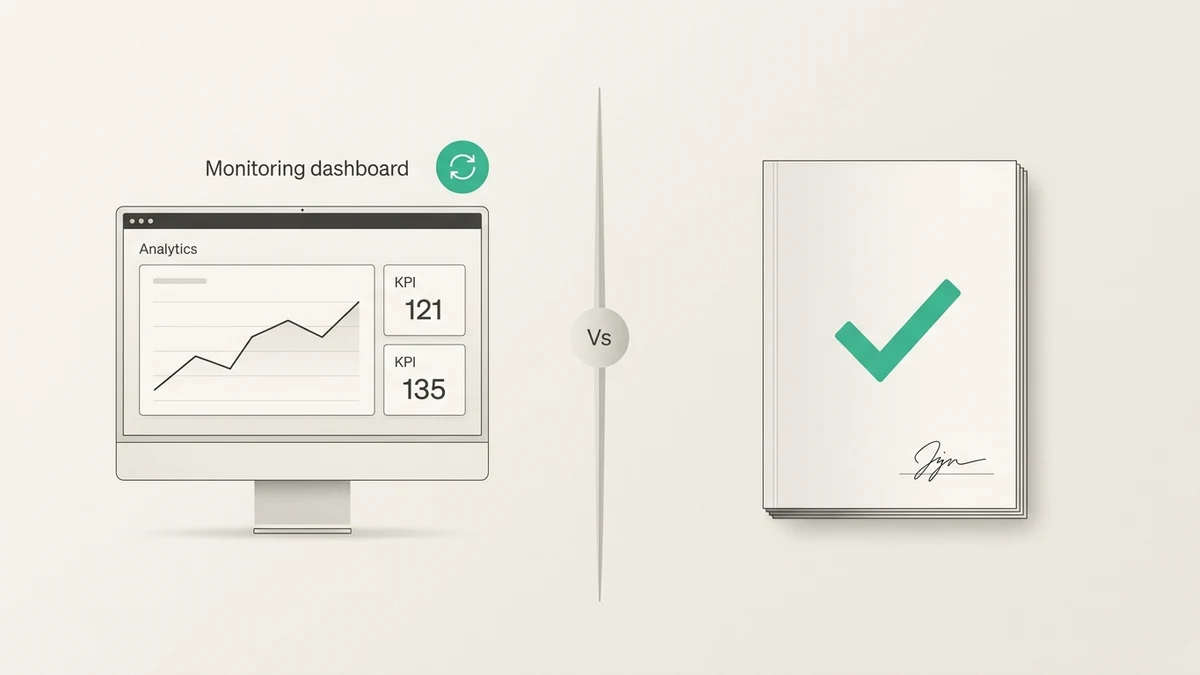
- A standing view your team checks. Explorations are private by default and have no multi-chart canvas, so they don't work as team dashboards. The GA4 dashboard guide covers choosing between GA4 report collections, Looker Studio, Excel and Power BI, and AI-built dashboards.
- A recurring stakeholder summary. If the same numbers go to the same people every Monday, you want a fixed structure and written commentary, not a rebuilt exploration. The GA4 weekly report template has the five-section structure and the metrics for each one.
- Scheduled delivery. Explorations can't be scheduled. GA4's native scheduling works on Reports, not explorations: an administrator can schedule up to 50 standard or custom reports to email as PDF or CSV, daily, weekly, monthly, or quarterly. So either rebuild the view as a Library report and schedule that, use Looker Studio's scheduled email (see our GA4 to Looker Studio guide), or use a dedicated GA4 tool that handles recurring delivery.
GA4's Custom Reporting Limits
GA4 Explorations is powerful, but it has hard limits. Knowing them saves you hours of "why doesn't this work" debugging.
Rows Displayed and Rows Exported
How many rows an exploration shows is a setting, not a fixed ceiling: in Tab Settings, Show rows controls the row count for the table you're looking at. What is fixed is the export: GA4 caps exports at 100,000 rows for reports and explorations, and unsampled explorations at 10 million cells.
The practical failure mode isn't the display setting — it's assuming the visible table is the whole result. If you're about to make a decision on a long tail, export it or move the analysis to BigQuery rather than reading the top of a truncated table.
Sampling
Explorations sample once a query needs to process more than 10 million events. Sampling is fast but approximate — numbers won't match what you'd see from a narrower query. The sampling indicator appears in the Canvas. If you see it, either narrow the date range or export to BigQuery for unsampled analysis.
Cardinality ("(other)" Row)
When a dimension has too many unique values (thousands of page paths, product IDs, etc.), GA4 collapses the low-volume entries into a single "(other)" row. You'll see "(other)" eating up a suspiciously large share of your report. Solutions: narrow the scope, use BigQuery export, or pre-group dimensions via calculated fields.
No Cross-Source Joins
GA4 Explorations only knows about GA4 data. If you want to analyze conversions and ad spend and CRM data in a single report, GA4 alone can't do it. You need to export to BigQuery, use a partner connector like Supermetrics, or use an external tool that joins sources for you.
The Builder Itself Is Click-and-Drag
GA4's Analytics Intelligence can surface automated and custom insights and answer some questions typed in natural language. The Explorations builder is a separate surface, and it is entirely click-and-drag: if your question is "which campaigns had the highest conversion rate last quarter?" you still translate it into dimensions, metrics, filters, and date ranges yourself, every time you want a variation.
When Your Custom Reports Outgrow GA4
If you've built a few dozen explorations and the pattern looks familiar, you're probably running into the same four problems over and over:
- You need data from GA4 plus another source — ad spend, CRM, offline conversions, product telemetry — and Explorations can't join them.
- Your queries keep hitting row limits or cardinality caps, forcing you to narrow the scope or switch to BigQuery.
- You can save the exploration and a preset date range like "last 28 days" rolls forward each time you reopen it — but nothing carries it the last mile. It can't be scheduled for automatic delivery, and anyone you share it with gets a read-only copy they have to duplicate before changing anything. So somebody still opens it, exports it, and sends it every week. (If that somebody is you and the destination is a stakeholder report, the weekly report template is the better starting point.)
- You want to ask a question in plain English and get an answer — not drag eight dimensions into a tab settings panel every time.
These aren't failures of your report-building skill. They're the limits of the GA4 Explorations tool itself.
Anomaly AI handles all four. It connects directly to GA4 (via the GA4 API or BigQuery export), lets you ask for dashboards and recurring marketing reports in plain English, joins GA4 with CSVs, databases, and other sources, and keeps the logic behind each answer verifiable. For power users who've been living in Explorations, it's the natural next step — a tool that does what GA4's built-in reporting can't.
See our comparison guide to the 10 best GA4 data analysis tools for alternatives.
GA4 Custom Report FAQ
What's the difference between GA4 Reports and Explorations?
Reports (the Reports nav section) start as the standard set GA4 gives you — acquisition, engagement, monetization, retention — but they aren't fixed. With the right role you can customize a detail report's dimensions, metrics, filters, and charts, create new custom reports, and publish them into collections through the Library so the whole property sees them. Explorations (the Explore nav section) aren't the only place custom reports exist; they're the more flexible ad-hoc surface, with seven techniques for analysis that the Reports section can't express, at the cost of being private until shared and not schedulable.
How many custom reports can I create in GA4?
Each user can create up to 200 explorations, and a property can hold up to 500 shared explorations. That's more than enough for most teams — if you're hitting that limit, you probably need a real BI tool.
Can I schedule GA4 custom reports to email?
It depends which surface the report lives on. Reports in Reports > Library can be scheduled natively: an administrator can set up to 50 standard or custom reports to email on a daily, weekly, monthly, or quarterly cadence, as PDF or CSV. Explorations cannot be scheduled at all. If the report you want to send is an exploration, either rebuild it as a Library report, or export it to Looker Studio (see our Looker Studio guide) and use its scheduled email.
Why does my GA4 custom report show "(other)" for most of my data?
GA4 applies a cardinality limit — when a dimension (like page path or product ID) has too many unique values, low-volume entries get grouped into "(other)" to keep query performance manageable. To fix: narrow your date range, add filters to reduce scope, or use the BigQuery export to query raw event data without cardinality limits.
Can GA4 custom reports include data from other sources?
No. GA4 Explorations only queries GA4 data. To analyze GA4 alongside ads spend, CRM data, or offline conversions, you need to either export GA4 to BigQuery and join there, use a partner connector like Supermetrics to blend sources in Looker Studio or Sheets, or use an AI-first tool like Anomaly AI that handles cross-source joins natively.
Ready to go beyond GA4's custom report builder? Get started with Anomaly AI — connect your GA4 property and ask for dashboards, recurring reports, and source-backed explanations in plain English. Join GA4 with Excel files, databases, or CSVs and review the logic behind each output. Free tier, no credit card required.