Quick answer — what goes in a GA4 weekly report
Five sections in a fixed order: a three-sentence executive summary, a traffic table broken down by channel group and device, the ten highest-traffic pages by sessions, your core conversion funnel with drop-off per step, and two or three insights that each name what happened, why it matters, and what you're doing next. Keep the whole thing to one screen, always show the week-over-week comparison, and lead with your interpretation rather than a raw dashboard.
Looking for something else? To build one specific report in GA4, see the GA4 custom report builder guide. For a standing view your team checks between sends, see the GA4 dashboard guide.
Every Monday morning, marketing operators everywhere open GA4, stare at a blank exploration, and think "wait, what am I actually supposed to send this week?" This page is the answer. It's a complete GA4 weekly report template — 5 sections, exact metrics, and the structure that makes executives actually read the thing. Copy the template, build it in GA4, send it Monday. No email gate, no PDF download dance, no "enter your details to unlock."
The template below is what we'd actually use. The second half of the page walks through how to build it in GA4 step-by-step, how to automate the weekly send, and the mistakes that turn good reports into Monday-morning noise.
The GA4 Weekly Report Template
Here's the full template. Five sections, in this exact order:
Subject: [Company] Weekly GA4 Report — Week of [Date]
1. Executive Summary
Three sentences, max. The numbers someone who only reads the first paragraph needs to know.
- Sessions: [X] (up/down Y% vs. prior week)
- Conversions: [X] (up/down Y% vs. prior week)
- Biggest shift: [One sentence on the single most notable change]
Example: "Sessions were up 12% (14,200 → 15,900) and conversions were up 8% (320 → 346). The biggest shift: paid search conversions grew 45% after the new landing page went live Tuesday."
2. Traffic Overview
A table, not a paragraph. This is the section stakeholders copy into their own reports.
Metrics to include:
- Sessions (week total + week-over-week change)
- Users (new + returning)
- Engagement rate
- Average session duration
- Pages per session
Break down by:
- Channel group (Organic Search, Paid Search, Direct, Referral, Social, Email)
- Device category (Desktop, Mobile, Tablet)
Tip: highlight any row with greater than ±20% week-over-week change. That's your "something happened here" signal.
3. Top Content Performance
The 10 highest-traffic pages this week, sorted by sessions.
Columns:
- Page path and title
- Sessions
- Engagement rate
- Average engagement time
- Key events (conversions attributed to the page)
Include a "movers" callout: the top 3 pages that grew or shrank most week-over-week. These reveal what content is working this week — and what isn't.
4. Conversion Funnel
Your core conversion path, step by step.
Example structure:
- Landing page views
- Product/feature page views
- Signup/checkout initiated
- Signup/checkout completed
- Conversion confirmed (thank-you page / purchase event)
For each step, show:
- Step volume (users reaching this step)
- Drop-off rate from the previous step
- Week-over-week change
This is built via GA4's funnel exploration (see below). If your drop-off rate moved more than 5 percentage points on any step, flag it in the Insights section.
5. Insights & Next Week's Focus
This is where the report becomes useful instead of just data. Three bullets, tops.
Structure each insight as:
- What happened: One factual sentence.
- Why it matters: The business impact.
- What we're doing about it: One concrete action for next week.
Example:
- What: Paid search conversions grew 45% this week after the new landing page launched Tuesday.
- Why: This is the biggest per-click improvement we've seen all year — roughly $8K/month of additional pipeline if the trend holds.
- Next: Running the same landing page variant against Facebook paid traffic next week to see if the gain replicates.
If you don't have three insights, don't pad the list. One real insight beats three filler bullets.
How to Build This Report in GA4
The template translates into three explorations: a traffic table, a top-content table, and a funnel. Below is exactly which fields each one needs. If you're not already fluent in the Explorations workspace itself — importing dimensions, dragging fields into rows and values, applying segments — work through the GA4 custom report builder guide first, then come back here for the field lists.
Report 1: Traffic Overview
- Dimensions:
Session default channel group, Device category
- Metrics:
Sessions, Total users, Engagement rate, Average session duration, Views per session, Key events
- Date range: "Last 7 days" with comparison set to "Previous period" — this is what produces the week-over-week columns the template depends on
Export to Google Sheets for formatting before you paste it into the email.
Report 2: Top Content
- Dimensions:
Page path and screen class, Page title
- Metrics:
Sessions, Engagement rate, Average engagement time per session, Key events
- Sort by
Sessions descending, limit to the top 10 rows
Report 3: Conversion Funnel
Use the Funnel exploration template rather than free-form:
- Steps: event names in order — e.g.
page_view matching your landing page, then view_item, then begin_checkout, then purchase
- Funnel type: closed, so the drop-off percentages describe one consistent journey week to week
- Elapsed time: turn on the "Show elapsed time" toggle to see how long users take between steps
- Next action: select a dimension here — it isn't a toggle — and GA4 shows the most common actions after each step. It gives you somewhere to start when a step moves, though a big
(no next action) share isn't automatically drop-off; with page or screen dimensions it can just mean the value didn't change
Pull the Numbers for the Executive Summary
Use the Traffic Overview report. Grab the totals row and the biggest week-over-week mover. That's your three-sentence summary.
Making It Scannable for Executives
Write for someone who will give the report about a minute before their next meeting. That constraint, more than any style rule, is what shapes the decisions below:
- Executive summary at the top, always. No intro, no "as we discussed last week" preamble. The numbers that matter, in three sentences.
- Tables over paragraphs. If something can be a table, make it a table. Executives scan columns faster than prose.
- Color-code week-over-week changes. Green for positive beats 20%, red for negative beats 20%. Anything in the middle is visual noise.
- Name the insight, not the data. "Paid search conversions grew 45% because of the new landing page" is an insight. "Paid search sessions increased" is a data point.
- Cap it at one page. If you can't fit it in one page (one email screen, one printed sheet), cut until you can. Anything that doesn't fit wasn't important enough.
Automating the Weekly Send
Building the report once is useful. Rebuilding it every Monday is soul-draining. Three ways to automate it:
Option 1: GA4's Own Scheduled Report Email
The cheapest option is the one already inside GA4, and most teams don't know it exists. If your report can be expressed as a standard or custom report in Reports > Library, an administrator can schedule it to email on a daily, weekly, monthly, or quarterly cadence, as PDF or CSV, for up to 50 standard or custom reports. Two constraints: it works on Reports, not Explorations, so the funnel section of this template can't ride along, and it sends the numbers without your commentary. Good for the traffic and content tables; not a whole weekly report on its own. Building the custom reports themselves is covered in the GA4 custom report guide.
Option 2: Looker Studio Scheduled Email
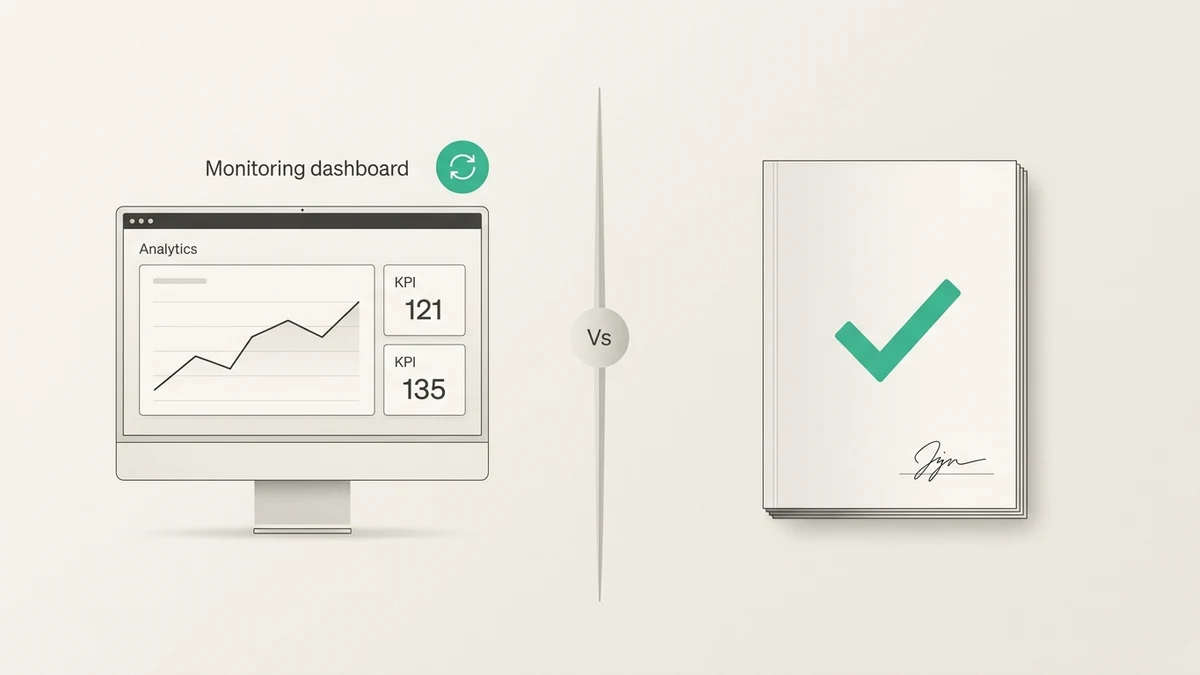
Build the report in Looker Studio once, then schedule it to email itself every Monday at 9 AM. Looker Studio's scheduling is free and native, and unlike GA4's it can cover a multi-chart layout. The downside: Looker Studio reports are static PDFs — no interactive drill-down, and you can't change the commentary without rebuilding. See our GA4 to Looker Studio guide for setup.
Both options above deliver numbers on a schedule but still assume you write the interpretation yourself. If that's the part eating your Monday, see option 3.
Option 3: AI-Generated Reports on a Schedule
This is where tools like Anomaly AI come in. Connect GA4 once, build the report, then schedule it: the report goes out on the cadence you set, as an email with the PDF attached and a generated narrative summary alongside it. The query, filters, and source data behind each number stay available to check, so you can verify a figure before it reaches a stakeholder. The Monday-morning blank page goes away and you edit a draft instead of assembling one.
Think of it this way: the template above is a recipe; automation is a kitchen. Looker Studio automates the "build charts" step. Anomaly AI automates the "write the insights" step. Most teams need both.
Common Mistakes to Avoid
1. Sending the Raw Dashboard
Executives don't want to interpret a 10-chart dashboard. They want your interpretation. The template's Executive Summary and Insights sections exist for a reason — don't skip them.
2. Including Every Metric GA4 Offers
Engagement rate and bounce rate are opposites — bounce rate is the share of sessions that weren't engaged — so reporting both just spends two rows on one fact. Add total events, event count per user, average engagement time per active user, screen views per session, and you have dozens of metrics, most of them noise. Pick the 5-8 that drive decisions and drop the rest.
3. Not Comparing Week-over-Week
A number without a comparison is meaningless. "15,000 sessions" tells me nothing. "15,000 sessions, up 12% vs. last week" tells me a story. Always show the comparison.
4. Confusing Users with Sessions
GA4 distinguishes between users (unique people) and sessions (individual visits). Both matter for different questions. For traffic reports, sessions are usually what you want. For retention analysis, users. Label your columns so the reader doesn't have to guess.
5. Ignoring Sampling
If your property is large enough to trigger GA4 sampling on the Explorations view, your weekly numbers might be slightly off. For large properties, pair the report with BigQuery-sourced data — see our GA4 to Excel export guide for the BigQuery method.
6. Not Following Up on Last Week's Insights
The "Next Week's Focus" section from last week should be the opening of this week's report. If the action item was "test new paid search landing page," this week should open with "the test we ran last week — here's what happened." That's how weekly reports become a feedback loop instead of a Monday-morning ritual.
GA4 Weekly Report FAQ
How long should a GA4 weekly report be?
One page. If it doesn't fit in one email screen, it's too long. Executives skim. The executive summary is the only part most readers will read — if that's good, the rest is optional.
What's the best format for a GA4 weekly report?
Put the report in the email body rather than behind an attachment or a link: body copy, two or three embedded tables, and short insights need no extra click, which is one fewer reason for the report to go unread. Keep attachments and dashboard links as the follow-on for readers who want to go deeper. If they need interactive drill-down, link to a standing dashboard at the bottom rather than expanding the email — the GA4 dashboard guide covers building one.
Can I automate GA4 weekly reports?
Partly, and it depends which part. GA4 can natively email standard or custom reports from Reports > Library on a daily, weekly, monthly, or quarterly schedule as PDF or CSV, but not Explorations and not your commentary. Looker Studio's scheduled email covers a full multi-chart layout. An AI tool like Anomaly AI can schedule the report and generate a narrative summary to go with it. For a full comparison, see our GA4 data analysis tools guide.
What metrics should a GA4 weekly report include?
At minimum: sessions, users, engagement rate, key events (conversions), and a breakdown by channel group. Add top pages if content is a focus. Add funnel drop-off rates if conversion is a focus. Cap the total metric count at 8-10 — anything more becomes noise.
Do I need BigQuery to build this report?
No. The full template can be built in GA4 Explorations + Google Sheets or Looker Studio for free. BigQuery is only needed if your property is large enough to hit sampling thresholds or if you want to join GA4 data with other sources (ad spend, CRM, etc.). For recurring cross-source reports, BigQuery or an AI tool that handles joins natively is the scalable path.
Tired of rebuilding this template every Monday? Get started with Anomaly AI — connect your GA4 property, ask "how did we do this week?" in plain English, and get a drafted summary you can edit instead of a blank page, then schedule the whole thing as a recurring email with the rendered PDF attached and a generated narrative summary alongside it. The source data and calculation behind every number stay open to check. Free tier, no credit card required.