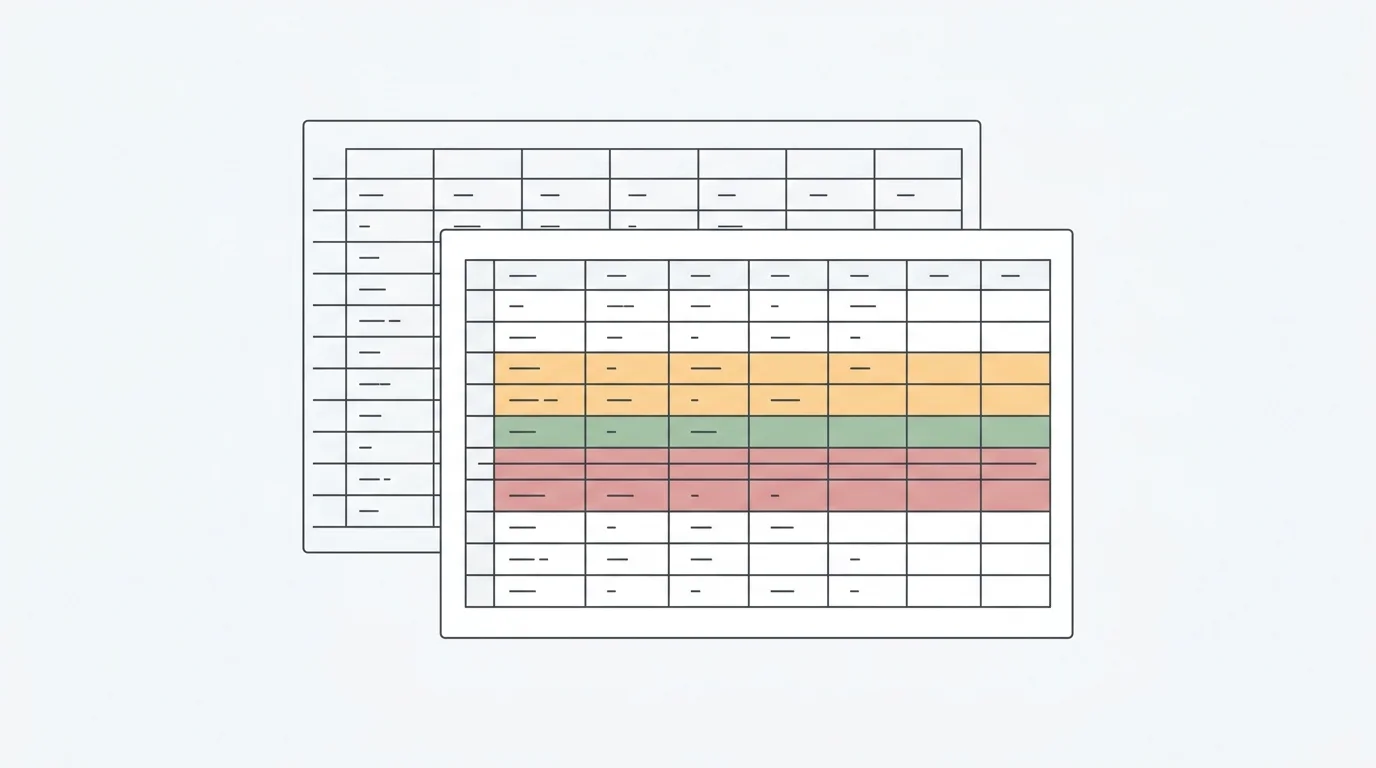
When a CSV upload fails, it is usually a triage problem, not a personal failure. A file can be valid enough to open in a local viewer and still fail when a stricter import path tries to parse it.
Recovering when your CSV upload fails means isolating whether the issue is file size, file type, HTTP upload handling, CSV structure, encoding, headers, row counts, or the source export itself.
Quick answer — recover when CSV upload fails
When a CSV upload fails, preserve the original file, confirm the file is really a supported .csv and within size limits, then isolate the failure: try a small sample, re-export as UTF-8 comma-delimited CSV, check delimiter, encoding, header row, duplicate column names, malformed quotes, embedded line breaks, and uneven rows, then retry the clean export. Once the file is readable, use Anomaly to inspect the fields and create source-backed outputs; do not assume any tool can automatically repair a corrupted or partial export.
Why CSV Uploads Fail Even When the File Looks Normal
The simplicity of CSV is also its weakness. IETF RFC 4180 documents CSV as a common text format registered as text/csv: records are separated by line breaks, fields are separated by commas, and fields can be quoted. Fields that contain commas, quotes, or line breaks need correct quoting and escaping.
That is the part that hurts in real uploads. If one quote is left open, or one embedded line break is not handled correctly, the parser can misread where a row or column ends. The file may look fine near the top and still break hundreds of thousands of rows later.
The W3C Model for Tabular Data and Metadata on the Web makes the broader point: tabular data moves around in variants of CSV, tab-delimited files, spreadsheets, fixed-field formats, HTML tables, and SQL dumps. CSV is compact, but it does not carry enough built-in meaning to prove that a column is a date, an ID, a currency amount, or a unique key. You have to validate that meaning before analysis.
Preserve the Original Before You Fix Anything
Before you try to fix a CSV upload error, preserve the raw export. Do not troubleshoot on the only copy of the file.
This matters most when Excel enters the workflow. Microsoft's Excel specifications list a worksheet limit of 1,048,576 rows by 16,384 columns. Microsoft also warns that when a delimited or CSV file is too large for the Excel grid, some data may not load, and saving over the original can lose data that was not loaded.
So the first recovery step is not clever. It is boring and essential:
- Keep the original export untouched.
- Make a working copy.
- Record the source system, export timestamp, filters, expected date window, and expected row count.
- Do not save a partially opened CSV back over the raw file.
For smaller spreadsheet-native work, the broader Excel data analysis workflow still applies. For a failed CSV upload, start with source preservation.
CSV Upload Recovery Matrix
Use this matrix before you retry the same file. It maps the visible symptom to the likely failure mode, the check to run, the recovery step, and the assumption to avoid.
| Symptom |
Likely cause |
Check |
Recovery step |
What not to assume |
| Upload immediately rejects the file |
Wrong extension, unsupported format, compressed/password-protected file, or media-type mismatch |
Verify it is a real .csv, not a renamed .xlsx or .zip |
Re-export as CSV, or use supported .xlsx / .xls if workbook structure matters |
Do not rename a file and call it fixed |
| Upload says file too large or request too large |
File exceeds a product, server, browser, or network path limit |
Check file size, supported limit, and whether the export is partial |
Split by date/entity, or use an appropriate connected source if available |
Do not retry the same file indefinitely |
| Columns shift or rows break |
Malformed quotes, embedded line breaks, unexpected delimiter |
Inspect the first failing rows and quote escaping against CSV rules |
Re-export with standard quoting or fix the source export |
Do not trust charts until row and column counts match |
| Text is garbled |
Encoding mismatch, BOM issue, or locale-specific export |
Check UTF-8 handling and non-ASCII sample values |
Re-export as UTF-8 CSV or convert from a known source encoding |
Do not manually patch names in a copy without documenting it |
| Numbers or dates parse wrong |
Locale decimal/date format, thousand separators, leading zeros, or IDs interpreted as numbers |
Inspect raw values and expected formats |
Define date, number, and ID fields before analysis |
Do not treat parse success as business correctness |
| Duplicate or blank column names |
Missing header row or repeated labels from the export |
Inspect the first row and normalize headers |
Create unique, meaningful headers from source documentation |
Do not let a tool guess business definitions silently |
| Row count looks wrong |
Truncated export, filtered export, Excel loaded partial data, or source-system limit |
Compare source count, file line count, and expected reporting period |
Re-export the full window or split safely |
Do not save over the original in Excel |
| Sample works but full file fails |
Rare malformed row, width spike, large text field, or network timeout |
Test larger chunks and isolate the failing segment |
Isolate bad rows, split the export, or re-export from source |
Do not assume sample success proves the whole file is safe |
Check File Type and Size First
When a CSV import fails immediately, start with the transport and file boundary checks. The error may not be about your data logic at all.
If the platform exposes an HTTP status code, MDN's 413 Content Too Large reference explains that the request body exceeded server limits. MDN's 415 Unsupported Media Type reference explains that the server refused the request because the content format, Content-Type, or Content-Encoding was unsupported or invalid.
That gives you a simple first pass:
- Confirm the file is actually a CSV, not a workbook, ZIP, or renamed file.
- Confirm the extension matches the file content.
- Confirm it is not password-protected or compressed.
- Confirm the file is within the tool's supported limit.
- Confirm the export completed and is not a partial download.
For Anomaly specifically, current direct upload support is .xlsx, .xls, and .csv up to 1GB. If the file is larger than that, split it by a stable key such as date range, region, account, customer group, or source system, or move the recurring workflow into a supported connected source where available.
If the file is within limits but still fails, the problem is probably inside the text.
Start with the delimiter. "CSV" usually means comma-separated, but some exports use semicolons or tabs. If the parser expects commas and the file uses semicolons, you may see one giant column instead of a table.
Then check encoding. Garbled characters usually mean the file was exported in one encoding and read as another. Re-export as UTF-8 when possible, especially if names, currencies, accents, or symbols matter.
Next, inspect the header row. A safe upload has one clear header row, non-empty column names, and unique labels. Blank headers, duplicate columns, or repeated title rows inside the file make downstream analysis fragile.
Finally, check quoted fields and row consistency. RFC 4180 allows quoted fields to contain commas, quotes, and line breaks, but only if the quoting is correct. A single malformed quote can make every row after it look wrong.
For the broader version of this workflow, use the complete CSV analysis guide. This article is narrower: the file failed to upload, and you need to get back to a readable state without pretending the import is safe just because it finally completed.
Use a Safe Sample Before Retrying the Full Upload
Do not keep throwing a large CSV at the same uploader and hoping the next attempt works. Build a diagnostic sample.
Use this order:
- Copy the header row.
- Copy the first representative rows.
- Add a few rows from later in the file if you suspect formatting changes.
- Save that sample as a separate CSV.
- Try uploading the sample.
If the sample fails, the problem is near the surface: wrong delimiter, invalid headers, encoding, unsupported format, or a structural issue visible in the sample.
If the sample succeeds but the full file fails, your problem is deeper in the file or in the upload path: a malformed row, a huge text field, a late schema shift, a size boundary, or a network timeout. Increase the sample size in chunks until you isolate where the failure begins.
For very large files where Excel crashes before you can inspect anything, use the separate guide to analyze a 1GB CSV without Python.
Once It Loads, Validate Before You Analyze
A successful upload is not the finish line. It only means the file became readable.
Before turning that data into a chart, dashboard, or client-facing answer, validate the basics:
- Does the row count match the source export?
- Does the date range match the expected reporting window?
- Did IDs stay as IDs, or were leading zeros stripped?
- Are numeric columns parsed as numbers, not text?
- Are date columns parsed consistently?
- Are required fields missing?
- Are duplicate keys expected or suspicious?
- Did any columns shift after a quoted field or embedded line break?
This is where many CSV workflows go wrong. The upload succeeds, so the team starts asking business questions. Then the first report is built on a shifted column, truncated export, or silent type conversion.
How Anomaly Helps After the CSV Is Readable
Once the CSV is structurally readable and within supported limits, Anomaly can help turn it into verifiable analysis.
Anomaly is an AI data analyst for large CSV and spreadsheet workflows. Direct uploads support .xlsx, .xls, and .csv files up to 1GB. Available source workflows also include Excel/CSV uploads, GA4, BigQuery, Google Sheets, MySQL, and Snowflake where those sources are available.
The fit after a CSV upload failure is specific:
- Inspect fields, row counts, missing values, duplicate IDs, date ranges, and parse assumptions.
- Ask questions against the readable dataset without building a notebook.
- Create dashboards, refreshable reports, source-backed summaries, and scheduled reporting workflows where the source and workflow support that.
- Keep calculations, logic, metric definitions, and business rules inspectable before the output leaves the workspace.
That is different from a magic repair promise. Anomaly does not automatically recover corrupted, truncated, malformed, password-protected, or partially exported files. It does not bypass every browser, network, or upload limit. It does not ingest Parquet, execute Python notebooks, live-sync OneDrive or SharePoint files, perform automatic anomaly detection, guarantee root cause, run forecasting or ML training, send Slack/webhook/SMS alerts, or stand in as a compliance certification.
If the file is readable and the question is bounded, Anomaly can help you move from upload recovery to trusted analysis. If the file itself is broken, fix or re-export the source first.
For adjacent workflows, see how to safely parse and analyze XLS/XLSX files with AI and how to choose AI tools to analyze CSV files.
What Not to Do After a CSV Upload Fails
Do not repeatedly upload the same unchanged file. You are just testing the same failure path again.
Do not rename extensions. Changing customers.xlsx to customers.csv does not convert a workbook into a CSV.
Do not open a huge CSV in Excel, save it, and assume nothing changed. Excel can load partial data when the file exceeds grid limits.
Do not let a successful upload become a business claim without validation. Check row count, key fields, date windows, and parse assumptions before anyone presents the result.
Do not hide manual cleanup. If you removed rows, changed encodings, renamed headers, split the file, or re-exported from a source system, record it. The next person reviewing the dashboard or report needs to know what changed.
FAQ
Why did my CSV upload fail?
CSV uploads usually fail because the file is too large for the upload path, the file type or media type is unsupported, the export is incomplete, or the CSV structure is malformed. Common structural causes include bad delimiters, duplicate headers, garbled encoding, unclosed quotes, embedded line breaks, uneven rows, and date or number formats the parser cannot interpret safely.
Can I fix a CSV upload error without Python?
Yes, if the issue is file structure, export settings, encoding, delimiter, headers, or file splitting. Preserve the original, re-export cleanly, inspect a small sample, then retry the full file. If the file is too large for local spreadsheet tools, use a workflow built for large CSV analysis instead of trying to force it through a worksheet grid.
Can Anomaly repair corrupted CSV files?
No. Anomaly is not a universal CSV repair tool. It can help analyze supported .csv, .xlsx, and .xls files up to 1GB after they are readable, but it does not automatically repair corrupted, truncated, password-protected, malformed, or partially exported files.
What should I check before uploading a CSV to Anomaly?
Confirm the file is a valid .csv, .xlsx, or .xls file under 1GB. Check that the export completed, headers are unique, rows are aligned, encoding is readable, date and numeric fields are interpretable, and the row count matches the expected source window.
Should I split a CSV or move it to a database?
Split a CSV when the job is temporary, the file is near the upload limit, or the source can be safely divided by date, region, account, or entity. Move the workflow into a supported database or warehouse source when the export is recurring, the file regularly exceeds supported upload limits, multiple teams depend on it, or governance and refresh matter more than one-time recovery.
Turn a Failed Upload Into a verifiable workflow
A failed CSV upload is a warning, not just an inconvenience. Something about the file, export, upload path, or parser needs attention before the data becomes safe to analyze.
Preserve the original. Check size and file type. Fix delimiter, encoding, headers, quotes, and row alignment. Test a sample. Validate the loaded data. Then, once the file is readable and within supported limits, use Anomaly to turn the dataset into traceable dashboards, reports, exports, slides, docs, PDFs, or scheduled reporting workflows.
When your CSV is ready for verifiable analysis, get started with Anomaly.