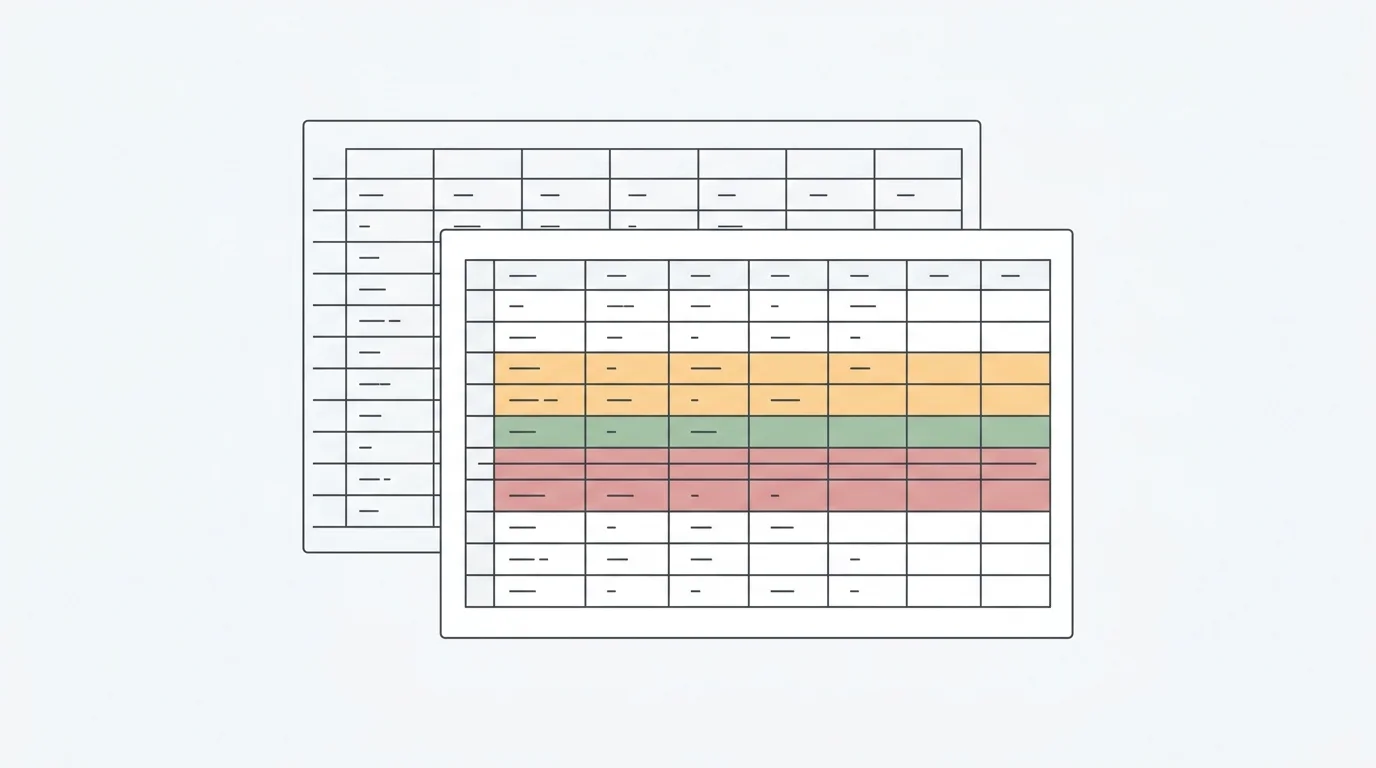
Quick answer — safely parse and analyze .xls and .xlsx files with AI
To safely parse and analyze .xls and .xlsx files with AI, upload a supported workbook copy, identify the right sheets and headers, inspect hidden or merged structures, review formulas, macros, protection, mixed types, and sensitive fields, then ask for traceable analysis. Export dashboards or reports only after assumptions, caveats, and reviewer sign-off are visible.
Analyzing spreadsheet data is a cornerstone of modern business operations. But passing a complex Excel workbook directly to an AI tool without a clear safety strategy is risky. Unlike flat files, Excel workbooks can contain multi-layered structures: hidden sheets, formulas, macros, merged cells, protected areas, lookup tabs, cached values, and personal data that is easy to miss.
The goal is not to make AI timid. The goal is to make the workbook safe enough for AI analysis to be useful. If you want reliable, verifiable outputs, you need a structured validation process before the AI turns your workbook into a dashboard, report, slide, or PDF.
Why Excel Workbooks Are Riskier Than Flat Files
When you perform Excel data analysis with AI, you are not just processing raw text. You are asking AI to interpret a container with workbook structure.
Microsoft's Excel format documentation says .xlsx is the default XML-based Excel workbook format, .xls is the legacy Excel 97-2003 binary workbook format, and .xlsm is the macro-enabled workbook format. Microsoft also warns in its save-as guidance that when you save a workbook in another file format, some formatting, data, and features may not transfer. That matters because converting a legacy workbook may make analysis easier, but it can also change what is preserved.
Scale adds another problem. Microsoft documents an Excel worksheet limit of 1,048,576 rows by 16,384 columns, while the number of sheets in a workbook is limited by available memory and system resources. A workbook can therefore be technically valid and still too complicated to treat as a simple grid.
That creates workbook-specific parsing hazards:
- Hidden worksheets, rows, columns, names, comments, cached data, and personal information may still exist in the file.
- Formulas may show a result while hiding the logic or referencing another sheet.
- Merged cells and multi-row headers can make the first visible row a poor schema.
- Dates, currencies, percentages, IDs, and text notes can be mixed in the same column.
- Macros and user-defined functions may have created values that an AI parser will not execute again.
- Protected sheets or workbooks can block access to the context behind the numbers.
This is not the same as analyzing a 1GB CSV without Python. A large CSV is mostly a scale and parsing problem. A workbook is a structure, context, and hidden-state problem.
That is why workbook safety needs more than "upload the file and ask questions."
The Safe AI Workflow for .xls and .xlsx Files
Use this workflow before you ask AI for business conclusions from a workbook:
- Preserve the original workbook. Keep the source file untouched and work from a copy prepared for analysis.
- Inventory every sheet. List sheet names, purpose, row counts, column counts, and whether the sheet is raw data, lookup logic, summary output, or scratch work.
- Choose the analysis sheets. Do not force AI to infer which tab matters. Tell it which sheets are in scope and which are not.
- Confirm headers and merged rows. Flatten multi-row headers where possible. Unmerge cells that act as labels. Give columns unique names.
- Inspect formulas and hidden structures. Check whether formulas reference other sheets, hidden rows, hidden sheets, or external files.
- Identify macros, VBA, UDFs, and protection. AI analysis should not be treated as macro execution or workbook repair.
- Check dates, currencies, IDs, and mixed types. A column that looks numeric may contain text, symbols, blanks, or pasted notes.
- Review sensitive fields. Remove or mask fields that are not needed for the analysis before sharing the output.
- Ask for traceable analysis, not just an answer. Require the AI to show assumptions, logic, fields used, and caveats.
- Review the output before sending it. Compare the AI result against the workbook owner's definitions and business rules.
Anomaly supports .xlsx, .xls, and .csv uploads up to 1GB. That does not mean every workbook is safe to analyze blindly. It means supported files can be brought into a workspace where the structure, logic, and output can be reviewed before the results become stakeholder-facing.
The discipline is similar to a CSV analysis workflow, but the checks are workbook-specific.
Workbook Parsing Safety Matrix
Use this matrix before AI analysis turns an Excel workbook into a business claim.
| Workbook feature |
Parsing risk |
Safe review step |
How Anomaly can help |
Caveat |
Reviewer |
| Multiple sheets |
AI may analyze the wrong tab or miss a supporting lookup sheet. |
List every sheet and mark which sheets are in scope. |
Analyze uploaded workbook data after the relevant sheets and fields are selected. |
AI should not decide sheet scope without owner confirmation. |
Workbook owner |
| Hidden sheets |
Hidden data may be outdated, sensitive, or referenced by formulas. |
Unhide sheets where possible and review with Document Inspector before sharing. |
Keep analysis questions tied to named sheets and visible assumptions. |
Sheets marked VeryHidden through VBA may not appear in normal Unhide flows. |
Analyst |
| Hidden rows or columns |
Hidden cells may still exist in the file and affect formulas or extracted data. |
Locate hidden rows/columns and decide whether to keep, remove, or document them. |
Surface row-count, field, and exception checks for reviewer inspection. |
Hidden content can be a data-governance issue, not just a parsing issue. |
Data owner |
| Merged cells and multi-row headers |
Column alignment can shift; labels can be interpreted as data. |
Unmerge cells and flatten headers into one unique row. |
Profile candidate headers and field names before analysis. |
Complex reporting layouts may need manual cleanup first. |
Analyst |
| Formulas and hidden formulas |
AI may read values without understanding formula assumptions or hidden protected logic. |
Show formulas, check protected cells, and verify whether formulas are current. |
Create verifiable calculations from extracted data and business rules. |
Anomaly does not guarantee recalculation of every workbook formula. |
Finance/ops owner |
| Macros, VBA, and UDFs |
Code will not execute during AI analysis, so generated or cleaned values may be stale. |
Run required macros locally, save stable outputs, and review/remove code where appropriate. |
Analyze static, reviewed workbook outputs. |
Anomaly does not execute macros or run VBA code. |
Workbook owner |
| Protected workbook or sheet |
Important fields may be inaccessible or context may be hidden. |
Remove protection only if authorized, or ask the owner for an analysis-ready copy. |
Analyze accessible workbook data and document missing context. |
Anomaly does not bypass encryption or crack protected workbooks. |
Data owner |
| Dates, currency, and mixed types |
Text, symbols, blanks, or regional formats can break sums and trend analysis. |
Check inferred types and invalid values before asking for trends. |
Flag type issues and keep transformation logic inspectable. |
Ambiguous dates and currencies need business review. |
Analyst |
| Lookup tables and named ranges |
AI may miss how IDs, categories, or business rules map across sheets. |
Convert key lookup logic into explicit tables and define join keys. |
Use traceable joins, summaries, and business-rule notes. |
External workbook links may not resolve from the uploaded file alone. |
Data owner |
| Duplicate records |
Counts, revenue, events, or customers may be double-counted. |
Decide which key should be unique and inspect duplicates. |
Produce duplicate-risk summaries and exception lists. |
Do not delete duplicates automatically without owner approval. |
Analyst |
| Sensitive fields |
Names, emails, compensation, customer records, or personal data may leak into outputs. |
Remove, mask, or minimize sensitive columns before sharing. |
Generate outputs from the approved analysis view. |
AI analysis does not replace legal, privacy, or compliance review. |
Data/privacy owner |
| Output format |
A polished dashboard or PDF can hide weak assumptions. |
Decide whether the audience needs dashboard, Excel export, slides, doc, or PDF. |
Turn reviewed analysis into dashboards, Excel reports/exports, PowerPoint, Word docs, PDFs, or scheduled reports. |
Output quality depends on reviewed inputs and logic. |
Project owner |
The matrix is not bureaucracy. It is how you stop a neat AI-generated chart from carrying a hidden workbook mistake into a meeting.
What to Ask AI Before You Ask for Insights
Do not start with "summarize this workbook." Start by forcing the AI to profile the workbook.
Use this prompt block after uploading the workbook:
Before performing business analysis, profile the uploaded workbook.

List every detected sheet, row count, column count, and likely purpose.
For each analysis sheet, identify the candidate header row, blank top rows,
merged or multi-row header risks, formula columns, hidden sheet/row/column
warnings if visible, date and currency parsing issues, duplicate-key risks,
missing-value patterns, sensitive fields, and assumptions you are making.

Then recommend the safest output format for the user question: table,
dashboard, Excel report/export, PowerPoint, Word doc, PDF, or scheduled report.

Do not produce trend analysis, strategic recommendations, or final claims yet.
Wait for confirmation that the workbook profile is correct.
This "profile first, analyze second" pattern is the simplest way to catch bad parsing before it turns into a business conclusion.
Once the profile is confirmed, move into the actual question:
- "Using only the approved analysis sheets, summarize revenue by month and region."
- "Show which rows were excluded and why."
- "Use the workbook owner's definition of active customer from the lookup sheet."
- "Create a dashboard and include the assumptions behind each metric."
- "Prepare a PDF report with source notes and caveats."
The punchline: if the AI cannot explain what it read, you should not trust what it concluded.
Excel gives teams a lot of power, and that power is exactly why workbook analysis needs review.
Microsoft's formula guidance shows that Excel can switch between displaying formulas and displaying results. It also explains that formulas can be hidden from the formula bar when the sheet is protected. That means a reviewer may see a value without immediately seeing the calculation behind it.
Microsoft's macro and VBA guidance for Document Inspector says Office documents can contain macros, VBA modules, COM or ActiveX controls, user forms, and user-defined functions that may contain hidden data. The same guidance notes these items may require manual handling because removing them can break a document.
Hidden content is another risk. Microsoft says hidden worksheet data is not visible but can still be referenced by other worksheets and workbooks. It also notes hidden rows and columns can be difficult to locate. And Microsoft's Document Inspector guidance recommends reviewing files for hidden data or personal information before sharing copies with clients or colleagues.
So the safe rule is simple:
AI analysis can use extracted values and inspectable generated logic, but it should never be treated as proof that every formula, macro, protected range, hidden sheet, or hidden row was correctly executed or interpreted.
For Anomaly specifically, keep the boundaries clear:
- Anomaly does not execute macros or VBA.
- Anomaly does not guarantee recalculation of every workbook formula.
- Anomaly does not repair every corrupt or protected workbook.
- Anomaly does not replace workbook-owner review, privacy review, legal review, or compliance review.
That honesty is not a weakness. It is the difference between AI-assisted analysis and blind workbook ingestion.
How Anomaly Turns a Reviewed Workbook Into Outputs
Once the workbook is reviewed, Anomaly can help turn the data into work people can use.
Start with a supported file: .xlsx, .xls, or .csv up to 1GB. Then ask for analysis in plain language. The important part is not just that AI gives an answer. The important part is that the logic, assumptions, source-backed calculations, metric definitions, and business rules remain inspectable before the output leaves the workspace.
For a safe Excel workflow, that might look like:
- Upload the reviewed workbook copy.
- Ask Anomaly to profile sheets, columns, missing values, duplicate keys, and type issues.
- Confirm which sheets and business definitions are in scope.
- Ask the analysis question.
- Inspect the generated logic and caveats.
- Turn the approved result into an output.
The output layer is where Anomaly becomes useful for teams, not just analysts. Reviewed analysis can become:
- interactive dashboards,
- Excel reports and exports,
- Excel-native dashboard exports,
- PowerPoint slides,
- Word docs,
- PDF reports,
- scheduled reporting workflows.
That positioning matters. Anomaly is not an office suite and not a generic AI spreadsheet. It is an AI data analyst for verifiable spreadsheet analysis, turning reviewed business data into traceable, stakeholder-ready outputs.
For GA4 workbooks, pair this with the GA4-to-Excel export safety workflow. For collaborative spreadsheet sources, start with Google Sheets data analysis. The same principle applies: source structure first, business answer second.
When to Stay in Excel, Use Sheets, or Move to a Heavier Data Stack
AI analysis is useful, but it is not the right answer for every spreadsheet job.
Stay in Excel when the workbook is small, the owner controls the formulas, and the work is still actively being modeled. Excel remains the right tool for building formulas, editing workbook layouts, and maintaining local spreadsheet logic.
Use Google Sheets when collaboration is the main job and the source data is already maintained in shared tabs. Sheets can be a good operating surface for lightweight team-owned datasets, especially when the workflow is more about coordination than complex workbook modeling.
Move to a heavier data stack when the organization needs governed semantic layers, strict enterprise data controls, many-source modeling, large operational pipelines, or live production reporting that should not depend on uploaded files.
Use Anomaly in the middle: when spreadsheet workflows are becoming too fragile, but the team still needs a fast, traceable way to analyze workbook data and turn it into dashboards, reports, exports, slides, docs, PDFs, or scheduled reporting workflows.
That middle is common. It is the moment when Excel is still the source format, but the business question has outgrown what a fragile workbook can safely carry.
FAQ: Safely Parse and Analyze Excel Files With AI
Can AI analyze .xls and .xlsx files?
Yes. AI can analyze .xls and .xlsx files when the workbook is parsed into usable data. The safety of the analysis depends on whether sheets, headers, hidden structures, formulas, types, and sensitive fields were reviewed before the AI result was trusted.
Is .xls different from .xlsx for AI analysis?
Yes. Microsoft describes .xlsx as the modern XML-based Excel workbook format and .xls as the Excel 97-2003 binary workbook format. Legacy .xls files may need more review because older workbook features, compatibility behavior, and conversion risks can affect what the parser sees.
Should I remove macros before AI analysis?
Do not assume AI will execute macros. If a workbook depends on macros, VBA, or user-defined functions, run the required logic locally in Excel first, save a reviewed static copy for analysis, and document what the macro did. Removing code may affect workbook behavior, so do it only in an analysis copy and with the workbook owner's approval.
Can AI find hidden sheets or hidden rows?
Sometimes hidden workbook content may still be present in the extracted structure, but you should not rely on AI alone to discover it. Use Excel's Unhide tools, visible-cell checks, and Document Inspector-style review before sharing analysis. Hidden content is a review responsibility.
Can Anomaly replace Excel?
No. Anomaly does not replace Excel. Excel remains the tool for editing workbooks, formulas, formatting, and spreadsheet modeling. Anomaly is the workspace for analyzing supported files, reviewing logic, and turning approved results into business outputs.
What files does Anomaly support?
Anomaly supports .xlsx, .xls, and .csv uploads up to 1GB. It does not support Parquet uploads, macro execution, live OneDrive/SharePoint sync, Slack/webhook/SMS delivery, real-time monitoring, guaranteed root cause, or SOC 2 completion claims.
Get Started With Safe AI Analysis
Stop treating complex workbooks like harmless upload blobs. Review the sheets, formulas, hidden data, types, sensitive fields, and assumptions first. Then use AI to analyze what the workbook can safely support.
When you are ready to turn reviewed workbook data into traceable dashboards, Excel reports, slides, docs, PDFs, and scheduled reporting workflows, try Anomaly AI.