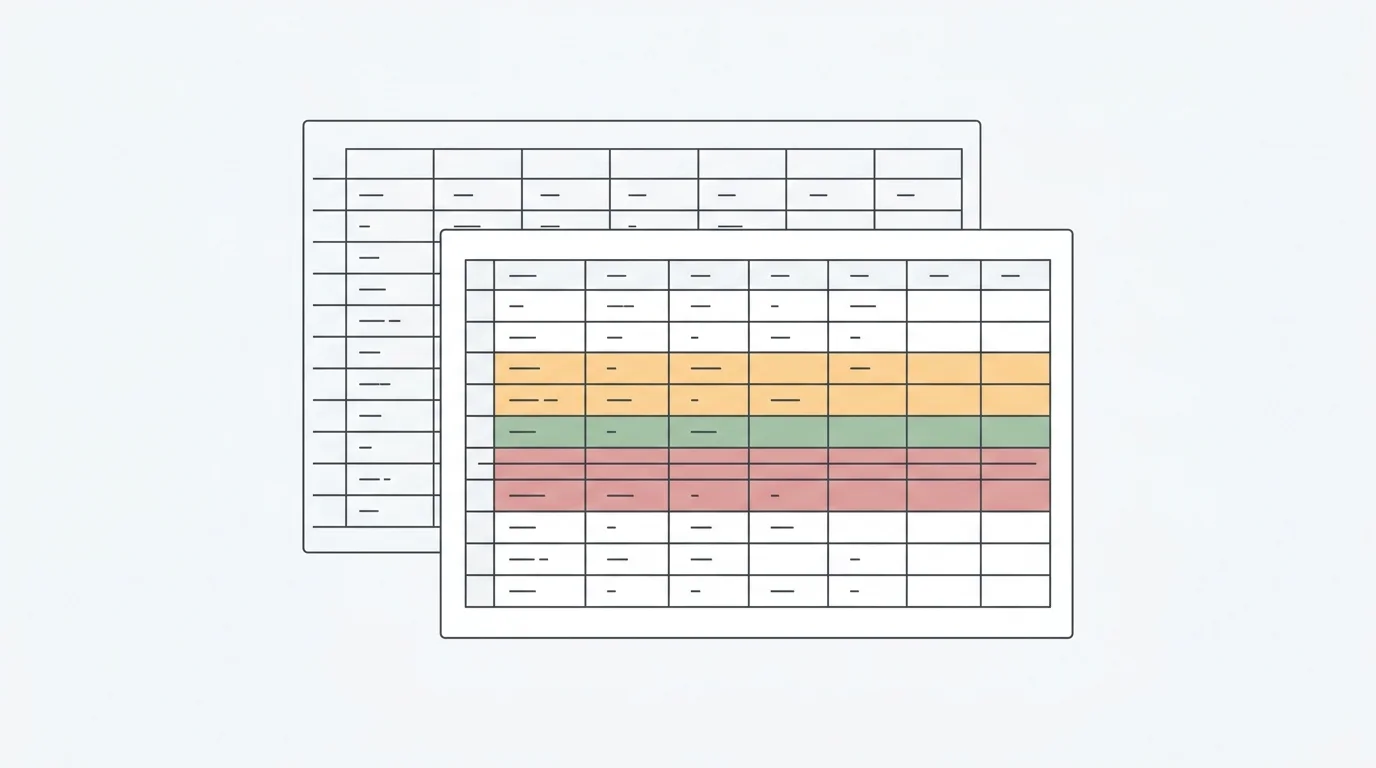
You have a 1GB CSV file sitting in your downloads folder. It might be a transaction export, a year of product events, a logistics file, or a dump from a business system. Your immediate goal is simple: get a few reliable summaries, check whether the file is usable, and prepare a report your team can actually review.
Naturally, you try Excel first.
Then the trouble starts. Excel freezes, the file opens slowly, the row count looks suspicious, or you see a warning that the data is too large for the grid. To analyze a 1GB CSV without Python, the answer is not "keep waiting for Excel." The safer answer is to stop treating the CSV like a worksheet and move it into a workflow built for large files, validation, inspectable logic, and stakeholder-ready outputs.
Quick answer — analyze a 1GB CSV without Python when Excel is crashing
If Excel is crashing on a 1GB CSV, stop editing or saving the file in Excel, confirm the export is complete, check headers, encoding, delimiters, dates, missing values, duplicate IDs, and numeric columns, then upload the supported CSV to Anomaly if it is within the current 1GB limit. Ask for summaries, segments, outlier candidates, joins, dashboards, reports, and exportable outputs, then inspect the logic and caveats before sharing.
Why Excel Crashes Before the Analysis Starts
Excel is excellent for modeling, ad hoc checks, and smaller spreadsheet workflows. It is not a large-file database engine. When you force a 1GB CSV into a desktop spreadsheet grid, you run into both hard product limits and practical machine limits.
The hard limit is visible in Microsoft's own documentation: an Excel worksheet is limited to 1,048,576 rows by 16,384 columns. A 1GB CSV may or may not exceed that row count depending on width, encoding, and value length, but it is large enough that row limits, memory, and rendering overhead become real risks.
Microsoft also documents the warning users see when a delimited text or CSV file is too large for the Excel grid: some data may not load. The dangerous part is not just that Excel struggles. It is that saving over a file after Excel loads only part of it can preserve the truncated version and lose data that was not loaded.
That is why the first rule is simple: if Excel is crashing, freezing, or warning that the dataset is too large, stop using Excel as the first analysis surface. Do not save over the source file. Do not assume the visible rows are the whole dataset. Treat the crash as a workflow warning.
For smaller workbooks and spreadsheet-native use cases, Excel data analysis with AI can still be the right path. But a 1GB CSV deserves a different starting point.
First, Stop Treating the CSV Like a Spreadsheet
A CSV is not a spreadsheet with fewer features. It is a raw text export. That sounds simple until the file gets large, the delimiter is not what you expected, or one quoted field contains a line break that shifts the next row.
Before you upload or analyze the file, preserve the original CSV exactly as exported. Work from a copy or from an upload workflow that leaves the source untouched. Then run a quick structural check:
- File size: Is it within the current supported upload limit?
- Expected row count: What did the source system say it exported?
- Column count: Does the file width match the expected schema?
- Export timestamp: Is this the latest file, or an older pull?
- Delimiter: Is it comma-separated, semicolon-separated, tab-separated, or something else?
- Encoding: Is it UTF-8, or a legacy encoding that may garble characters?
- Header row: Are headers present, unique, and aligned with the data?
- Excel touch risk: Has the file already been opened and saved by Excel?
The technical reason for this caution is not mysterious. RFC 4180 describes common CSV structure: optional headers, records separated by line breaks, fields separated by commas, and quoted fields that may contain commas, line breaks, or escaped quotes. If a parser mishandles those rules, columns can shift.
The W3C CSV on the Web Primer makes the second problem clear: CSV is concise and popular, but it does not carry built-in column types or uniqueness rules. A column named amount is not guaranteed to be numeric. A column named customer_id is not guaranteed to be unique. You have to check.
If you need a meeting-specific triage process, use the pre-meeting large-CSV audit. This article is the recovery workflow for the moment before that: Excel is failing, and you need a safer no-Python path into the data.
Workflow Matrix: Analyze a 1GB CSV Without Python
When Excel fails, do not improvise. Use a repeatable matrix that maps the symptom to a check, a question, an output, a caveat, and a reviewer.
| Symptom |
Pre-upload check |
Analysis question |
Anomaly output |
Caveat |
Reviewer |
| Excel freezes or crashes on open |
Confirm file size is within the current 1GB limit and preserve the original export |
"Profile this file: row count, column count, likely key fields, and column types." |
Dataset profile and high-level summary |
Does not bypass every browser, network, timeout, or upload constraint |
Analyst or data owner |
| Excel shows a too-large-grid warning or row mismatch |
Compare expected row count from the source export with loaded or visible rows |
"Verify total record count and show any evidence that the file was truncated before upload." |
Row-count validation note |
Cannot recover rows already lost by a truncated save |
Business operator |
| Headers shifted or columns misaligned |
Check delimiter, quote handling, and rows with unexpected field counts |
"Find rows where field count differs from the header schema." |
Data-quality exception list |
Source export may need repair before analysis |
Data analyst |
| Dates parse inconsistently |
Identify date format, timezone assumptions, blanks, and unparseable values |
"Summarize date coverage and flag date values that cannot be parsed safely." |
Date coverage summary and issue list |
Date interpretation needs business review when formats are ambiguous |
Operations owner |
| Numeric columns load as text |
Look for currency symbols, commas, percent signs, spaces, and text sentinels |
"Convert the revenue column for analysis and list non-numeric values." |
Source-backed sums, averages, min/max, and invalid-value list |
Parsing decisions should be reviewed before final reporting |
Finance or analytics reviewer |
| Duplicate IDs or repeated rows |
Decide whether a key should be unique, then check repeated IDs or composite keys |
"Find duplicate transaction IDs and repeated full rows." |
Duplicate-risk report |
Do not delete rows automatically without owner approval |
Data owner |
| Missing values in key fields |
Check missingness in metric, date, ID, and grouping columns |
"Show missing-value rates by column and explain which metrics are affected." |
Missingness table and caveat summary |
Missing values may be valid business states, not always errors |
Business analyst |
| Need grouped summaries or top segments |
Identify trusted grouping dimensions and metric definitions |
"Group total revenue by region and product category; show top movers and source logic." |
Summary table, chart, or dashboard section |
Dirty category labels can split the same segment |
Function lead |
| Need joined context from another export |
Confirm join keys, types, casing, and expected match rates |
"Join this CSV to the customer lookup by customer_id and show unmatched records." |
Joined table preview and unmatched-key report |
Heavy recurring joins may belong in a warehouse |
Consultant or data engineer |
| Need stakeholder output |
Decide whether the audience needs dashboard, Excel export, slide, doc, or PDF |
"Create a source-backed report with caveats, source notes, and recommended follow-up checks." |
Dashboard, Excel report/export, PowerPoint, Word doc, PDF, or scheduled report |
Human review is still required before sending |
Project owner |
The goal is not to make every CSV perfect before analysis. The goal is to make the risks visible before anyone turns a large export into a confident business claim.
For a broader code-friendly workflow, see the full CSV analysis workflow. For this article, the premise is narrower: no Python, no notebook setup, and no pretending Excel loaded everything correctly.
What to Ask Once the CSV Is Loaded
Once the file is loaded into a no-Python analysis workspace, start with profiling before insights. A large CSV can produce a beautiful chart and still be wrong if key columns are missing, duplicated, or parsed incorrectly.
Useful first prompts:
- "Profile this dataset. Show row count, column count, inferred data types, missing-value rates, duplicate candidate keys, and suspicious columns."
- "List columns that look numeric but contain text, symbols, blanks, or mixed formats."
- "Summarize date coverage by minimum date, maximum date, number of blank dates, and unparseable date values."
- "Find duplicate values in
order_id, customer_id, or the composite key I specify."
After that, move into business analysis:
- "Group revenue by month and region, then show the source logic behind the calculation."
- "Show the top positive and negative movers by segment between the two date windows."
- "Find outlier candidates in transaction value and list the rows behind them for review."
- "Join this CSV with the uploaded customer lookup table and show unmatched keys."
- "Create a dashboard and PDF report with the main findings, caveats, and review notes."
That last phrase matters: review notes. The output should not only say what moved. It should say how the metric was calculated, which rows were included, which rows were excluded, and which caveats still need a human decision.
If the CSV came from web analytics and someone is trying to force it back into a spreadsheet, the same logic applies to the GA4 to Excel export workflow: exports are useful, but only when date windows, definitions, and row-level assumptions are visible.
How Anomaly Helps When Excel Is Crashing
Anomaly AI is an AI data analyst for large datasets and spreadsheet-heavy teams. The fit here is specific: your CSV is too large or unstable for direct Excel analysis, but you still need practical answers without writing Python.
Current file support is straightforward: Anomaly supports direct uploads of .xlsx, .xls, and .csv files up to 1GB. It also supports connected source workflows such as GA4, BigQuery, Google Sheets, MySQL, and Snowflake where those sources are available.
Once the supported file is in Anomaly, the workflow becomes output-first:
- Ask for a dataset profile and data-quality summary.
- Ask for grouped summaries, top movers, suspicious rows, and joined context.
- Review the generated logic, metric definitions, assumptions, and business rules.
- Turn the results into interactive dashboards, refreshable reports, source-backed summaries, or scheduled reporting workflows.
This is not generic AI writing over a sample. The point is to produce traceable analysis, verifiable outputs and source-backed calculations from the actual dataset you uploaded or connected.
The caveats are just as important. Anomaly is not a universal file repair tool. It does not fix every corrupt, malformed, password-protected, or truncated CSV. It does not bypass every browser, network, or upload issue. It does not execute Python notebooks, upload Parquet files, provide real-time monitoring, perform automatic anomaly detection, guarantee root cause, send Slack/webhook/SMS alerts, claim SOC 2 completion, live-sync OneDrive or SharePoint files, or create a universal automatic-refresh layer for uploaded files.
The better promise is narrower and more useful: if your supported file is within the current limit and structurally usable, Anomaly gives you a no-Python path from large-file chaos to a verifiable business answer.
When No-Python Analysis Is Enough, and When It Is Not
No-Python analysis is enough when the job is bounded. You have one large CSV or a small group of exports. The file is within supported limits. The question is concrete. You need summaries, segments, joins, dashboards, reports, or a stakeholder-ready explanation. A reviewer can resolve caveats before the output is shared.
That covers a lot of real work:
- sales and revenue exports;
- product-event CSVs;
- campaign or GA4 exports;
- operations logs;
- customer lists;
- support tickets;
- inventory snapshots;
- finance or billing reports.
No-Python analysis is not enough when the problem is really a data engineering problem. If files are larger than supported limits, exports are corrupt, recurring joins require governed refresh, multiple teams need the same trusted table, or the workflow needs production ETL, move the data into a database or warehouse. BigQuery data analysis, Snowflake, MySQL, or a managed pipeline may be the right foundation when the work becomes recurring infrastructure.
It is also not enough when the requirement is live monitoring, automatic alerting, production-grade compliance reporting, or final root-cause proof. A no-Python workflow can get you to a defensible first analysis. It should not pretend to replace engineering, governance, or specialist review when those are actually required.
FAQ: Excel Crashing on a 1GB CSV
Can Excel open a 1GB CSV?
Sometimes Excel can attempt to open a large CSV. The risk is that the file may exceed worksheet limits, consume too many local resources, load slowly, or trigger a too-large-grid warning. Microsoft documents the worksheet limit and warns that files exceeding the grid can load incompletely. If that happens, do not save over the original file.
Can I analyze a 1GB CSV without Python?
Yes, if the file is structurally usable and within the supported upload limit. Use a no-Python analysis workspace like Anomaly to profile the file, ask business questions, inspect the logic, and create dashboards, reports, or exports. You still need to review parsing, missing values, duplicates, and caveats.
Does Anomaly repair corrupted CSV files?
No. Anomaly is not a universal file repair product. It can help analyze supported files and surface quality issues, but corrupt, malformed, password-protected, truncated, or badly exported files may need a new source-system export or specialist repair.
What should I check before uploading a large CSV?
Check file size, expected row count, column count, export timestamp, headers, delimiter, encoding, date formats, numeric columns, missing values, duplicate IDs, and join keys. If Excel has already opened and saved the file after a truncation warning, return to the original export if possible.
When should I move the workflow into BigQuery or a database?
Move it into a database or warehouse when the file repeatedly exceeds tool limits, needs governed refresh, must join multiple production sources, or becomes a shared team workflow. The CSV may still be the exchange format, but the durable analysis should live in a governed table and repeatable pipeline.
Turn the Crash Into a verifiable workflow
When Excel crashes, the message is not just "your computer is slow." It is often a signal that the workflow has outgrown direct spreadsheet editing.
That does not mean every analyst needs to become a Python developer. It means the file needs a safer path: preserve the original, validate the structure, analyze it in a workspace built for larger datasets, inspect the logic, and export outputs your stakeholders can review.
If your CSV is within the supported limit and you need answers without a notebook, try Anomaly AI on your large CSV and turn the crash into a traceable analysis workflow.