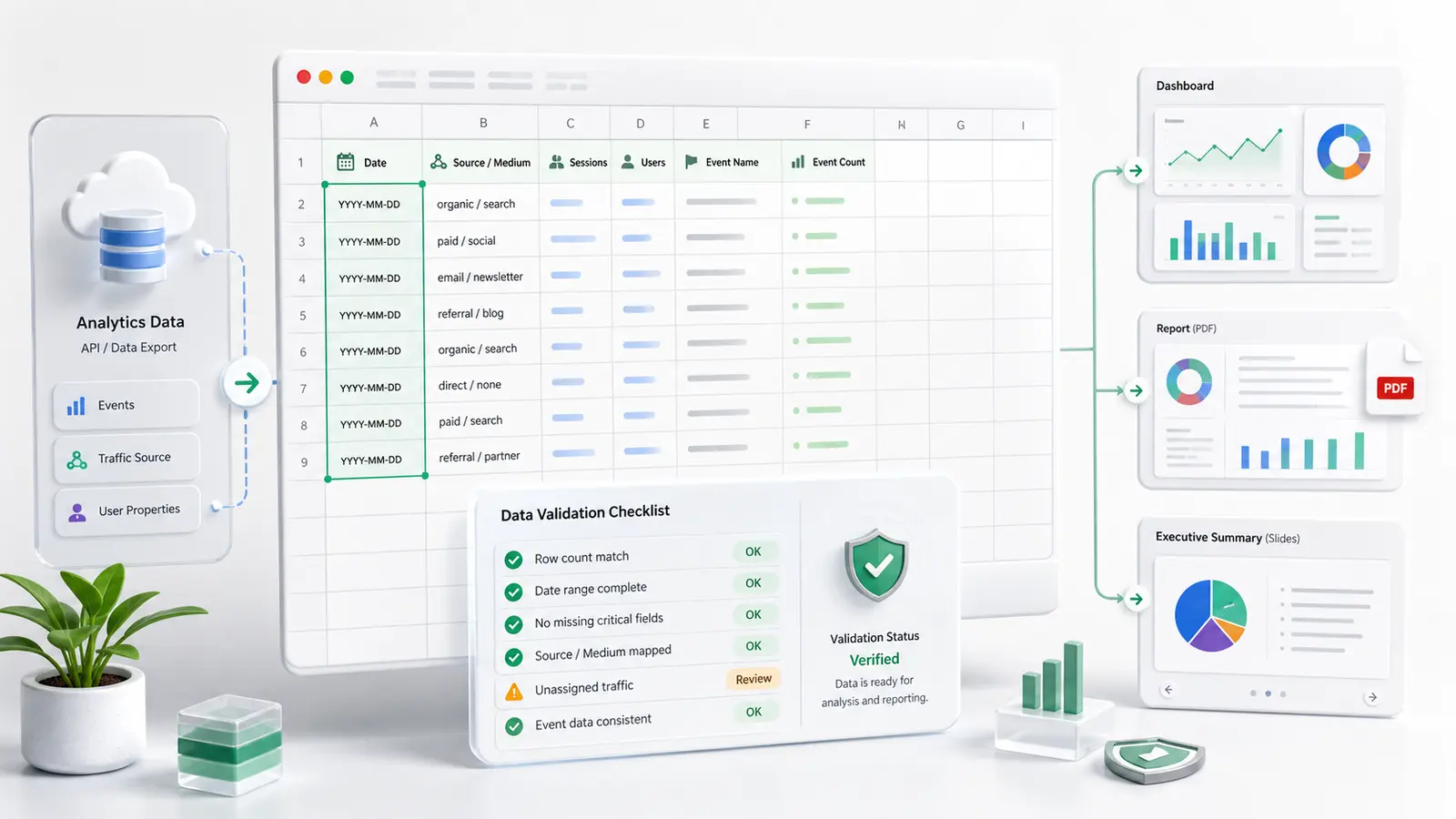
Quick answer — GA4 to Excel export safely
Bypass GA4 UI limits safely by defining the question first, choosing the right export path, preserving the date range, filters, dimensions, and metric scope, and reconciling the output before anyone builds pivots or slides. Use report CSV/Sheets exports for scoped snapshots, the Data API for controlled recurring pulls, and BigQuery export when you need raw event-level analysis beyond the GA4 interface.
GA4 to Excel export sounds harmless until the spreadsheet becomes the source of truth for a client call, board update, or weekly performance meeting.
The export itself is not the problem. The problem is treating a GA4 report download like a complete analytical dataset. GA4 reports, Explorations, the Data API, and BigQuery Export can all show data differently, and Excel will happily let you build a confident-looking pivot on top of an unsafe extract.
This guide is about the safer workflow: pick the right GA4 data path, preserve the grain of the data, document the assumptions, and reconcile the numbers before the workbook becomes a decision.
Why GA4 to Excel Exports Break Trust
GA4 exports break trust when the person opening the spreadsheet cannot explain what the rows represent.
A CSV from the GA4 UI may look like "the data," but it is usually a report-shaped snapshot. Google's GA4 reporting surfaces comparison is explicit that Reports, Explorations, the Data API, and BigQuery Export display data in different ways. That difference matters once the data leaves GA4 and lands in Excel.
Common failure modes include:
- The export includes fewer rows than the operator expected.
- High-cardinality values are condensed into an
(other) row.
- Fresh data changes after the workbook is shared.
- User-scoped, session-scoped, and event-scoped dimensions get mixed in the same pivot.
- Unique user counts are summed across rows as if they were additive.
- Excel opens an oversized CSV but only loads part of the data.
- Date range, timezone, filters, comparisons, and report surface are not documented.
Google's Data API reporting expectations list several reasons API and UI results can differ: sampling and aggregation, HyperLogLog++ approximation for unique counts, thresholding, (other) rows, reporting identity, query specificity, and freshness.
Excel adds its own trap. Microsoft says Excel worksheets support 1,048,576 rows by 16,384 columns, and warns that when a CSV or text file exceeds the grid, some data may not load. If someone then saves over the original, they can lose the unloaded data.
That is how a simple export becomes a reporting argument.
What GA4's UI Export Actually Gives You
GA4's UI export is useful. It is just not magic.
Google's share and export reports documentation says GA4 reports can be exported to PDF, CSV, or Google Sheets, and that the user needs Viewer access at the property level. It also says CSV and Google Sheets downloads include up to 100,000 rows of data.
That is enough for many scoped snapshots:
- a weekly landing page report
- a channel summary
- a campaign table for a short date range
- a quick client appendix
- a one-off QA check
It is not enough when the workbook needs to answer a broader question than the report was designed for. A UI export is shaped by the current report, selected dimensions, metrics, filters, comparisons, and date range. If you later treat it as a raw event dataset, the analysis can drift fast.
The safest question is not "Can I export this to Excel?" It is "What does this export represent, and is that the right grain for the decision?"
Choose the Data Path Before You Open Excel
Pick the export path before you touch formulas or pivot tables. The data path determines what can safely be claimed later.
For setup mechanics, the older GA4-to-Excel export methods guide is the better reference. For analysis safety, use this decision logic:
- GA4 report CSV or Google Sheets export: Use this for a scoped report snapshot under the documented export limits. It is fast, readable, and good for a short appendix, but it should not be treated as raw event data.
- GA4 Data API: Use this when you need controlled, repeatable report pulls. Google's Data API basics describe table-shaped reports built from requested dimensions, metrics, date ranges, filters, sorting, and pagination. The Data API still inherits GA4 reporting caveats, so reconcile before sharing.
- GA4 BigQuery Export: Use this when you need raw event-level analysis, custom parameters, larger history, or joins with other business data. Google's BigQuery Export documentation says GA4 can export raw events to BigQuery, where the data can be queried and combined with external data. Standard properties have a daily export limit of 1 million events. Streaming export has no volume limit, but it is best effort, has no completeness SLO, and may contain gaps.
- Uploaded CSV/XLSX in Anomaly: Use this when you already have a GA4 export and need a safer review workspace before it becomes a dashboard, Excel report, PDF, slide deck, or recurring output.
- Google Sheets source: Use this when the team already coordinates exports in Sheets and wants the sheet to become the traceable source for downstream analysis.
The point is not that one path is always best. The point is that each path has a job.
The Safe GA4 to Excel Workflow
Use this workflow every time a GA4 export is going to become a stakeholder-facing workbook.
- Write the business question first. "Why did organic sessions drop last week?" is safer than "export traffic acquisition." The question tells you which report surface, scope, and date range matter.
- Pick the source path that matches the grain. Use UI exports for report snapshots, the Data API for repeatable table-shaped pulls, and BigQuery export for raw event-level work.
- Lock the date range and timezone. GA4 freshness matters. Google's data freshness documentation says processing can take 24-48 hours and report data may change during that period.
- Preserve the filters, comparisons, and report surface. A workbook without those notes cannot be verified.
- Keep scope clean. Google's User acquisition vs Traffic acquisition page says User acquisition is scoped to new users and Traffic acquisition is scoped to new sessions. Google's default channel group documentation also distinguishes event, session, and first-user channel group scopes.
- Export only the rows and columns you need. More rows do not make the analysis safer if the grain is wrong.
- Import without overwriting the source file. If Excel warns that the dataset is too large, stop and preserve the original.
- Add a transformation log tab. List source surface, date range, filters, scope, formulas, joins, removed rows, and known caveats.
- Reconcile broad totals before sharing. Do not demand that every Excel total match every GA4 UI surface in every case. Instead, compare broad totals where appropriate and document why differences can exist.
- Save the reusable output and assumptions. The best workbook is not just a spreadsheet. It is a repeatable analysis artifact.
Excel is still useful. The mistake is using Excel as a dumping ground for misunderstood GA4 rows.
Decision Table: Export Need, Safest Path, Common Failure, How Anomaly Helps
| Export need |
Safest data path |
Common failure mode |
What to check before sharing |
How Anomaly helps |
| Quick stakeholder snapshot |
GA4 report CSV or Google Sheets export |
Treating a report snapshot as the full dataset |
Report surface, date range, filters, row count, and whether (other) appears |
Turns the scoped answer into a source-backed Excel report, dashboard, PDF, or slide |
| Weekly acquisition report |
Data API or GA4 report export, depending on repeatability needs |
Mixing User acquisition and Traffic acquisition scope |
First-user vs session dimensions and preserved metric definitions |
Keeps metric definitions, filters, date windows, and business rules visible across recurring reporting workflows |
| Raw event or custom parameter analysis |
GA4 BigQuery Export |
Expecting report-export rows to expose raw event parameters |
Event names, parameter extraction logic, daily export limits, and streaming caveats |
Uses supported BigQuery workflows to generate inspectable logic and output the approved result |
| Traffic-source or channel reconciliation |
GA4 report export, Data API, or BigQuery depending on grain |
Comparing Organic Search channel totals with raw medium=organic filters |
Event/session/user scope, channel group rules, source/medium, and attribution assumptions |
Keeps reconciliation logic visible; pair with the Organic Search vs medium=organic guide |
| Large export near Excel limits |
BigQuery export or filtered Data API pull, then a smaller Excel-ready output |
Excel partially loads an oversized CSV, then someone saves over the original |
Row count, preserved raw source, and aggregation before loading where needed |
Handles .xlsx, .xls, and .csv files up to 1GB and helps produce safer Excel-ready outputs |
| Board or client-ready recurring output |
Connected GA4, Data API, or BigQuery workflow plus saved report output |
Manual exports drift week to week |
Assumptions, transformation log, freshness window, and broad reconciliations |
Turns approved analysis into dashboards, refreshable reports, source-backed summaries, and scheduled reporting workflows |
Prompt Block for a Safer GA4 Export Review
Use this before you trust a GA4-to-Excel workbook:
Using this GA4 export/source, answer [question] for [date range]. Identify the source surface, row grain, dimensions, metrics, filters, timezone, freshness window, and any reasons the result may not match the GA4 UI. Return the result as [Excel report/dashboard/PDF/slides] and include the reconciliation checks.
That prompt forces the right questions into the workflow. It does not just ask for a chart. It asks for the source surface, grain, assumptions, and mismatch risks.
Excel Checks Before You Share the File
Before a GA4 export workbook leaves your desk, run this checklist:
- Row count matches the source. If the source had more rows than Excel loaded, the workbook is not safe.
- No "data set too large" warning was ignored. If Excel warned you, preserve the original file and use Power Query, aggregation, BigQuery, or another workflow before continuing.
- Raw export is preserved separately. Keep a raw tab or raw file untouched.
- Unique users are not summed across rows. User counts and session/user metrics often need careful aggregation.
- First-user, session, and event dimensions are not mixed. If they are mixed, explain why.
- Freshness window is noted. Where possible, use data outside the 24-48 hour processing window for stakeholder reporting.
(other), thresholding, sampling, and HLL++ caveats are documented. These do not always make the analysis unusable, but they must be visible.- Definitions and assumptions are in the workbook. A hidden assumption is a future reporting dispute.
Where Anomaly AI Fits
Anomaly AI is built for the part of GA4-to-Excel work that gets messy after the export.
It is an AI data analysis workspace where you can connect GA4 through the GA4 API, analyze GA4 BigQuery export data through supported BigQuery workflows, or upload .xlsx, .xls, and .csv files up to 1GB. From there, the goal is not just another table. The goal is a verifiable dashboard, report, or source-backed answer.
For this workflow, Anomaly helps you:
- ask the GA4 business question in plain language
- keep filters, date windows, metric definitions, and business rules visible
- inspect the generated logic before trusting the answer
- reconcile exported or connected data before sharing
- turn approved analysis into interactive dashboards, refreshable reports, source-backed summaries, and scheduled reporting workflows
That is different from promising perfect GA4 parity or automatic workbook refresh. Anomaly does not make every GA4 surface agree. It gives the analysis a workspace where the logic, assumptions, source data, and final output can be inspected before the spreadsheet becomes a decision.
If you are trying to explain why an export disagrees with a report, start with why GA4 exports disagree. If you want the broader GA4 workflow, see the GA4 analysis workspace, Excel data analysis, BigQuery analysis, and supported connectors.
FAQ
Can I export GA4 data to Excel?
Yes. GA4 reports can be exported to CSV or Google Sheets, and those files can be opened in Excel. Google's report export documentation says CSV and Google Sheets exports include up to 100,000 rows. For deeper or recurring workflows, use the Data API or BigQuery export instead of treating a UI export as the full dataset.
What is the safest way to bypass GA4 UI export limits?
Define the question first. If a report snapshot is enough, use the GA4 UI export and document the report surface. If you need repeatable report data, use the Data API. If you need raw event-level analysis or custom parameters, use BigQuery export. Then reconcile before you build the Excel model.
Why does my GA4 export not match the GA4 UI?
Common reasons include sampling, aggregation, HyperLogLog++ unique-count approximation, thresholding, (other) rows, reporting identity, mismatched dimensions or filters, freshness, and scope differences. The export may not be wrong. You may be comparing different definitions.
Should I use BigQuery or a GA4 report export for Excel?
Use a GA4 report export for quick, scoped snapshots. Use BigQuery when the question needs raw event-level data, custom parameters, longer history, or joins with other business data. If the question is somewhere in the middle, the Data API can provide controlled table-shaped report pulls.
Can Anomaly AI keep an Excel workbook automatically refreshed from GA4?
No. Do not treat Anomaly as a universal Excel auto-refresh product. Anomaly helps with verifiable GA4 analysis, supported GA4 API or BigQuery workflows, uploaded Excel/CSV files, and stakeholder-ready outputs such as dashboards, Excel reports, PDFs, slides, docs, and scheduled reporting workflows where the source and workflow support it.
Ready to make GA4 exports safer before they turn into stakeholder reports? Start a traceable GA4 analysis workflow.