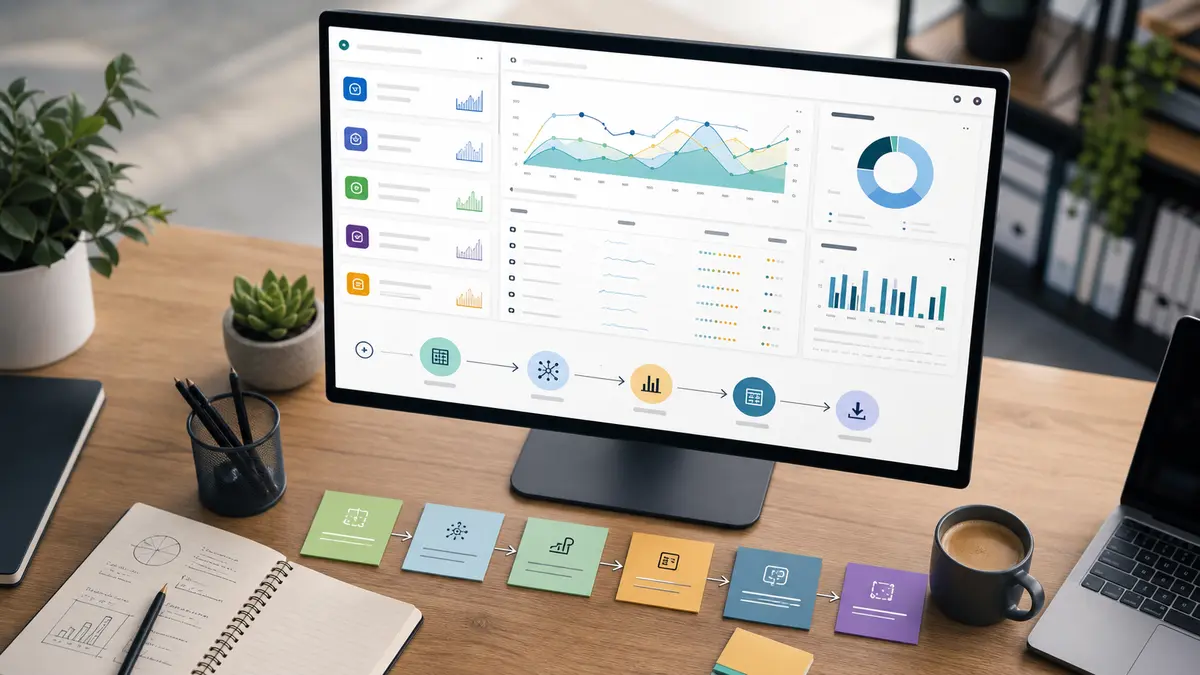
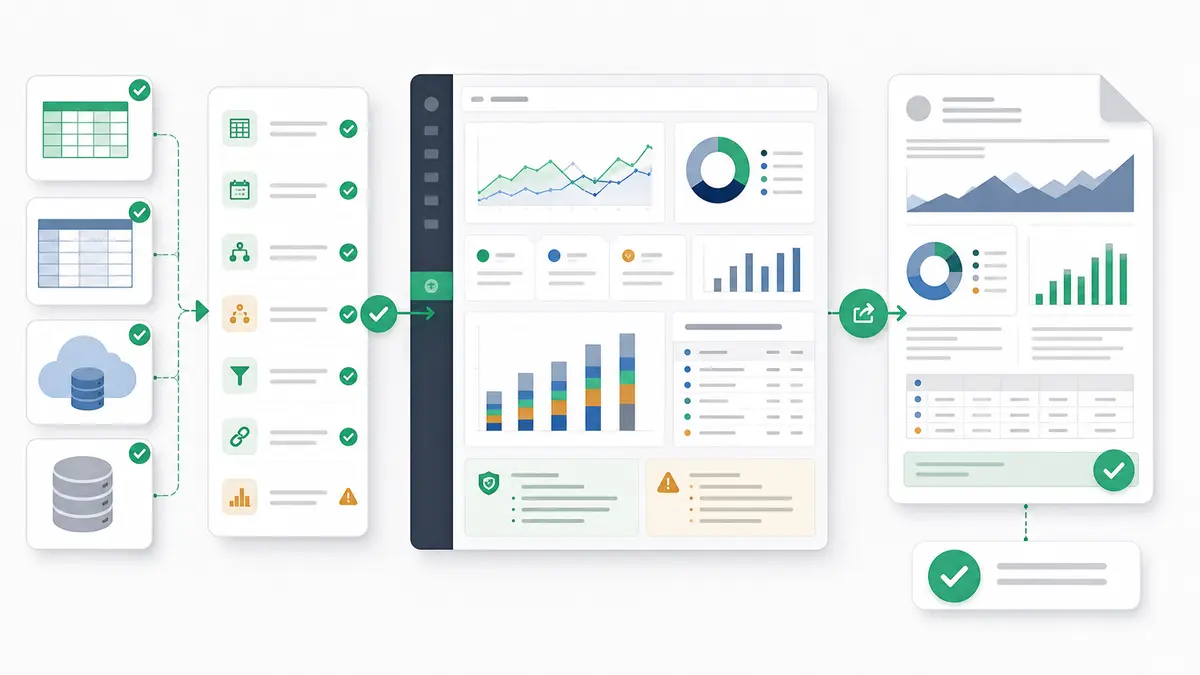
If you are comparing the best AI tools for data analysis and visualization in 2026, do not start with a ranked list. Start with the workflow. A tool that is excellent for spreadsheet formulas can be the wrong choice for governed BI, one-off file exploration, a SQL/Python notebook workflow, or a repeatable board-reporting process.
Quick answer — best AI tools for data analysis and visualization in 2026
The best AI tool depends on the workflow. Use spreadsheet AI for formulas and quick sheet edits, ChatGPT or Claude for one-off file exploration, BI copilots for governed dashboards, notebook tools for SQL/Python teams, and Anomaly AI when messy uploaded or connected business data needs inspectable logic, dashboards, and refreshable recurring reports.
Start With the Workflow, Not the Ranking
The AI analytics category has become too broad for a single "best tools" list to be useful. Some tools are built inside spreadsheets. Some are conversational file-analysis environments. Some sit on top of a semantic BI model. Some help technical teams write SQL and Python. Some are better for visual exploration. Some are built around repeatable business outputs.
The right choice depends on three questions:
- Where does the data live: a local CSV, a workbook, a Google Sheet, a warehouse, a BI semantic model, or several messy sources?
- Who needs to use the tool: a business operator, a spreadsheet owner, a data analyst, a BI admin, or a data scientist?
- What is the final deliverable: a formula, a chart, a dashboard, a notebook, a recurring report, or a source-backed summary?
That is why this guide is workflow-first. It is not trying to crown one universal winner. It maps the buyer job to the tool category, then shows where Anomaly AI fits for messy business data that needs repeatable, source-backed outputs.
Use this matrix before you evaluate vendor pages or ask for demos. It narrows the field by workflow, not hype.
| Workflow |
Best-fit tool category |
Representative tools |
What to verify before buying |
Where Anomaly fits |
Choose something else when |
| Spreadsheet cleanup, formulas, formatting, and quick sheet edits |
Spreadsheet AI |
Microsoft Copilot in Excel, Gemini in Sheets |
Spreadsheet version, cloud requirements, source limits, permissions, and whether your file shape is supported |
Not a cell editor; useful after the work becomes analysis, reporting, or export-driven |
The job is still formula writing, cell editing, or manual spreadsheet formatting |
| One-off uploaded-file exploration |
General AI file analysis |
ChatGPT, Claude |
File size limits, supported file types, workspace settings, data retention settings, and whether analysis can be reviewed |
Better for larger supported uploads and repeatable business logic, especially .xlsx, .xls, and .csv up to 1GB |
You only need a one-time answer from a small file |
| Large CSV or workbook analysis |
AI analyst workspace |
Anomaly AI |
Supported formats, size limits, source handling, output options, and reviewability |
Built for uploaded spreadsheets/CSVs, connected sources, source-backed calculations, dashboards, and recurring reporting workflows |
You need custom Python libraries or a full warehouse-backed data science workflow |
| BI dashboard authoring |
BI copilot |
Copilot for Power BI |
Capacity requirements, semantic model quality, tenant settings, permissions, and report authoring limits |
Useful when the data is not yet ready for a governed BI layer |
You already have a mature Power BI program and governed semantic model |
| Governed semantic-model Q&A |
Semantic BI/search |
Looker Conversational Analytics, ThoughtSpot Spotter |
Modeled data quality, LookML or model setup, permissions, supported experiences, and governance ownership |
Useful before definitions and messy source files are stable enough for semantic BI |
The question must be answered inside a governed BI model |
| SQL/Python notebook workflow |
Notebook and SQL workspace |
Hex |
SQL/Python skill level, warehouse access, notebook review process, AI controls, and collaboration needs |
Better for nontechnical operators who need reviewed outputs without writing code |
Technical analysts need notebook-level control over code |
| Visual exploration and storytelling |
Visualization-first AI |
Tableau Agent |
Connected workbook/source requirements, supported chart types, site settings, and review process |
Strong when the goal is a shareable business output from messy or uploaded data |
The main job is visual exploration inside Tableau |
| Stakeholder reports and scheduled outputs |
AI recurring reporting workflow |
Anomaly AI, BI subscriptions, document-generating assistants |
Output formats, refresh model, delivery method, reviewability, and scheduled-reporting support |
Fits when outputs need to become dashboards, refreshable reports, source-backed summaries, or scheduled update packets |
You only need a dashboard inside an existing BI portal |
Spreadsheet AI Is Best for Cell-First Work
Spreadsheet AI is the right starting point when the spreadsheet is still the work surface. If the main task is writing formulas, cleaning a small table, explaining a column, creating a pivot-style summary, or formatting the grid, native spreadsheet tools keep the workflow simple.
Microsoft says Copilot in Excel can help with formulas, importing data, filtering, sorting, highlighting, and surfacing insights such as charts, PivotTables, summaries, trends, or outliers. Google says Gemini in Sheets can help create tables and formulas, generate analysis and insights, build charts and graphs, create pivot tables, format cells, sort, filter, and perform other spreadsheet actions.
That is valuable work. If your team lives in Excel or Google Sheets, spreadsheet-native AI can make day-to-day Excel data analysis with AI faster. It is especially useful for bounded, cell-first jobs: clean this column, explain this formula, summarize this tab, build a quick chart, or help me format this sheet before a meeting.
The boundary is repeatability. A spreadsheet can still become fragile when the file grows, the formula chain gets hard to audit, several exports must be compared, or stakeholders need the same report every week. At that point, the question is no longer "Which formula should I write?" It becomes "How do we turn this data into a recurring report we can verify?" For that distinction, see the deeper comparison of an AI spreadsheet vs AI data analyst workspace.
ChatGPT and Claude Are Best for One-Off File Exploration
General AI assistants are strong when you have a file and need a flexible one-off exploration. They are fast, conversational, and good at helping a user think through unfamiliar data before a more formal workflow exists.
OpenAI's data analysis guidance for ChatGPT says ChatGPT can inspect uploaded files, answer questions about data, create tables and charts, run Python-based calculations, transformations, and statistical analysis, and explain assumptions, results, and next steps. OpenAI also notes that supported file types include spreadsheets such as .xls, .xlsx, and .csv, while available file types and limits vary by model, plan, workspace settings, and account capabilities.
Claude is also strong for ad hoc file work. Anthropic says Claude can create and edit files including Excel spreadsheets, PowerPoint presentations, Word documents, and PDFs. The same official guidance says Claude can create Python scripts, generate PNG visualizations, and process CSV, TSV, and other data files, with a maximum file size of 30MB per file for uploads and downloads.
The practical caveat is repeatability. A conversational analysis is often excellent for the first investigation, but harder to operationalize next week with fresh data, the same metric definitions, the same assumptions, and a stakeholder-ready output. ChatGPT's data-analysis environment also cannot make external web requests or API calls, according to OpenAI, so the relevant data must be uploaded or connected before the analysis starts.
Use ChatGPT or Claude when the job is flexible exploration. Move to a workspace when the job must be rerun, reviewed, exported, scheduled, or defended.
BI Copilots Are Best When the Semantic Layer Already Exists
BI copilots are strongest when the organization already has prepared data, permissions, business definitions, and semantic models. They are not magic cleanup tools for messy spreadsheets. They are AI interfaces on top of a governed BI environment.
Microsoft's Copilot for Power BI overview says Copilot supports chat-based experiences for data analysis, report summaries, questions about data in semantic models, report creation and editing, semantic-model summaries, summary visuals, DAX query generation, and measure descriptions. Microsoft also calls out requirements such as organizational capacity and data/model preparation.
Looker follows a similar pattern. Google Cloud describes Looker Conversational Analytics as a Gemini-powered experience that interprets natural-language questions and grounds answers in the Looker semantic model and LookML. It can generate queries through Looker, summarize results, and create visualizations where enabled.
ThoughtSpot's Spotter documentation puts Spotter in the same general semantic-search lane: an AI analyst/search experience inside a modeled ThoughtSpot environment. That makes it useful when the model and governance already exist.
Choose BI copilots when you already have the BI foundation. Choose a lighter analysis workflow when the problem is upstream: messy exports, changing definitions, inconsistent source files, or a first-pass analysis that should not become a full BI project yet. The same tradeoff appears in the guide to free Power BI alternatives for messy spreadsheets.
Visualization-First AI Is Best for Interactive Exploration
Visualization-first AI is useful when the main job is exploring data visually: choosing chart types, slicing views, explaining calculations, and helping users move from a blank canvas to a useful visual.
Tableau says Tableau Agent helps users explore data, create visualizations, uncover insights, suggest analytical questions, choose chart types, perform time-series analysis, create and explain calculated fields, and filter or sort data. Tableau also states that the agent works with data sources the active workbook is connected to.
That makes visualization-first AI a good fit for teams whose data is already in the visualization environment and whose main task is chart exploration. It is less useful when the upstream issue is a large CSV, a messy workbook, a Google Sheet with inconsistent tabs, or a recurring report that must produce both analysis and stakeholder-ready documents.
The decision is simple: if you are already inside Tableau and need visual help, use the visualization tool. If the work starts with messy business data and ends in dashboards, refreshable reports, source-backed summaries, or scheduled updates, look for a workflow that covers the full path.
Notebook and SQL Workspaces Are Best for Technical Teams
Notebook and SQL workspaces are built for teams that want code-level control. They are powerful when analysts and data scientists want AI help but still expect to inspect the SQL, Python, transformations, and logic directly.
Hex describes itself as a collaborative workspace for data science and analytics with SQL, Python, no-code workflows, AI assistance, data apps, reports, parameterized analysis, transparency, and collaboration. Hex's AI overview says its AI features assist in SQL, Python, Chart, and Markdown cells, and that Notebook Agent generates and edits notebook logic for technical users who can audit the SQL and code.
That is the right tradeoff for technical teams. If analysts want a notebook, warehouse schema access, custom code, and a transparent app-building environment, a notebook workspace makes sense.
It is not the cleanest fit for a nontechnical operator who needs a dashboard, source-backed summary, or weekly reporting workflow without learning notebook conventions. For that user, the right question is not "Can the tool generate code?" It is "Can the tool produce a reviewed report I can share and rerun?"
Anomaly AI fits the middle layer between spreadsheet AI, general-purpose chat, notebooks, and governed BI. It is an AI analyst workspace for uploaded or connected business data when the job needs inspectable logic and reusable outputs.
That position matters because many teams are not starting with a perfect warehouse model. They are starting with large CSVs, multi-tab workbooks, Google Sheets, GA4 exports, BigQuery tables, MySQL data, Snowflake data, and business definitions that still need to be clarified. They need analysis that can be inspected before it becomes a dashboard, recurring report, or client-facing answer.
Anomaly supports direct uploads of .xlsx, .xls, and .csv files up to 1GB. It also supports available source workflows including Google Sheets, GA4, BigQuery, MySQL, and Snowflake where available. That makes it a fit for workflows like analyzing a 1GB CSV without Python, multi-tab Google Sheets analysis, and BigQuery data analysis without asking every business user to become a notebook author.
The reporting layer is the bigger point. Anomaly can turn a question or recurring review workflow into interactive dashboards, business reports, source-backed summaries, and scheduled reporting workflows where source and workflow support allows.
The trust layer is just as important. Anomaly is built around traceable analysis, source-backed calculations, metric definitions, business rules, and logic your team can inspect. It is not just a chat answer. The reviewer should be able to inspect how the result was produced before sending it to a stakeholder.
The boundaries are clear. Anomaly is not a real-time monitor, a full BI semantic layer, a DAX or Power Query clone, a warehouse replacement, a guaranteed root-cause engine, a SOC 2-complete product, or a Parquet uploader.
Use Anomaly when the workflow is messy business data to reviewed output. Use BI when the workflow is governed enterprise reporting. Use notebooks when the workflow is code-first. Use spreadsheet AI when the workflow is still cell-first.
Use this checklist before you commit to a tool:
- What is the source of truth: spreadsheet, connected sheet, database, warehouse, semantic BI model, or uploaded file?
- Is the source data clean enough for visualization, or does it need validation first?
- Does the workflow repeat, or is this a one-time investigation?
- Who must review the logic before the output is shared?
- Does the tool show assumptions, calculations, and source-backed logic?
- Does the buyer need a chart, dashboard, recurring report, source-backed summary, export, or notebook?
- Are file-size limits, connector claims, plan limits, and feature claims verified on current official pages?
- Is the tool designed for the user who will actually run the workflow?
- Would a spreadsheet solve the job faster, or would it hide too much logic?
- Would a BI stack create durable governance, or just slow down an ad hoc investigation?
The answer usually becomes obvious. If the job is small and cell-first, stay in the spreadsheet. If the job is exploratory and one-off, a general AI assistant may be enough. If the organization already has governed BI, use the copilot inside that BI layer. If the job is repeatable business analysis from messy uploaded or connected data, use a workflow built around verifiable recurring reports.
What is the best AI tool for data analysis in 2026?
There is no universal best tool. For formulas and small sheet edits, use spreadsheet AI. For one-off file exploration, use ChatGPT or Claude. For governed BI, use the copilot inside your BI platform. For technical SQL/Python work, use a notebook workspace. For messy business data that needs inspectable logic and stakeholder-ready outputs, use Anomaly AI.
What is the best AI tool for data visualization?
It depends on where the data already lives. If the data is already in Tableau, Tableau Agent can help with visual exploration. If the data is in a governed Power BI or Looker environment, use the AI layer there. If the data starts as messy spreadsheets, large CSVs, Google Sheets, or connected business sources, Anomaly is often the better fit because it can create dashboards, refreshable reports, source-backed summaries, and scheduled reporting workflows.
When should I use Anomaly instead of ChatGPT or Claude?
Use Anomaly when the workflow must repeat, the file is large, the logic must be reviewed, or the output needs to become a dashboard, recurring report, source-backed summary, or scheduled update. Use ChatGPT or Claude for flexible one-off exploration of files that fit their current limits and review model.
When should I use Power BI, Tableau, Looker, or ThoughtSpot instead?
Use those tools when your data is already modeled, governed, and connected inside that environment. BI and visualization tools are strong when the semantic model or workbook already exists. They are less direct when the problem starts with messy files, unclear definitions, or a first-pass analysis that has not earned a full BI implementation.
Do I need a warehouse or semantic model first?
Not always. A warehouse or semantic model is valuable when the organization needs governed reporting across teams. But for an operator-led workflow, a client report, a pre-meeting analysis, or a messy spreadsheet review, it can be faster to start with uploaded or connected source data and move to a heavier BI model only when the workflow repeats at scale.
What product claims should I verify before buying?
Verify file-size limits, supported file formats, connectors, scheduled-reporting behavior, security and compliance claims, plan limits, pricing, and output formats from current official vendor pages. Do not rely on old comparison posts or sales shorthand. AI analytics products are changing quickly, and stale assumptions are easy to miss.
Build the Workflow Around the Output
The best AI tools for data analysis and visualization in 2026 are not interchangeable. The right choice is the tool that matches your data source, user, review burden, and final output.
If the workflow you are buying for is messy business data that needs verifiable dashboards, recurring reports, source-backed summaries, or scheduled updates, get started with Anomaly AI and test the workflow against a real file or connected source.