In my experience, the same pivot-table rebuild loop keeps showing up in finance, ops, and product reporting. Different data, same dance: refresh source, drag region into rows, product into columns, units into values, re-filter to the SKUs that actually shipped, copy the output into a deck. If you searched ai replace pivot tables, you've probably timed that cycle and decided you'd rather spend that morning on something else.
This is a practical guide to what that swap actually looks like in 2026 — what "AI" really means in this context, which parts of the pivot-table workflow genuinely do get replaced, and which parts still belong inside the spreadsheet. I'll show you one representative workflow executed three ways, so you can tell the difference between a chat wrapper over a file and a data analyst that shows its work.
TL;DR
- Pivot tables are a drag-drop UI over
GROUP BY — the underlying operation is an aggregate with optional filters.
- The bottleneck isn't the pivot table itself; it's the drag-drop-refresh cycle and Excel's file-level limits.
- AI can replace that cycle when it combines a natural-language interface with a real query engine that you can audit.
- If your workflow is outgrowing Excel, the right replacement is an AI data analyst with verifiable analysis. Native Excel AI can help on small in-sheet tasks, but it does not remove Excel's limits.
- Pivot tables still earn their keep for small ad-hoc summaries, presentation polish, and workbooks shared with people who've used them for twenty years.
What pivot tables actually do
Every pivot table is a compact specification of four choices: which field goes on rows, which goes on columns, which value gets aggregated, and which filters apply. Microsoft's own PivotTable primer describes these as the Rows, Columns, Values, and Filters areas. Strip away the drag-and-drop interface and what you have is a GROUP BY query with an optional WHERE.
A pivot showing monthly revenue by region is SELECT month, region, SUM(revenue) FROM orders GROUP BY month, region. Adding a filter for "orders over $500" is a WHERE clause. Slicing by product category is another column in the GROUP BY. I find that analysts who already know this shortcut tend to get more out of AI tools, because they can recognise when the tool answered the right question and when it just answered a question.
Pivot tables are a familiar UI for that query shape. They're also the most common teaching tool for aggregation in corporate life, which is why they show up in every finance, sales, and operations workflow.
Where the drag-drop-refresh cycle breaks
The failure points I've watched repeatedly across teams:
The row ceiling. Excel's specifications and limits cap a worksheet at 1,048,576 rows. A pivot table sourced from a single sheet inherits that ceiling. Teams hit it sooner than they expect — six months of shipment lines, two years of event data, one year of GA4 raw exports.
Refresh lag. Once the source file grows, every change to filters or slicer state triggers a recompute. Large pivots can become slow enough to break exploratory analysis — analysts stop trying variations because each recompute interrupts the flow.
Source-data coupling. Pivot tables store a snapshot of the source. If the source moves, gets overwritten, or someone changes a column header, the pivot silently breaks or quietly produces wrong answers. I've traced more than one "why does our revenue forecast disagree with finance?" thread to a drifted pivot source range.
Multi-sheet joins. The moment your analysis needs two sheets combined — orders joined to customers, traffic joined to conversions — you end up in VLOOKUP land or Power Pivot's data model, both of which add enough complexity that most operators quietly give up and copy-paste between sheets instead.
The weekly rebuild tax. If the report ships every week, the same human has to repeat the same drag-drop sequence every week. Parameter-driven pivot workflows exist, but they're brittle enough that most teams don't set them up.
Nothing here is the pivot table's fault. It's the spreadsheet's file-level model showing through. AI replaces the cycle by running the same GROUP BY against a real query engine that doesn't inherit the spreadsheet's limits.
Three flavors of AI replacing pivot tables
When a technical PM asks if AI can replace pivot tables, they usually mean one of three very different things. Knowing which one you need saves a lot of evaluation time.
Copilot in Excel (AI inside the sheet)
Copilot in Excel sits inside your workbook and converts natural-language prompts into formulas, charts, and pivot-table suggestions. Ask "summarise sales by region" and it will propose a pivot table in the same file, populate the rows and columns, and apply a default aggregation. It works best when:
- The data already lives in a structured Excel table
- The dataset fits comfortably under Excel's row limit
- You want the output to stay inside Excel for downstream use
Copilot doesn't escape Excel's file-level constraints. A pivot it generates still has to run inside the workbook, so it shares the same refresh lag on large files and the same source-coupling risks. If you are staying inside Excel on a small file, Copilot can be workable. It still inherits Excel's limits and does not solve the auditability problem.
A second category of tools lets you upload a file, chat with it, and receive aggregated outputs. Prompt engineering replaces the row-column drag. The quality of these tools varies a lot depending on whether the output is explainable. The ones that help me most let me see the exact query that produced the number; the ones that have burned me produced confident-sounding summaries over files they had clearly misread, with no way to verify.
The evaluation question I always ask: if the CFO challenges this chart, can I show them the query that produced it? If the answer is no, I treat the tool as a brainstorming aid, not an aggregation replacement.
AI data analysts on warehouses and spreadsheets
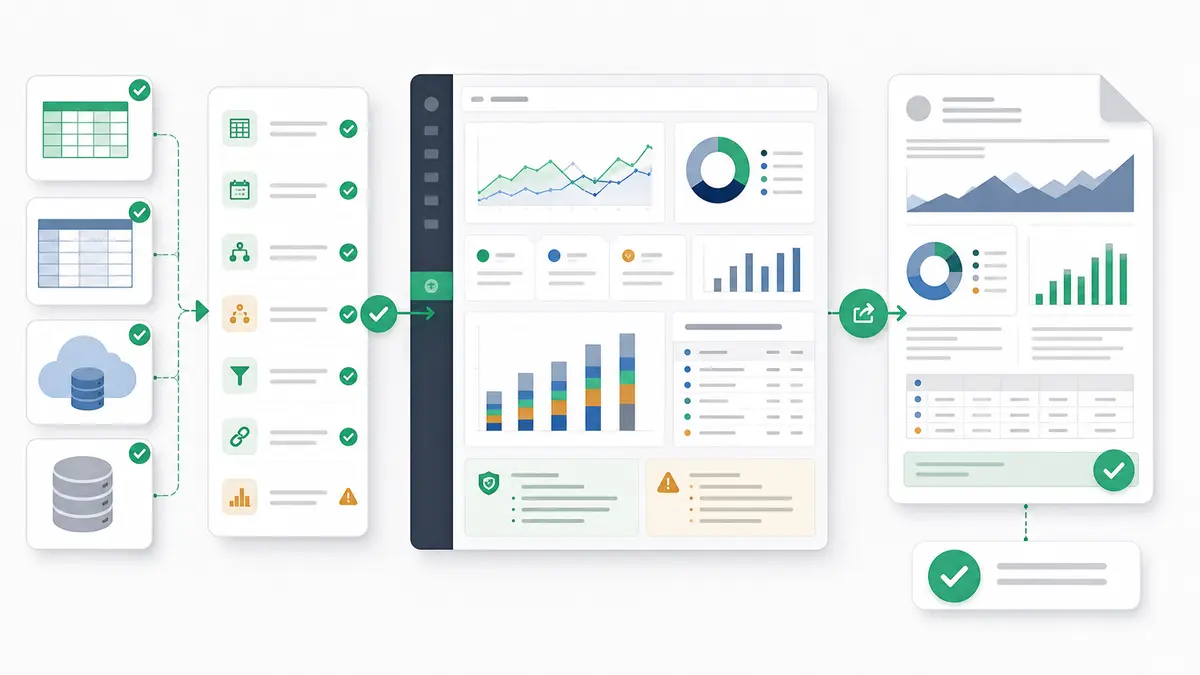
The third category is the one I reach for when the pivot-table cycle is the bottleneck and the file has already outgrown a single sheet. These tools attach a natural-language interface to a proper query engine — SQL over a warehouse, or a fast embedded engine over uploaded files, or both — and expose the query alongside the chart. Prompts like "monthly GMV by region for SKUs that shipped more than 10 units" become a single aggregation that runs in seconds and returns an answer I can audit line-for-line.
Anomaly AI lives in this category. Dashboards, charts, reports, and exports keep the logic, source data, assumptions, calculations, and relevant SQL inspectable. That part matters more than the prompt UX; it's what makes the output defensible in a review meeting.
Side-by-side: the same pivot-table job, three ways
Take the workflow I used as the opener — monthly revenue by region and product line, filtered to SKUs that shipped more than zero units in that month. Here's how the three approaches compare.
Inside Excel (classic pivot):
- Load the orders sheet, refresh it.
- Insert PivotTable. Drag
month to Rows, region to Columns (or split across).
- Drag
product_line to Rows beneath region.
- Drag
revenue to Values, set aggregation to SUM.
- Add
units_shipped to the filter area with a condition > 0, or prefilter the source range.
- Format, copy to deck.
The workflow still requires a repeated sequence of manual steps every week.
Copilot in Excel: Prompt: "Pivot table of monthly revenue by region and product line, only rows where units shipped is greater than zero." Copilot drafts the pivot inside the current workbook. You confirm, adjust formatting, and ship. It can reduce setup steps on smaller workbooks, but it still operates inside Excel's row and performance limits.
Anomaly AI on the same file, uploaded: Prompt: "Show monthly revenue by region and product line, only where units_shipped > 0. Chart it and show totals." The response is the chart, a table, and the SQL it emitted — something close to SELECT DATE_TRUNC('month', order_date) AS month, region, product_line, SUM(revenue) AS revenue FROM orders WHERE units_shipped > 0 GROUP BY 1,2,3 ORDER BY 1,2,3. Clicks: one. File size ceiling: up to 1GB per upload. If the data already lives in BigQuery or Snowflake, I point the tool at the warehouse instead of the file, and the same prompt runs there without me writing a line of SQL.
The headline difference isn't the speed. It's that the SQL is visible. When the finance lead asks how we computed the filter, I don't have to re-derive it; the query is sitting next to the chart.
When pivot tables are still the right answer
I'd be overstating things if I said AI kills pivot tables. A few scenarios where I still reach for a classic pivot first:
- One-shot summaries on a small file — if the source has 5,000 rows and I need a quick breakdown for a stand-up, spinning up an AI tool costs me more than twenty seconds of dragging.
- Presentation polish — Excel's pivot formatting, subtotals, and grand totals still beat most AI chat outputs when the deliverable has to look boardroom-ready inside PowerPoint.
- Workbooks shared with stakeholders who live in Excel — if the person receiving the file is going to re-filter it themselves, giving them a pivot they can click is friendlier than giving them an exported CSV plus a SQL string.
- Strictly offline environments — regulated workflows where the data cannot leave the laptop still favour native Excel over any cloud-based AI tool.
The question isn't pivot tables or AI. It's which step of the analysis loop needs the AI. For aggregation and exploration across large, recurring datasets, AI wins. For presentation of a small one-off result, a pivot table still earns its place in the deck.
How Anomaly AI handles the same workloads
I work on the product side at Anomaly AI, so this section is self-interested, but concretely: the pivot-table replacement loop is close to the core use case. Specifically:
- Excel uploads up to 1GB, formats
.xlsx, .xls, and .csv. That covers datasets a pivot table cannot load.
- Multi-tab schema detection — if your workbook has four sheets, the AI treats each as a table and joins across them, without you writing a
VLOOKUP.
- Traceable logic on every output — every aggregation keeps the logic, source data, assumptions, calculations, and relevant SQL inspectable, so a reviewer can verify the logic in one glance.
- Connectors for when data graduates off the file — BigQuery, Snowflake, MySQL, Google Sheets, and GA4. The connector list is the source of truth for what we actually connect to today.
- Pricing ladder — Free $0, Starter $16/month, Pro $25/month, Team $45/seat/month (see the pricing ladder). Free tier is enough to run a few pivot-replacement workflows end to end before deciding.
For broader Excel analysis work that still lives inside the sheet, our broader Excel analysis techniques guide covers the classic formulas-and-charts toolkit. If you specifically want AI running over Excel files, the AI for analyzing Excel files piece goes deeper.
FAQ
Can AI really replace pivot tables?
For aggregation and filtering, yes — AI tools with a proper query engine match what a pivot does and remove the file-size ceiling. For presentation polish inside a workbook, pivot tables are still often the faster path. Think of it as replacing the drag-drop-refresh cycle, not replacing the spreadsheet.
Is Copilot in Excel enough?
It's enough when your data fits comfortably in Excel and you want the output to stay inside the sheet. It's not enough when your source file is approaching the 1,048,576-row limit, when you need to join across many sheets, or when you need SQL visibility for audit.
What about files over one million rows?
Traditional pivots cap out at Excel's per-sheet row limit. AI data analysts with their own backend query engines run the aggregation outside Excel, so they're not constrained by Excel's per-sheet row limit. Anomaly AI accepts .xlsx, .xls, and .csv uploads up to 1GB and is built for spreadsheet workloads with millions of rows, depending on file width.
Will I still need to know SQL?
No. Natural-language input is sufficient for the common pivot-replacement workflows. What changes is that the tool shows you the SQL it generated. You don't have to write it; you just have to be able to read it to sanity-check the answer.
Does this change the role of the analyst?
In my experience, it reshapes where the time goes. Less of it is spent on mechanical re-pivoting; more of it is spent on asking sharper questions and interpreting the output.
Start small
If you spend a morning each week rebuilding the same pivot table, the pivot-replacement loop is the cheapest possible test of an AI data analyst — one workflow, one file, one prompt, one verifiable analysis. You can test that workflow on Anomaly AI's free tier: upload a .xlsx, .xls, or .csv file up to 1GB or connect BigQuery, MySQL, Google Sheets, or GA4, then review the logic behind the output.
Try Anomaly AI free — Anomaly AI for large spreadsheet workflows. Upload .xlsx, .xls, or .csv up to 1GB or connect BigQuery, MySQL, Google Sheets, or GA4. Create dashboards, reports, PDFs, slides, docs, and scheduled updates with source-backed calculations. Free $0 / Starter $16/month / Pro $25/month / Team $45/seat/month.