

Data Analysis
21 min
12 Data Analysis Tools Compared: Effort, Accuracy and Price
Compare 12 data analysis tools by how much work each takes to get a correct answer, what to watch for and what it costs.
Read More
Data Analysis — Tool comparison · 2026
Compare seven AI tools for Excel errors: what they found, what they missed, Free access, prices and file sizes.
 12 min read
Quick answer
Anomaly AI is our first choice for an AI detector for Excel files. Anomaly AI is our product. We tested it with the same workbook, prompt and scoring rules as the other tools. It earned our recommendation by finding all 25 errors without flagging correct data as wrong. It is a good fit if you also want reviewable calculations and Excel reports.
We tested AI that reads Excel files to see which tools could find mistakes in spreadsheet data and formulas. If you need an AI checker or Excel formula checker to audit a workbook, here’s what we found. The focus is error checking, one part of AI for Excel data analysis. These tools do not detect AI-written text.
Here’s how the seven tools handled our workbook.
| Tool | Accuracy on our workbook | Free version | File size limit and what we verified |
|---|---|---|---|
| Anomaly AI | It found all 25 errors. It didn’t flag correct data as wrong. | Free includes credits every 30 days, no card needed. We added credits for the test. | It supports Excel and CSV up to 1GB. |
| Julius AI | It found 24 of 25 errors on Free. It didn’t flag correct data as wrong. | Free gives 25 credits a day, refreshing at 00:00 UTC. | It read our 1GB CSV on Free. |
| ChatGPT | It found 23 of 25 errors on paid Go. It didn’t flag correct data as wrong. | Free is available, but we only tested Go. | It read our 100MB CSV. The 500MB analysis failed after upload. |
| Claude | It fully explained 24 of 25 errors and partly explained one. It flagged correct data as wrong 3 times. | Free is available, but we only tested Pro. | Our Pro account showed a 400MB cap. It read our 100MB CSV. |
| NoteGPT AI Data Analyzer | It found all 25 errors. It flagged correct data as wrong 4 times. | Free gives 15 Basic Quotas a month and no Premium Credits. Our large-file analyses needed Premium Credits. | Free accepts up to 50MB, but our 24MB and 50MB files needed Premium Credits for analysis. |
| GPTExcel | It gave us no completed error report, so we gave it no accuracy score. | Free gives 50 credits a month. Our failed check used one. | Advertised limits are 5MB on Free, 50MB on Pro and 100MB on Pro Plus. It opened our 1.16MB workbook. |
| Datapad | It didn’t locate any of the 25 errors. It flagged correct data as wrong 4 times. | Five chat messages a day are advertised, but code credits blocked our check. | It accepted our 1.16MB workbook, but only checked previews and statistics. We did not verify a size limit. |
Prices were checked on 17 November 2026. Annual prices need the full year paid upfront. Local prices and taxes may differ.
We used a synthetic finance-close Excel workbook. We added 25 errors and included correct entries to see whether the tools wrongly flagged them. These included formula errors, duplicate invoices and invoice IDs, numbers and a date stored as text, and missing fields. Some quantities or dates were impossible, and one price was unusually high. A payment had no matching invoice. Other amounts and a typed total did not match the underlying data.
We judged each tool on accuracy, useful output, file coverage, large-file handling, exact error locations, correct data flagged as wrong and pricing. We also checked Free-plan credits, when they refresh and accuracy on Free, where we could test it. An Excel formula analysis tool should show the exact cell and explain the mistake.
We applied the same scoring rules to every tool, including Anomaly AI.
The tools chose their own checks. Running calculations in code gives the same result when the data and rules stay the same. That makes the numbers easier to check, but the rules and explanations can still be wrong.
Each tool received the same unchanged 1.16MB workbook, with 20,132 data rows across Customers, Invoices, Payments and Summary sheets. It contained 25 deliberately added errors and three valid entries for comparison.
You can download the synthetic workbook, list of planted errors and valid entries from our 16–17 November 2026 tests.
Every tool received the same request:
Check this Excel workbook for errors. List every problem you find. For each one give the sheet, the cell or row, the InvoiceID or PaymentID where there is one, and what is wrong. Do not change the file.
We counted an error only when the tool gave both its correct location and what was wrong. A false alarm meant calling a valid entry an error. The tools were run without the list of planted errors; the reviewer used it to check their answers. Plans and models differed, so these runs compare the whole workflow, not models alone.
The large-file checks used repetitive CSV data. We checked row counts, totals and five marker records. They did not test error detection or Excel formula checking in large workbooks.
These extra details explain individual results:
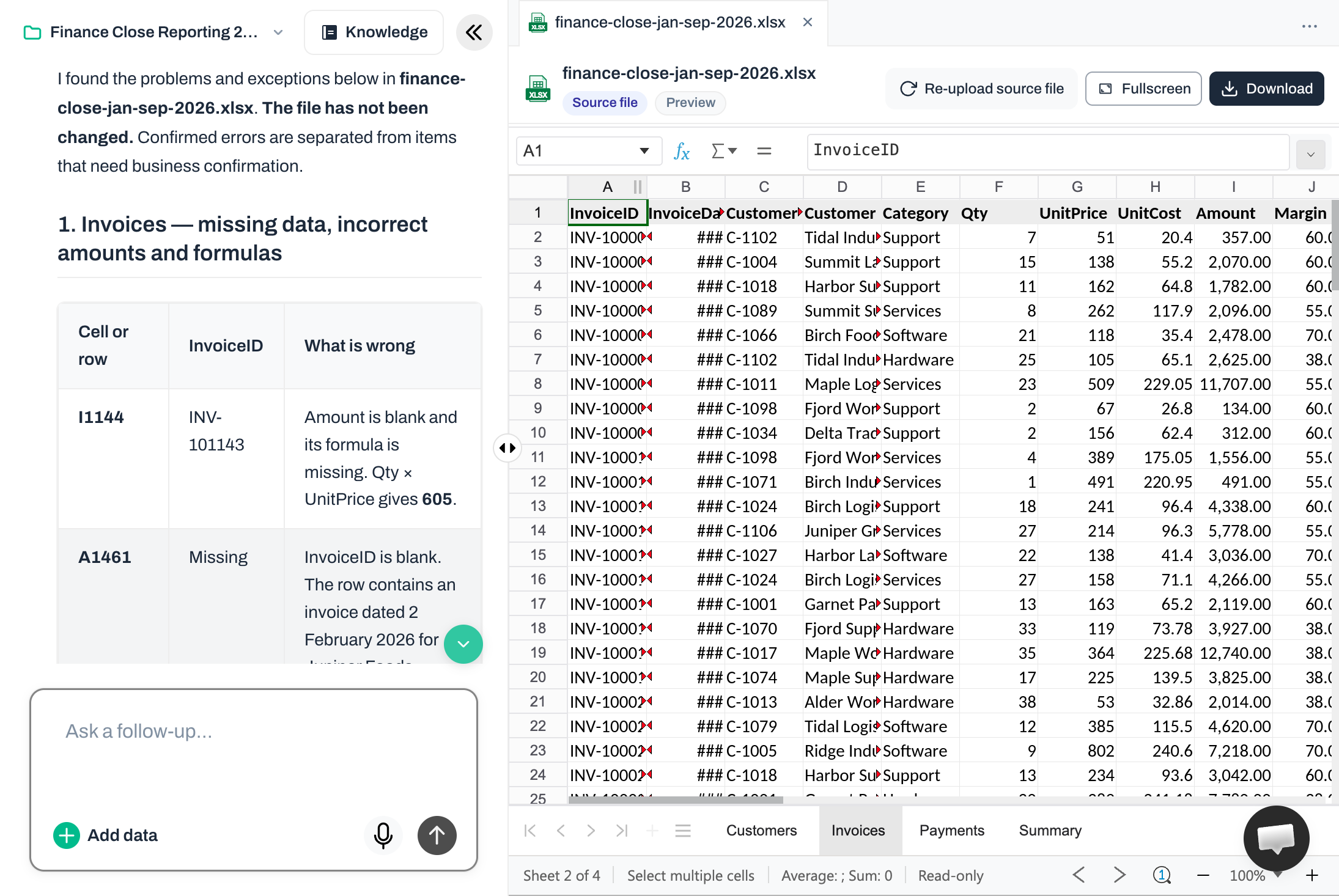
Anomaly AI found all 25 errors we added. It didn’t flag correct data as wrong. Anomaly named the cells, showed the calculations and said which unusual prices or payments needed checking. Unlike Julius, it also flagged the price per item that was about 100 times higher than normal. Our test used added credits.
How it checked: Anomaly used Python to recalculate the numbers. This gave us repeatable results we could compare with the workbook to see where the numbers did not match.
For big data, Anomaly AI supports Excel and CSV uploads up to 1GB. Our completed test used a 1.16MB workbook, so we haven’t verified its large-file performance.
Free includes credits every 30 days, no card needed. Monthly plans cost $25 for Pro, $90 for Analyst and $45 per seat for Team, with a two-seat minimum. In some countries, a $15 Starter plan is available. Our workbook check used 3.5 credits.
Test workbook in Anomaly AI
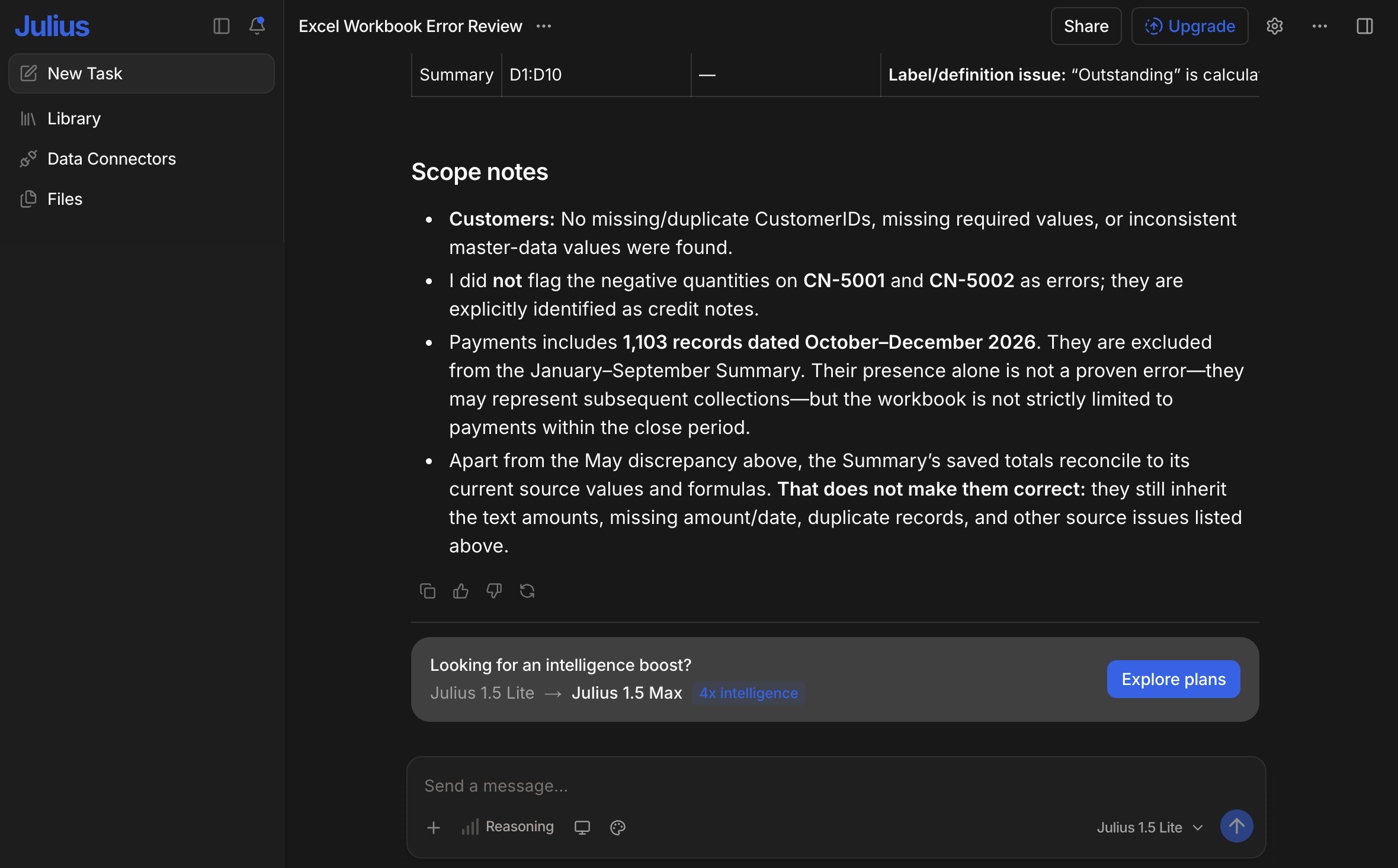
Julius found 24 of 25 errors on Free. Julius didn’t flag correct data as wrong. Julius missed an invoice with a price per item about 100 times higher than normal. Anomaly flagged it. Julius named cells and explained what to check, including whether an early payment was intentional.
How it checked: Julius also used Python to calculate and compare the numbers. This made its findings easier to verify, though a calculation alone could not tell it whether an unusually high price made sense.
For big data, Julius was the stronger option in our tests. It read our 1GB CSV on Free and returned the correct row count and totals across nearly 10 million rows. That makes it a practical choice for large CSV analysis, although this size test checked reading and calculations rather than error detection.
Free includes 25 credits per day. Paid plans with monthly billing cost $20/month for Plus, $45/month for Pro and $450/month for Business, based on prices checked on 17 November 2026.
Julius AI workbook check
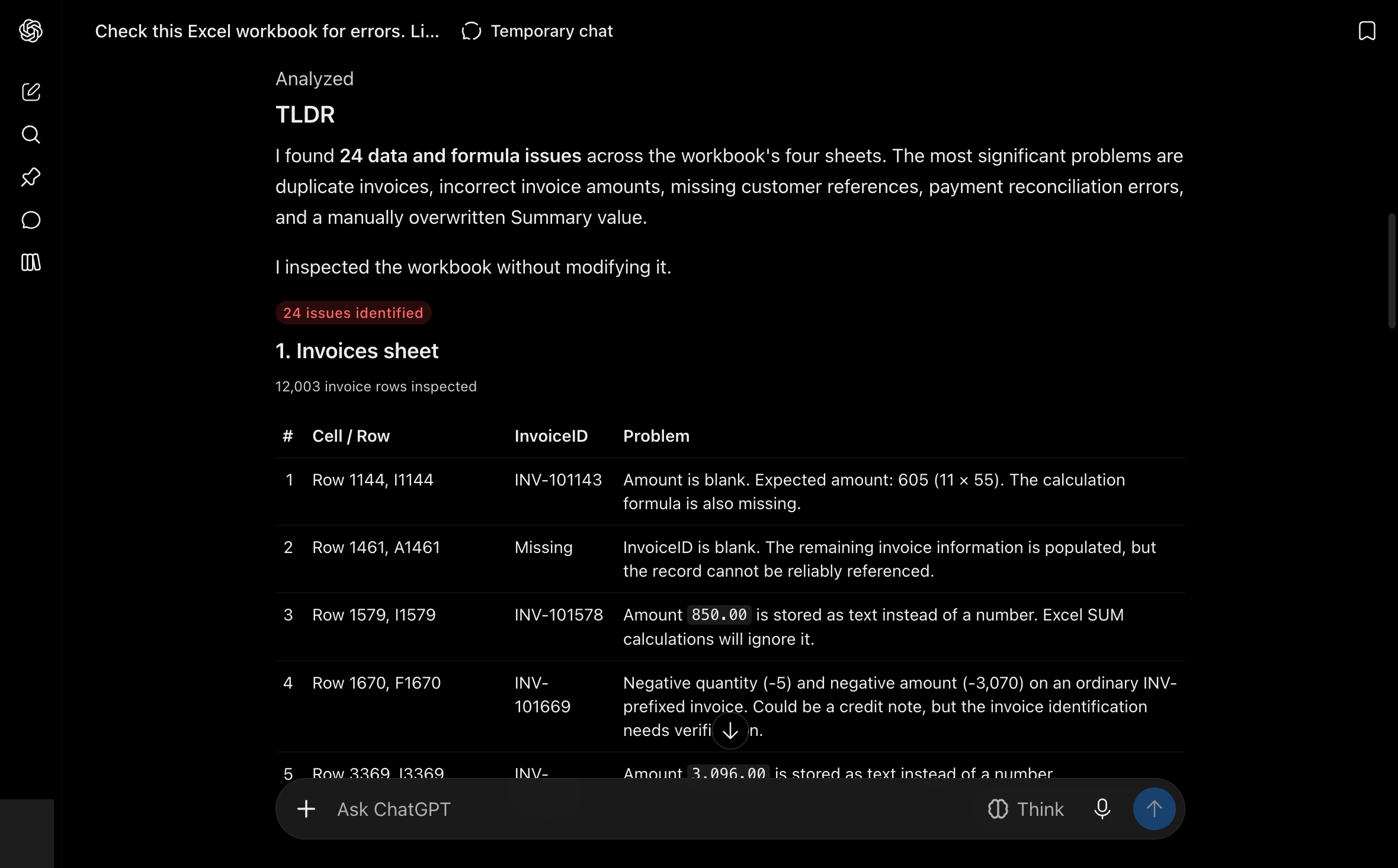
ChatGPT found 23 of 25 errors. ChatGPT didn’t flag correct data as wrong. ChatGPT missed an invoice dated 2062 and a price per item about 100 times higher than normal. Julius caught the date error. ChatGPT named cells and suggested fixing invoice amounts and duplicates first, but its recalculated May total was wrong.
How it checked: ChatGPT recalculated amounts and compared related records. Showing the figures behind its findings helped us check whether the reported mistakes were supported by the numbers.
For big data, ChatGPT correctly read and totalled our 100MB CSV. The 500MB analysis failed after upload, and 1GB was rejected. We’d choose Julius for larger CSVs based on our tests.
Free is available. Monthly paid plans cost $8 for Go, $20 for Plus and from $100 for Pro. Our tests used the paid Go plan.
ChatGPT workbook check
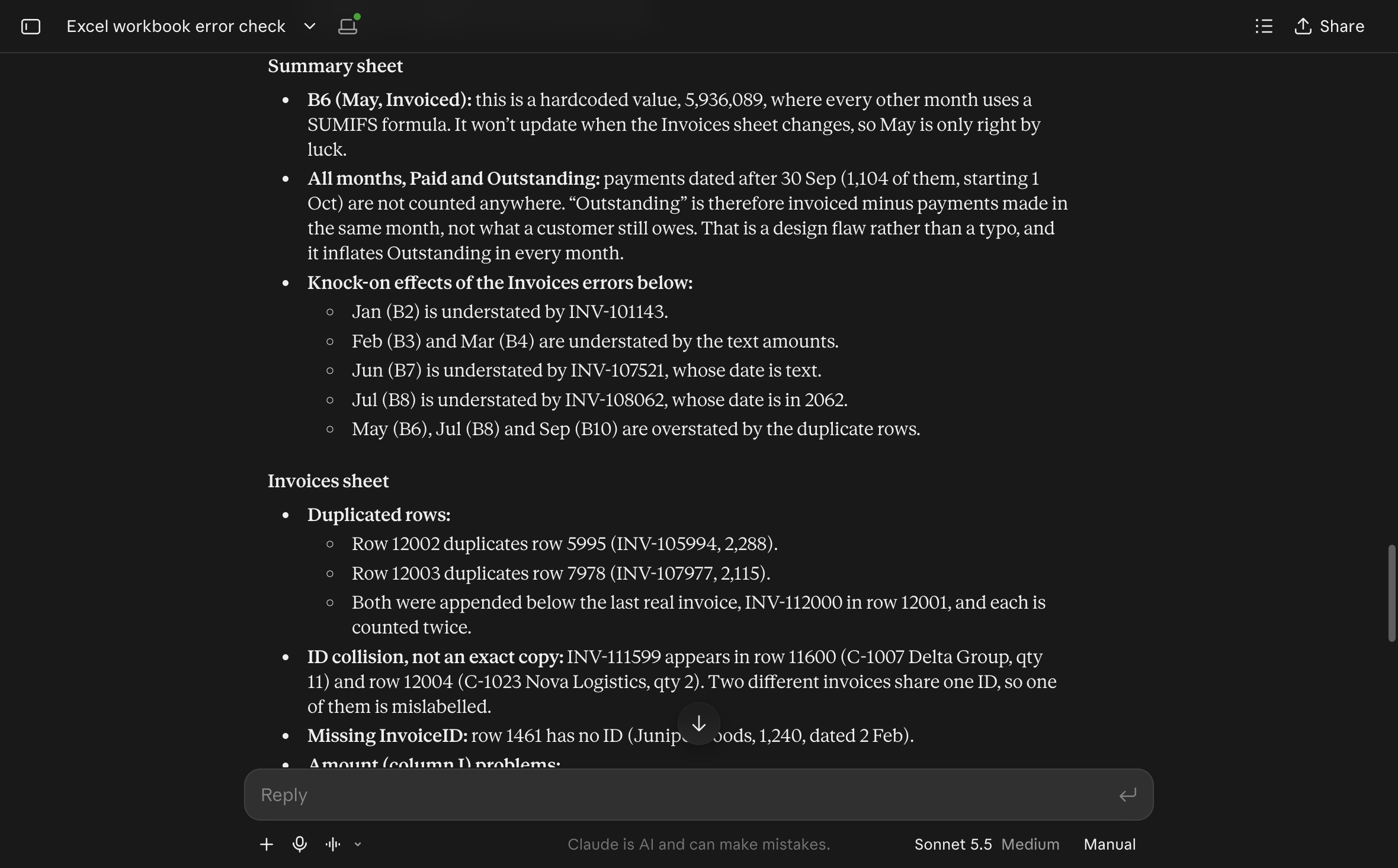
Claude fully explained 24 of 25 errors. It also noticed that May’s total had been typed in, but didn’t show how much it was too high. It flagged three correct entries as wrong. ChatGPT left those entries alone. Claude named rows and explained how errors affected totals, but also made some counting mistakes.
How it checked: Claude used Python to calculate values and compare them across the workbook. That made its checks repeatable, but deciding whether a difference was an error still needed care.
For big data, Claude correctly read and totalled our 100MB CSV. Our Pro account displayed a 400MB upload limit and rejected 500MB and 1GB files. We’d choose Julius for larger CSVs based on our tests.
Free is available. Monthly plans cost $20 for Pro, $100 for Max and $200 for Ultra. Our tests used Pro.
Claude workbook check
NoteGPT found all 25 errors. NoteGPT’s downloadable report named cells, ranked problems by urgency and suggested some fixes. Some calculations and explanations were wrong, so we’d check its findings before changing the file.
How it checked: NoteGPT used Python to recalculate totals and compare records. This gave us a way to check its findings against the workbook and see why it flagged a number.
For big data, Free is restrictive. Uploads stop at 50MB, and our attempts to analyse 24MB and 50MB files required Premium Credits. We wouldn’t choose the Free plan for large-file analysis.
The annual offers checked on 17 November 2026 were $9/month for Pro, $19.92/month for Unlimited and approximately $69/month for Max, all billed annually.
NoteGPT AI Data Analyzer workbook check
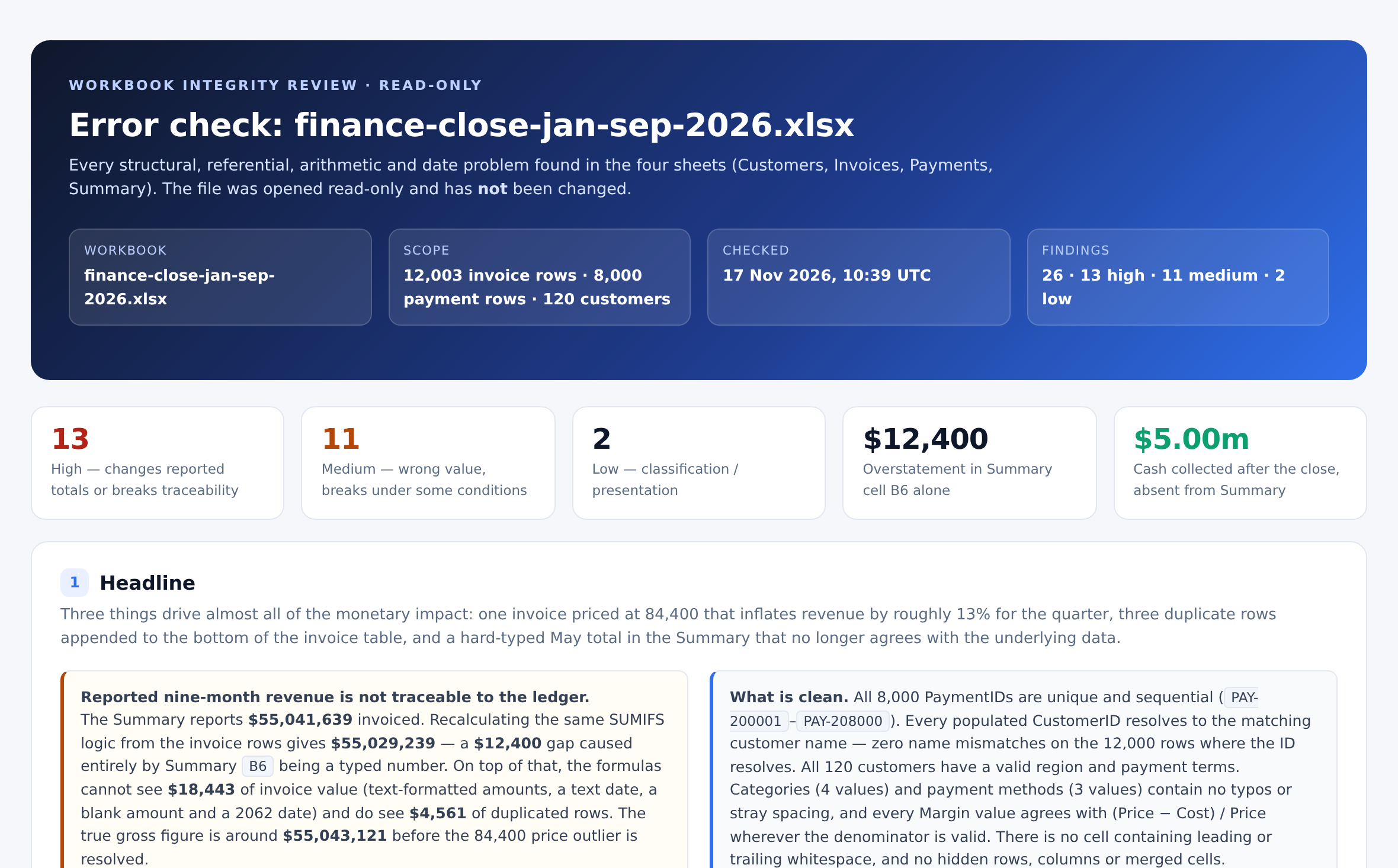
NoteGPT caught the price error Julius missed. Julius didn’t flag correct data as wrong. NoteGPT did this four times.
GPTExcel opened our workbook, but its check failed. Its automatic retry also stopped. Claude returned findings with row locations; GPTExcel gave us no completed error list or clear directions on what to fix. We wouldn’t choose it for a full workbook check based on this run.
How it checked: GPTExcel tried to use Python to check the numbers, which would make the results repeatable. Its script stopped, so it did not finish those checks.
The advertised file limits are 5MB on Free, 50MB on Pro and 100MB on Pro Plus. That makes it a restrictive choice for very large spreadsheets.
Free includes 50 credits per month. With monthly billing, Pro costs $9/month and Pro Plus costs $18/month.
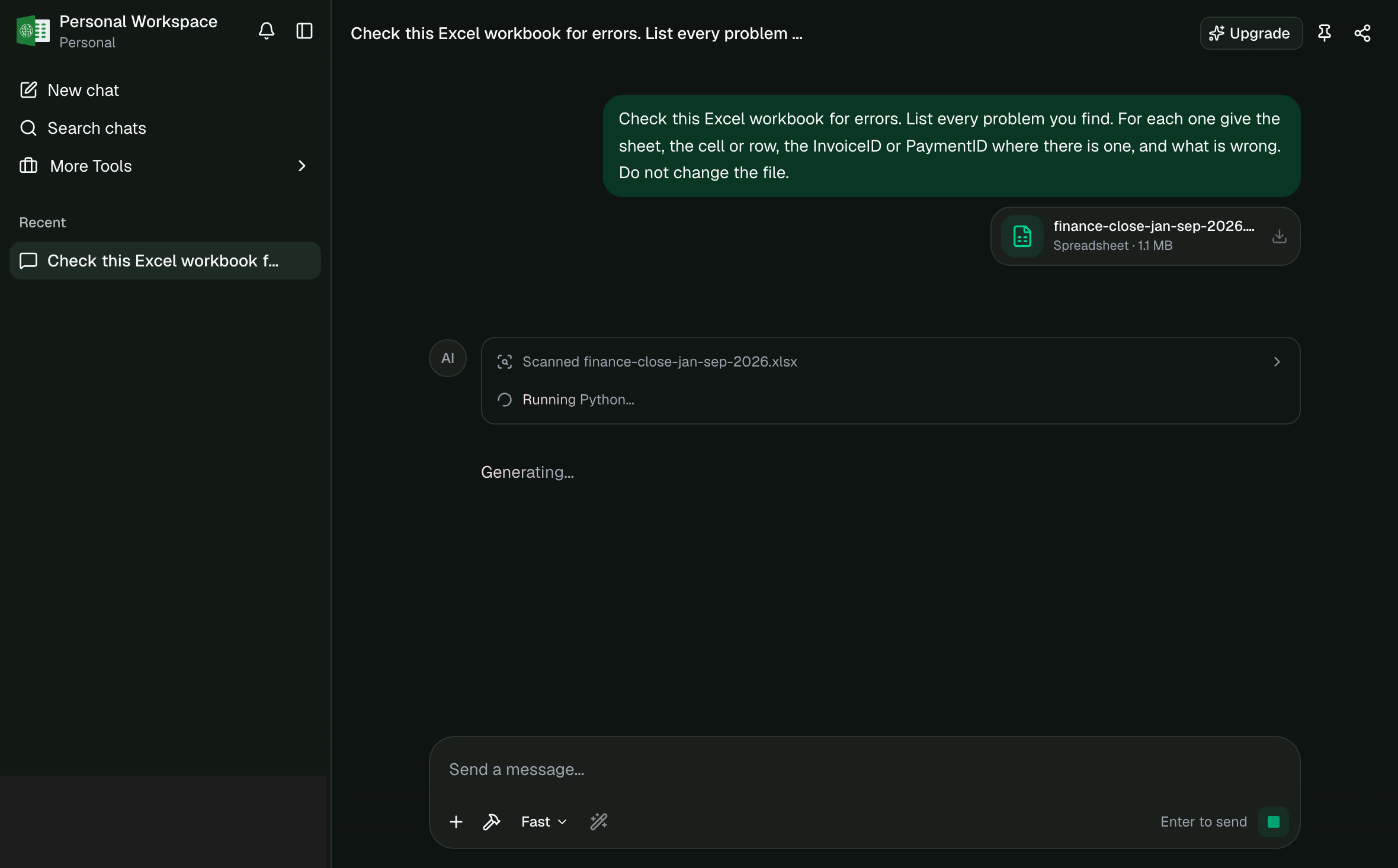
GPTExcel workbook check
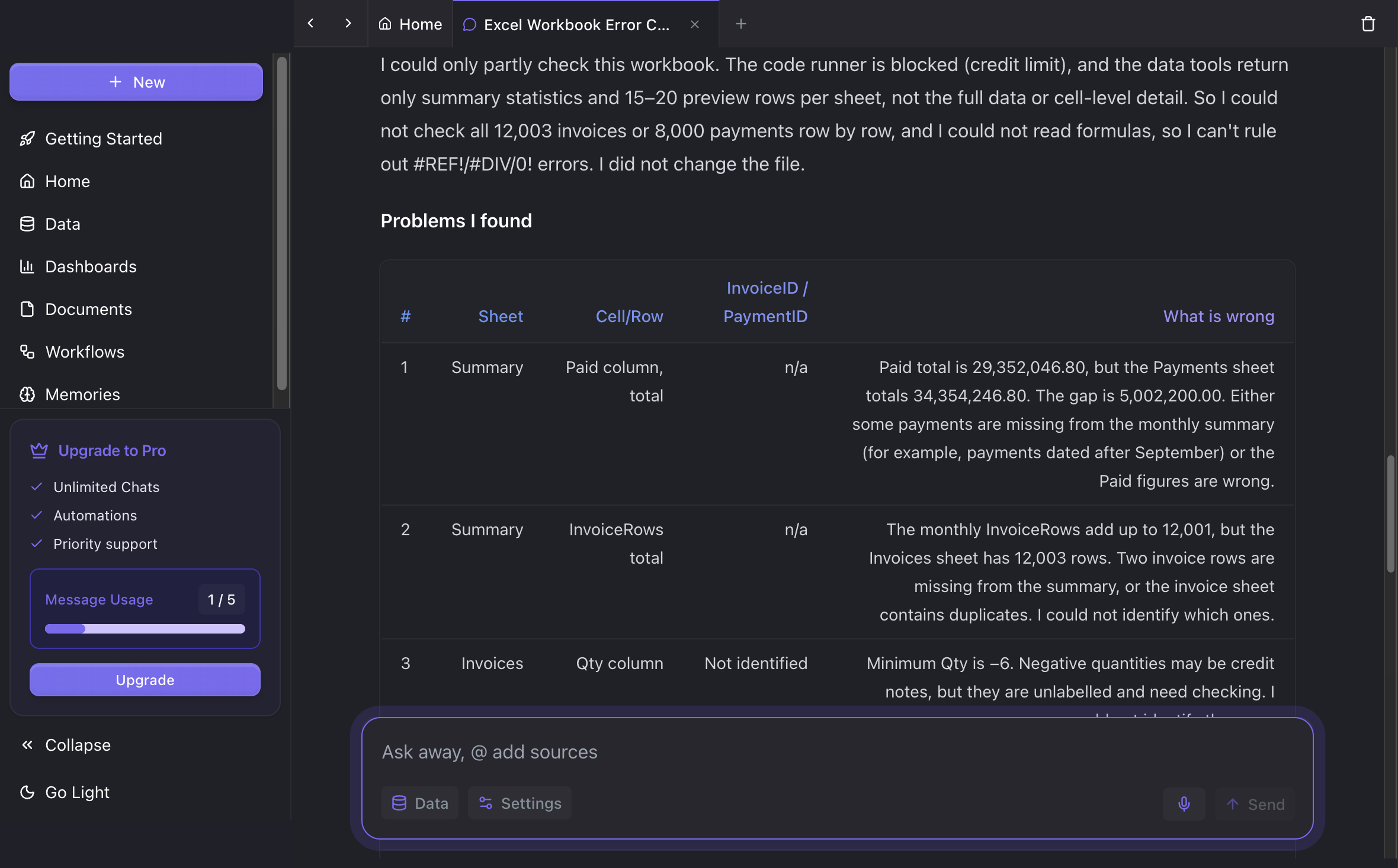
Datapad warned about possible problems, but didn’t tell us where any of our 25 errors were. Anomaly named the cells. Datapad also flagged correct data as wrong four times. A credit limit blocked it from running a full check, so it used previews and statistics. It said a full check was needed.
How it checked: Datapad used data previews and column summaries because its code runner was credit-blocked. These could suggest possible problems, but did not give us completed calculations to verify them.
We couldn’t verify Datapad’s big-data performance.
Free advertises five chat messages per day. With monthly billing, Basic costs $30/month, Pro costs $50 per user/month and Scale costs $1,000 per workspace/month.
Datapad workbook check
Keep the original workbook. Check the named cells, recalculate important totals and confirm whether refunds or partial payments are valid before changing anything.
For the best AI for Excel data analysis, including free tools and Excel add-ins, see our broader comparison. For preparing CSV data, use our CSV analysis guide.
Anomaly, Julius, ChatGPT, Claude and NoteGPT found mistakes in our workbook. Their results differed, so ask for exact cells or records and check the findings before changing your file.
Yes. Anomaly, Julius, ChatGPT, Claude and NoteGPT read all four sheets in our workbook test. Ask your Excel AI checker to list the sheets and row counts, and say whether it checked formulas as well as saved values. Uploading the file is not enough.
Yes, Excel’s built-in Error Checking can flag common formula errors, inconsistent formulas and numbers stored as text. Microsoft says these rules do not guarantee an error-free worksheet. Copilot in Excel can generate formulas and analyze workbook data. Use built-in checks for formula problems; our workbook tests also checked whether invoice amounts, payments and totals matched.
We asked the tools not to change the workbook, so we did not test automatic repair. Keep a copy and approve each correction before applying it.
No. Uploading, reading and finding errors are different tasks. Our large CSV checks tested reading and calculations, not error detection in large Excel workbooks.
Anomaly is our first choice on this workbook’s results, with the credit limits noted above. Check the findings before using the numbers in a report.
Founder, Anomaly AI (ex-CTO & Head of Engineering)
Abhinav Pandey is the founder of Anomaly AI, an AI data analysis platform built for large, messy datasets. Before Anomaly, he led engineering teams as CTO and Head of Engineering.
LinkedInContinue exploring AI data analysis with these related insights and guides.
Compare 12 data analysis tools by how much work each takes to get a correct answer, what to watch for and what it costs.
Learn bank reconciliation step by step with downloadable practice files. Match transactions, calculate adjusted balances, and investigate differences.

Check a business comparison from the source rows through averages, a t-test that compares two groups, and correlation and regression for two linked measures. Follow the synthetic example and reproduce the calculations.