Build a sales workbook (an Excel file) with three sheets, editable formulas and numbers you can check. Follow the example from source records to the downloaded file.
Ash Rai··12 min read
Quick answer — create a workbook you can keep using
To create an Excel spreadsheet with AI, give it your source data, name the sheets and calculations, and request an .xlsx file with editable formulas. Open the file, compare its totals with the source and change one input to check recalculation. This guide uses 24 synthetic sales records, three sheets and a £640 total you can verify yourself.
You need a workbook to send to a colleague: sales records, monthly regional totals and instructions for updating it. The useful result is a file they can open and change.
Here, a workbook is the Excel file; its worksheets are the tabs inside it. Our example has three worksheets: Orders, Summary and ReadMe. Download the source CSV (a plain comma-separated text file) and the finished Excel workbook without creating an account.
Choose an AI workflow that creates the file you need
Choose by where you want to work and what you need to receive. Editing an open workbook, generating a file in chat and creating an output from business data call for different workflows.
These are workflow choices, not a ranking of model accuracy.
Your task
Where to work
What to check
You want to keep editing in Excel.
Copilot in Excel and ChatGPT for Excel can work in the open workbook.
Check account eligibility and whether your chosen mode or add-in can edit the workbook.
You want an assistant to create a file from your instructions.
ChatGPT Work creates downloadable spreadsheets. Claude creates .xlsx files with working formulas.
Ask for formulas explicitly, then open the file. File previews and account features differ between tools.
You want a workbook from business data you are reviewing.
Anomaly, our product, can generate an Excel workbook and open it in its built-in spreadsheet view.
Check the generated sheets and downloaded file against your source records.
For a complex workbook, try one representative sheet before choosing a tool for the whole job. Check the formulas and formatting you depend on, not just the model’s name. If you mainly need to understand an existing workbook, use the separate guide to AI for analysing Excel files.
Already have an .xlsx to revise for a client? Claude’s file tools accept existing spreadsheets. Keep the original and test the returned file in the client’s application; this CSV example does not test importing a complex workbook.
01Describe the workbook before asking AI to build it
Specify what belongs in each sheet and what must survive unchanged. That gives the AI a concrete deliverable and gives you a way to judge it.
The sample contains 24 order records across September and October 2026, split between the North and South regions. Amounts are in British pounds (GBP). Each row has an order ID, date, region, units, unit price and note. It deliberately includes a cancelled shipment with zero units and a return with negative units.
Order 0001 must remain text so its leading zeroes survive. Store dates as real spreadsheet dates rather than text. Keep the return negative and retain the cancelled row. These details preserve the source’s meaning.
Describe the workbook next to the records it must keep
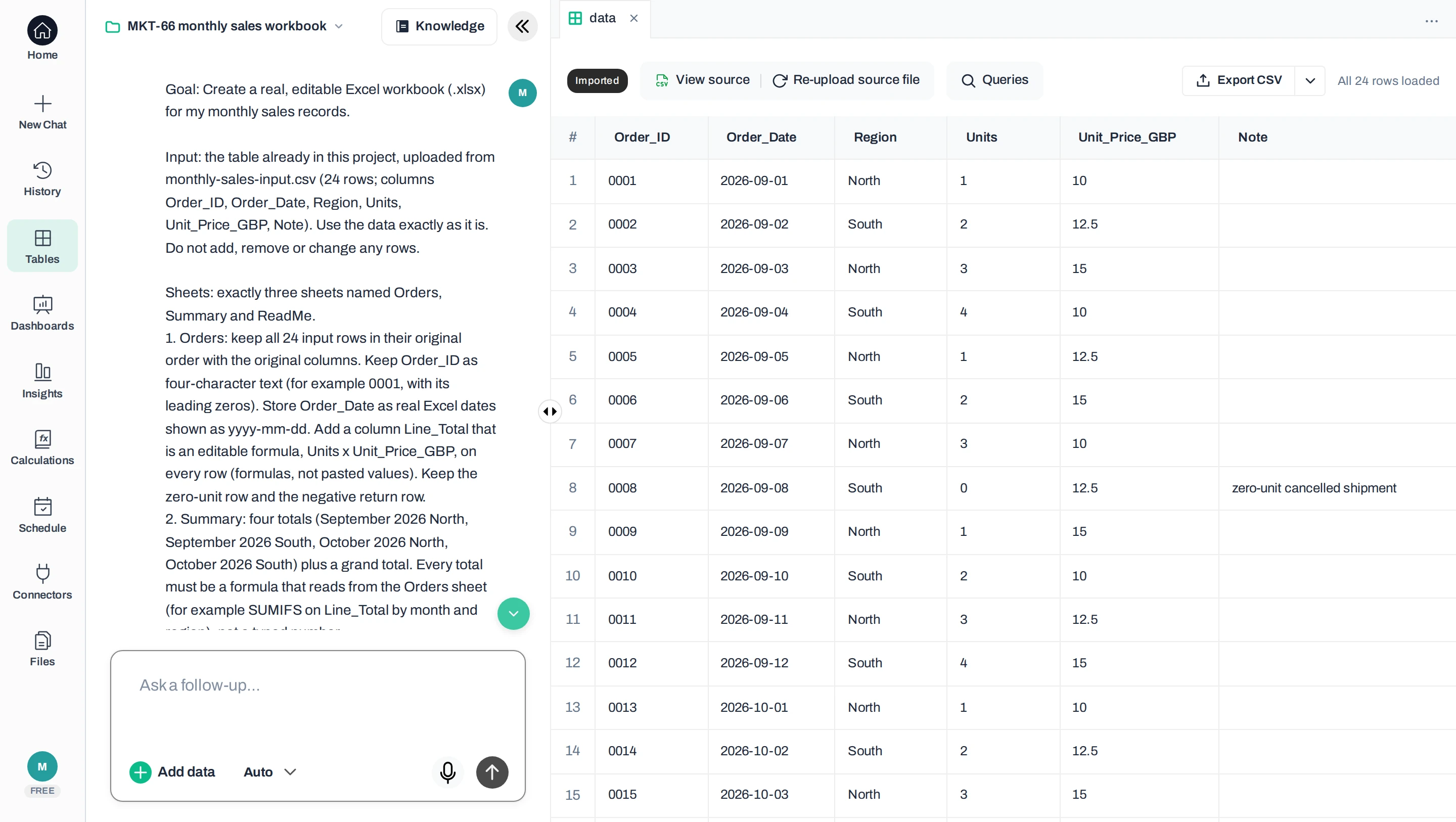
This shows the start of the exact request (full text in step 2) beside the imported sample, with its 24 rows, four-character order IDs and the zero-unit cancellation in row 8. First-party Anomaly screenshot from our 19 October 2026 development test; synthetic sales data. Click to enlarge.
Ask for specific formatting
Ask for a clear header row, sensible column widths and two decimal places for money. Freeze the header row to keep labels visible while scrolling. Keep input and calculated columns distinct, and avoid merged cells inside the table.
02Create the Excel workbook from your data
Start with the sample sales file. CSV means comma-separated values: it carries the source records, but not the multi-sheet layout you are about to create.
In Anomaly, add the file to a new project, then ask for the workbook in the chat. Keep the request attached to the same project so the source and output stay together. This is the exact request used in our run:
Goal: Create a real, editable Excel workbook (.xlsx) for my monthly sales records.
Input: the table already in this project, uploaded from monthly-sales-input.csv (24 rows; columns Order_ID, Order_Date, Region, Units, Unit_Price_GBP, Note). Use the data exactly as it is. Do not add, remove or change any rows.
Sheets: exactly three sheets named Orders, Summary and ReadMe.
1. Orders: keep all 24 input rows in their original order with the original columns. Keep Order_ID as four-character text (for example 0001, with its leading zeros). Store Order_Date as real Excel dates shown as yyyy-mm-dd. Add a column Line_Total that is an editable formula, Units x Unit_Price_GBP, on every row (formulas, not pasted values). Keep the zero-unit row and the negative return row.
2. Summary: four totals (September 2026 North, September 2026 South, October 2026 North, October 2026 South) plus a grand total. Every total must be a formula that reads from the Orders sheet (for example SUMIFS on Line_Total by month and region), not a typed number.
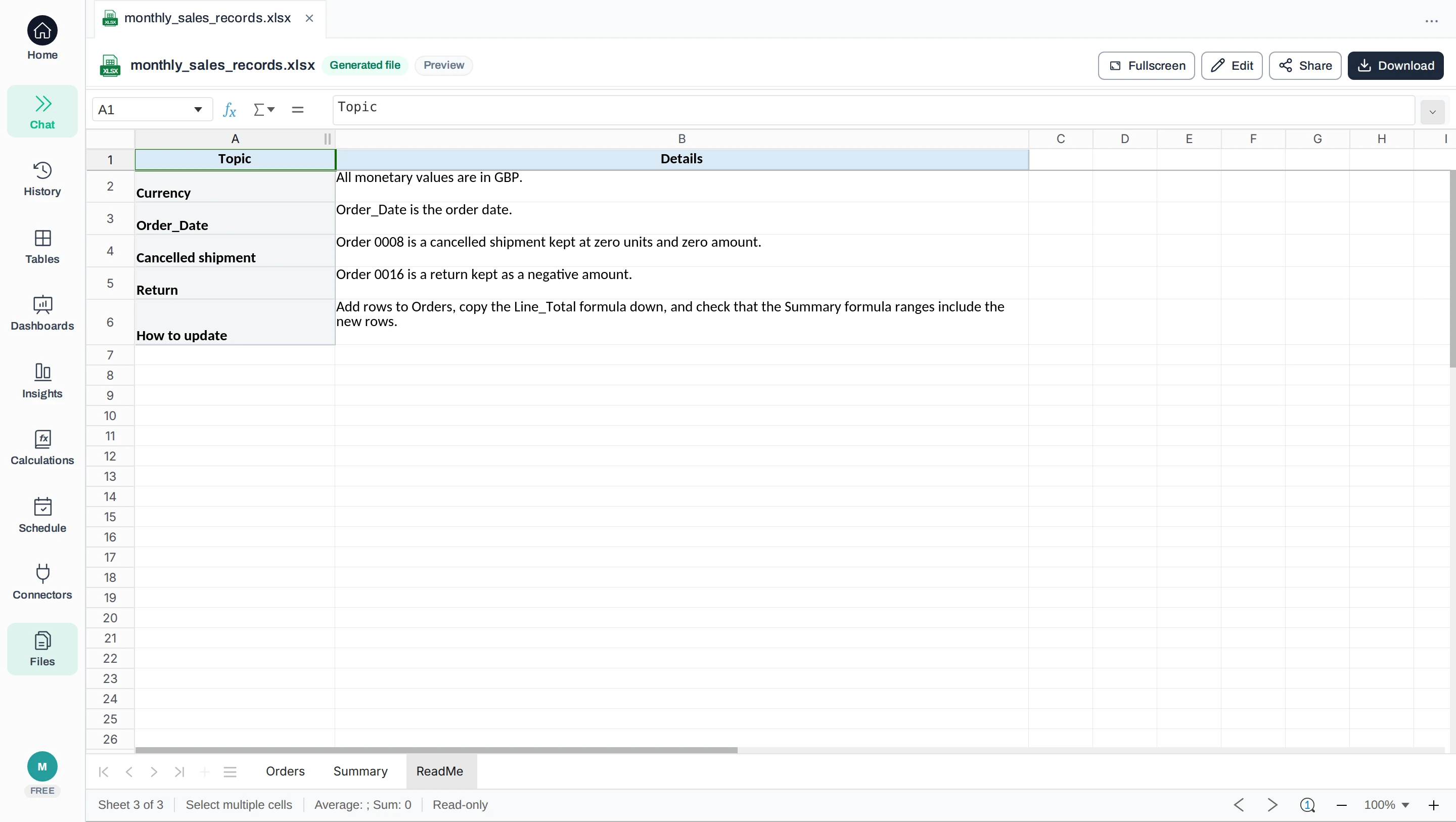
3. ReadMe: state that the currency is GBP; that Order_Date is the order date; that the zero-unit row 0008 is a cancelled shipment kept at zero and the negative row 0016 is a return kept as a negative amount; and how to update the workbook (add rows to Orders, copy the Line_Total formula down, and check that the Summary ranges include the new rows).
Formatting: bold header row with a light fill, frozen header row on Orders, readable column widths, and GBP currency format on Unit_Price_GBP, Line_Total and the Summary totals.
Checks: no macros, no external links, no password protection, no charts. When you have built it, check that Orders has 24 data rows and that the Summary grand total equals the sum of the four group totals, and tell me those five numbers.
Output: give me the finished workbook as a downloadable .xlsx file.
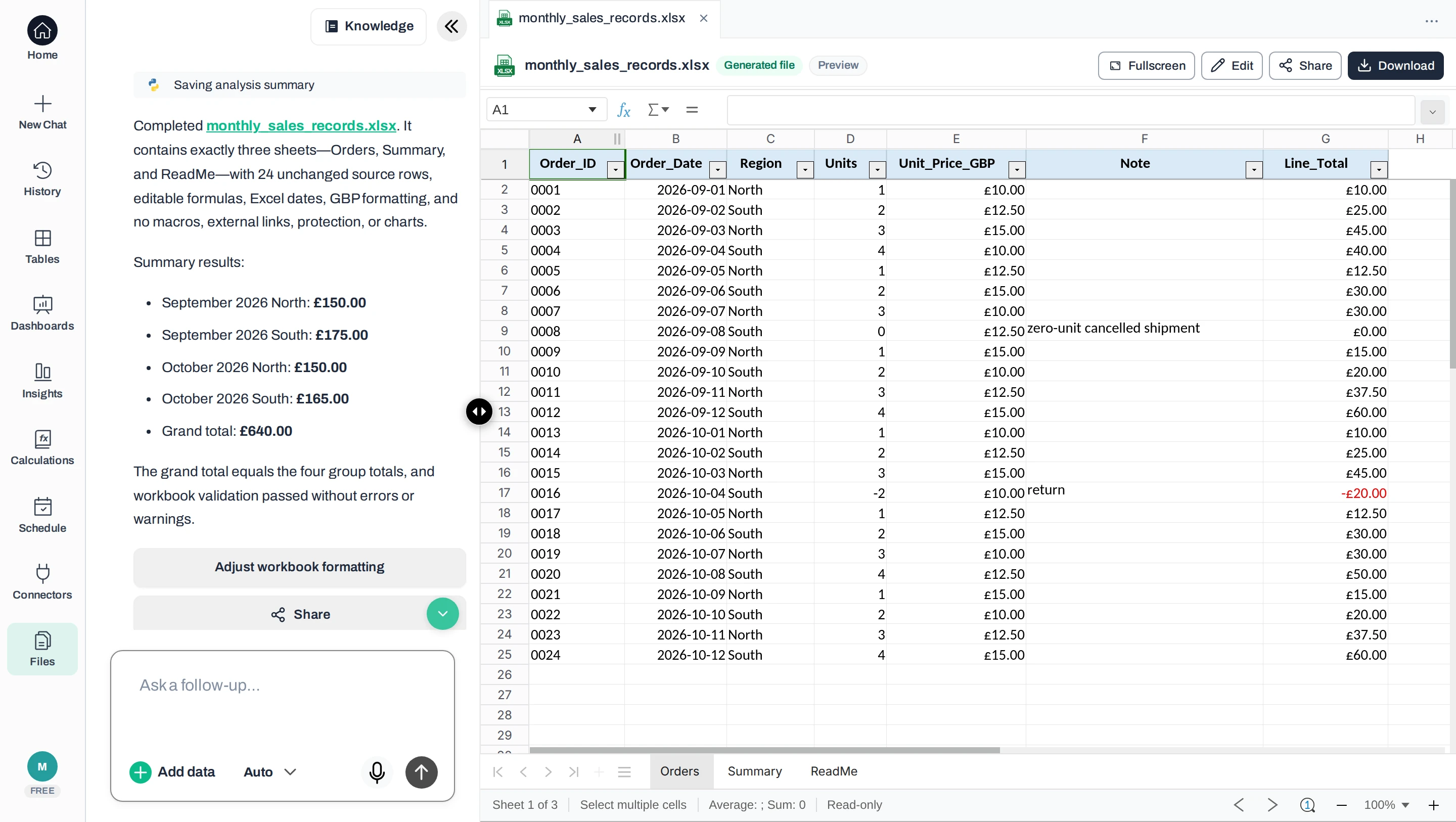
In our run, the reply linked to monthly_sales_records.xlsx. Selecting it opened Anomaly’s built-in spreadsheet view with the three tabs. This view is not Microsoft Excel. The Download button saved the actual workbook.
The reply reports the five totals; the workbook opens in Anomaly
Left: the reply lists the four month-and-region totals and the £640.00 grand total. Right: the generated workbook is open on the Orders sheet, with all 24 rows and the new Line_Total column. First-party Anomaly screenshot from our 19 October 2026 development test; synthetic sales data. Click to enlarge.
Test scope: Our team ran this example on 19 October 2026 in Anomaly’s development version, using an account with extra test credits. We calculated the expected results before the AI built the workbook, and the tester could see them. This run does not show whether free-plan accounts on the live product can download the file.
03Check formulas, totals and source records
The downloaded workbook matched all 24 source rows and the £640.00 expected total. It contained 24 line formulas and five summary formulas. Check the four month-and-region totals too: errors in two of them can cancel each other out.
These are the expected results from all 24 original rows, in British pounds (GBP).
Month
Region
Sales after returns
September 2026
North
£150.00
September 2026
South
£175.00
October 2026
North
£150.00
October 2026
South
£165.00
Both months
All regions
£640.00
These totals come from our worked example; they are not sales benchmarks. A separate calculation adds the source rows in pence, then groups them by month and region. The downloadable expected results include every line total.
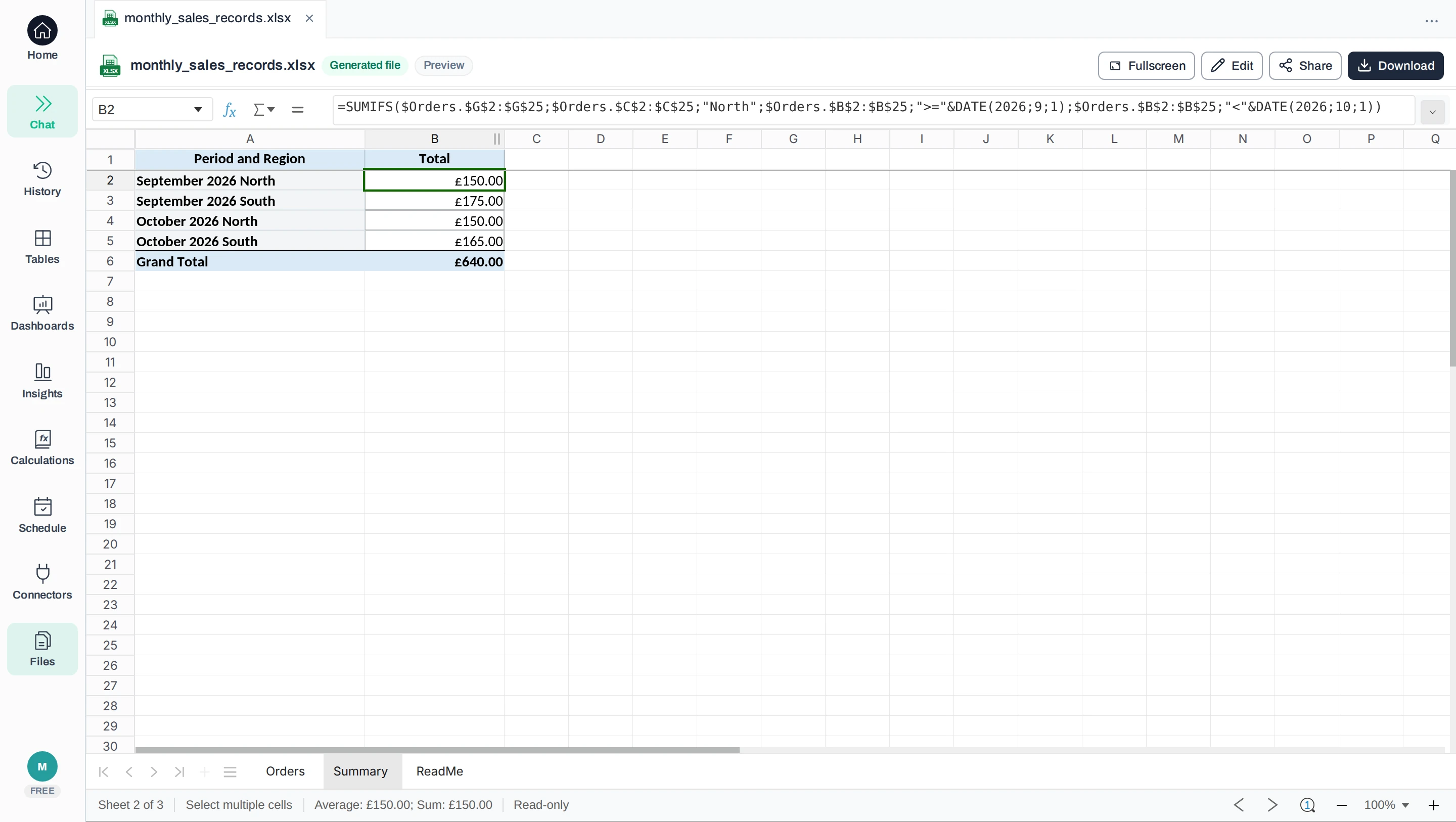
Check that each summary total is a formula
The Summary sheet’s four group totals match the independent calculation above, and cell B2 holds a SUMIFS formula that reads from Orders, not a typed number. First-party Anomaly screenshot from our 19 October 2026 development test, Free account with extra credits; synthetic sales data. Click to enlarge.
Inspect a formula, then change an input
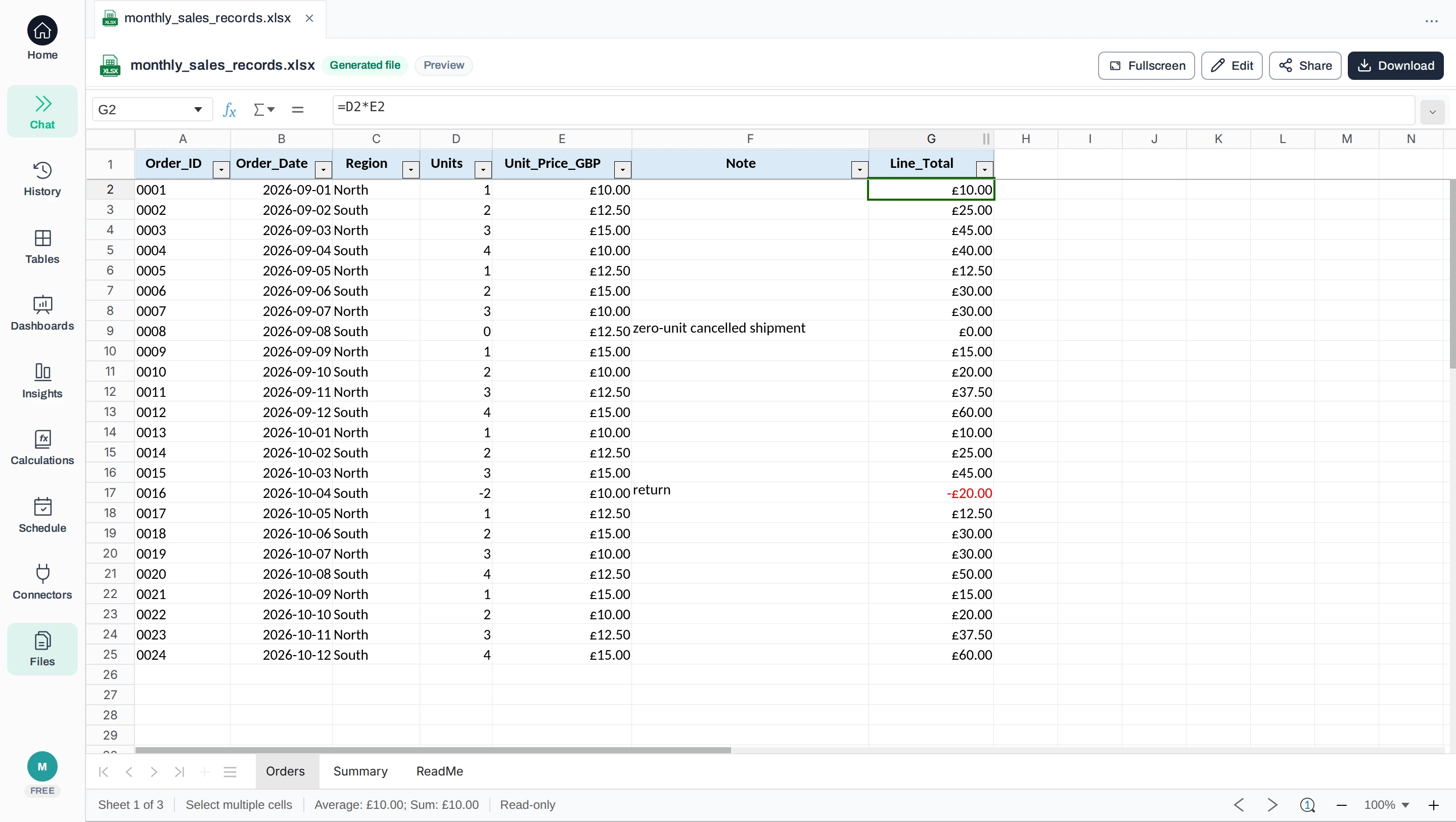
In Orders, select the first line total and read the formula bar. If Units is column D and Unit_Price_GBP is E, the first record in row 2 should calculate =D2*E2. If the formula bar shows only 10, the row’s line total, the result is a fixed value, not an editable calculation.
Read the line-total formula
Cell G2 on the Orders sheet calculates units × unit price; the IDs keep their leading zeros and the cancelled and returned orders remain. First-party Anomaly screenshot from the same test; synthetic sales data. Click to enlarge.
Now work on a copy. Change order 0001 from one unit to three. Its £10 unit price stays the same, so its line total becomes £30. The September North total should rise from £150 to £170; the grand total should rise from £640 to £660. The other three groups should stay unchanged.
In an automated calculation check on a copy, the LibreOffice 24.2.7.2 spreadsheet application recalculated the grand total to £660 after that edit, then back to £640 when the unit count was restored.
Restore the input to one unit before continuing. Also check order 0008, the zero-unit cancellation, and order 0016, the return worth −£20. Confirm there are still 24 records and that the IDs have four characters.
Fix a broken calculation or a formatting change
If a formula breaks, inspect its cell references and input types. A deleted column can leave a #REF! error; text in a numeric input can prevent the expected arithmetic. A total that excludes a new row may show no error at all. Tell the AI the affected cell, expected calculation and observed result, then recheck the corrected file.
Formatting can change when an edit recreates a sheet, writes new cells or saves through a different spreadsheet application. Those are possibilities to investigate, not a diagnosis of your file. Ask for the exact range to change and list what to preserve. Whatever a platform claims about formatting, still check the workbook you will deliver.
04Refine the workbook without rebuilding it
Request one change at a time so you can see what it affected. Keep the original download and give the next version a different name.
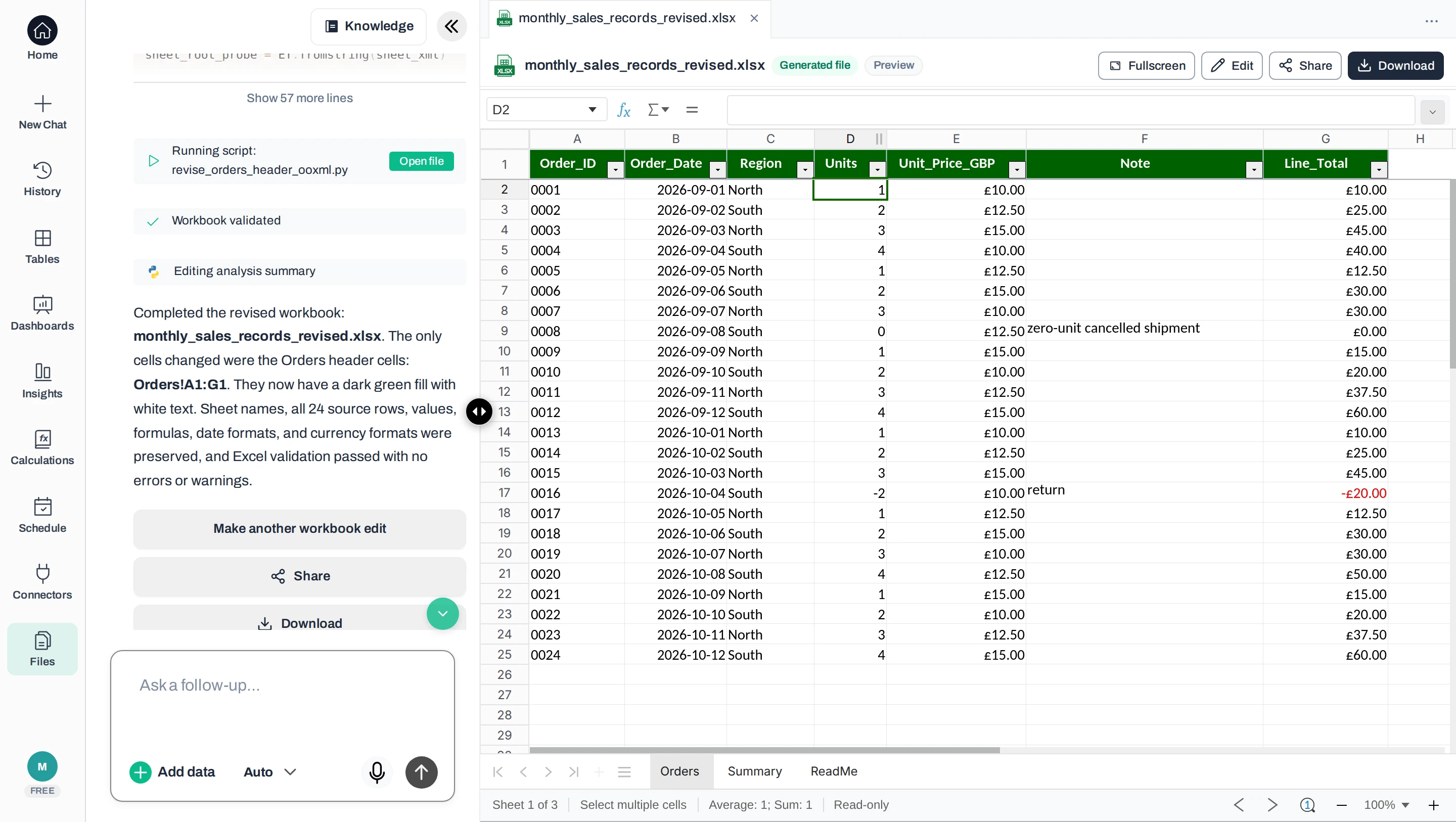
Change only the Orders header fill to dark green with white text. Preserve the sheet names, all 24 source rows, values, formulas, date formats and currency formats. Return a revised .xlsx and say which cells changed.
In our revised workbook, the Orders header row (cells A1:G1) became green with white text. All source values, formulas, date and currency formats stayed the same. Some column widths changed slightly during export, so not every formatting detail was preserved exactly. Compare both files; for larger versions, use the Excel comparison guide.
Change one thing and check what else moved
The revision reply names the cells it changed; the revised file opens with the dark green header and the same rows. Check column widths and other formatting yourself: the reply does not report them. First-party Anomaly screenshot from the same test; synthetic sales data. Click to enlarge.
Add new records and extend the calculations
A downloaded workbook does not fetch next month’s sales by itself. Add the new source records and extend the calculations, or give the updated source file to the AI and ask it to keep every total and calculated column defined the same way.
The ReadMe says how to add records
The original workbook’s ReadMe lists the update steps. The check below shows why the last one, extending the Summary ranges, matters. First-party Anomaly screenshot from the same test; synthetic sales data. Click to enlarge.
Add order 0025, dated 13 October 2026, for two units at £15 in the North region. Its line total is £30. Starting from the original sample, the October North total should become £180 and the grand total £670.
In our automated LibreOffice check, adding order 0025 as row 26, with its line formula, left the Summary grand total at £640: the Summary formula ranges still ended at row 25. Extending those ranges to row 26 produced £670. Ask for the ranges to be updated, then check the result. For a recurring visual report, see the monthly dashboard workflow.
05Download the file and check the copy you will send
Use .xlsx when you need several sheets, formulas and formatting. CSV is suitable for a plain table of values; it does not preserve this workbook’s tabs or layout. Renaming a CSV file to end in .xlsx does not convert it. Microsoft’s file-format reference explains the distinction.
Download the generated file, then open that downloaded copy in the spreadsheet application your recipient uses. Check it there even if the preview looked correct. For delivery to an Excel user, open it in their Excel version where possible.
Before sending it, complete these checks:
The file opens without asking to repair the workbook.
Orders, Summary and ReadMe are present, with no unexpected sheets.
The original 24 rows remain, and the total is £640 before any deliberate changes.
Dates, leading-zero IDs, negative values and currency formatting still make sense.
A changed input recalculates the line total and summary; saving and reopening preserves the change.
We reopened an unchanged copy of the download in LibreOffice Calc 24.2.7.2. All three sheets, the formulas and the £640 summary were visible. Microsoft Excel desktop was not tested; check your recipient’s version before delivery.
Adapt the same specification to another workbook
Keep the structure of the request, then replace the business rules. An inventory tracker needs item IDs, opening stock, receipts (stock received), issues (stock sent out) and a calculated closing balance. State the unit of measure, preserve leading-zero item codes and supply the real stock counts. AI should not invent your inventory.
For a lowest-price comparison across stores, record the item, store, pack quantity and pack price. Calculate price per common unit before choosing the lowest value. A £6 pack of 12 costs less per unit than a £4 pack of six. State how to handle tax, delivery and unavailable items, so an item with no price quote is not counted as the cheapest offer.
Keep large source data separate, and keep the workbook you hand over to a manageable size. Excel has a limit of 1,048,576 rows per worksheet, according to Microsoft’s specifications. AI generation does not remove that limit. Ask for the detail your recipient needs and a clearly defined summary.
Questions about creating spreadsheets with AI
Can I create and download an Excel spreadsheet with AI for free?
Some tools include file creation in a free account. Claude’s current documentation says file creation is available on its Free plan. Check generation limits and download access separately before starting: being able to try a tool for free does not necessarily include an Excel export. The sample files in this guide are free to download without an Anomaly account.
Can ChatGPT or Claude create Excel files rather than just tables?
Yes. ChatGPT Work supports creating, reviewing and downloading spreadsheets; Claude’s documentation describes downloadable .xlsx files with working formulas. Specify the workbook format, sheet names and calculations. If the reply contains only a table or code, ask for the actual file and open it before treating the task as finished.
Yes, through different Copilot features. Copilot in Excel can edit the workbook you have open. The separate Excel Agent in Microsoft Copilot creates files from a description. Check which of these features your account provides and what licence each needs; asking questions in a chat-only mode does not by itself let Copilot edit a workbook.
Can I create a spreadsheet without an existing file?
Yes: describe an empty tracker with the sheets, columns and calculations you need. Ask for blank input rows, with formulas that stay blank until inputs are entered. If you want demonstration rows, label them synthetic and keep them separate from real records. An empty template cannot supply your actual sales or inventory.
Make the workbook you need to hand over
Bring your source records, adapt the tested prompt and check the downloaded file before handing it over.
Ash Rai is a Technical Product Manager with 5+ years of experience building AI and data engineering products, cloud and B2B SaaS products at early- and growth-stage startups. She studied Computer Science at IIT Delhi and Computer Science at the Max Planck Institute for Informatics, and has led data, platform and AI initiatives across fintech and developer tooling.