Export the report you need, refresh it when necessary, and check the numbers before turning it into a weekly traffic update.
Ash Rai··13 min read
Quick answerTo export GA4 data to Google Sheets, open a report and choose Share this report → Download file → Export to Google Sheets. For recurring imports, use Google’s GA4 Reports Builder add-on. Check the exported values against the source report, then build your analysis on a separate tab.
You have a traffic report to send, but the discussion happens in a spreadsheet: this week beside last week, with room for comments and a clear explanation of the change. Getting Google Analytics 4 (GA4) into Google Sheets is the first step. Keeping the dates, channel definitions and calculations consistent makes that Sheet useful.
You need at least Viewer access to the GA4 property. Google documents exports of up to 100,000 rows for CSV and Google Sheets. These instructions follow Google’s report-export documentation. In the steps below, a dimension groups the rows, such as by channel, while a metric supplies a number, such as sessions.
Open the report you need. In GA4, select the correct property and open Reports. Choose your report, set a fixed date range and check the filters and dimensions.
Record what the report measures. Note the property, dates, reporting time zone, dimensions, metrics and filters. Record one total and one named row, such as a single channel’s row, so you can check the export.
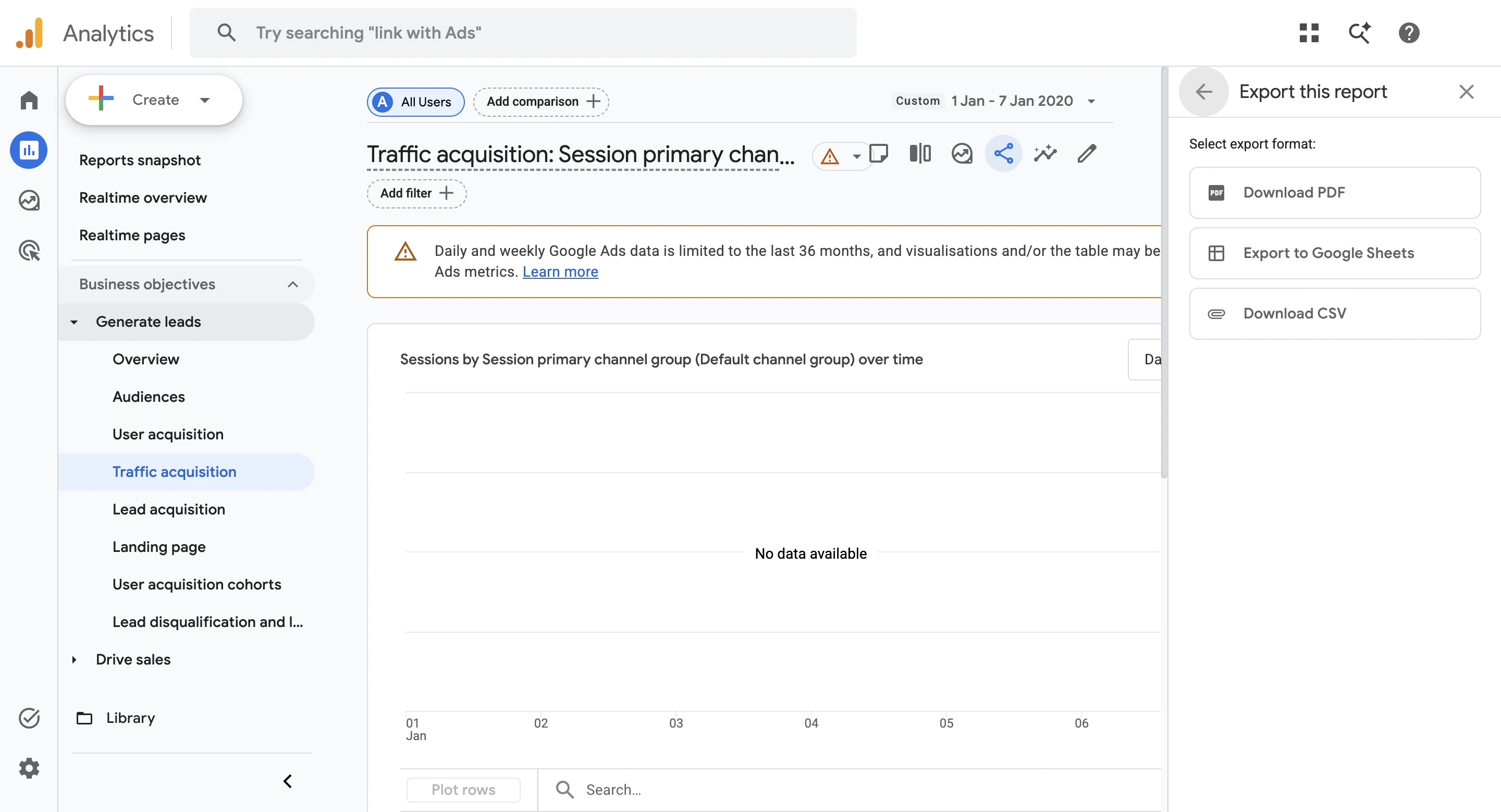
Export to Google Sheets. Select Share this report, then Download file, then Export to Google Sheets. If an Import document window opens, select Import the data to create the spreadsheet.
Check the exported values. Compare the exported values with what you recorded in step 2. If no total row is exported, retain the source total separately. Keep the original exported tab intact.
Choose Google Sheets in GA4’s export panel
Selecting Share this report, then Download file, opens the three export choices. We captured the panel on a date range with no data, so our own traffic figures stay private; the steps are the same for your report. Google Analytics 4 screenshot, 20 October 2026. Click to enlarge.
For a weekly acquisition update, start with the Traffic acquisition report. Our report grouped rows by Session primary channel group, the channel grouping the property’s reports use; here it was Google’s Default channel group. Record the exact dimension. A primary channel group can be customized, and grouping by the channel that first brought in each user answers a different question. Keep the session-based definition consistent across weeks.
Keep a short record beside the data. Download the report check record, or make a tab with the following fields:
This record shows where the exported numbers came from.
Record
Example or instruction
Property and report
Record the property ID and report name.
Period and time zone
For example, September 28–October 4, 2026, in the property’s reporting time zone.
Dimensions and metrics
The exact channel dimension shown, plus Sessions and Engaged sessions. An engaged session lasts longer than 10 seconds, includes a key event (an action marked as important in your GA4 property), or has at least two page or screen views.
Filters and quality notices (GA4 warnings about sampled or withheld data)
Write “none” if none apply; otherwise record exactly what is active.
Two checks
The Sessions total and the Organic Search (unpaid search traffic) row, recorded before export.
Export and review time
When the data was retrieved and when you checked it.
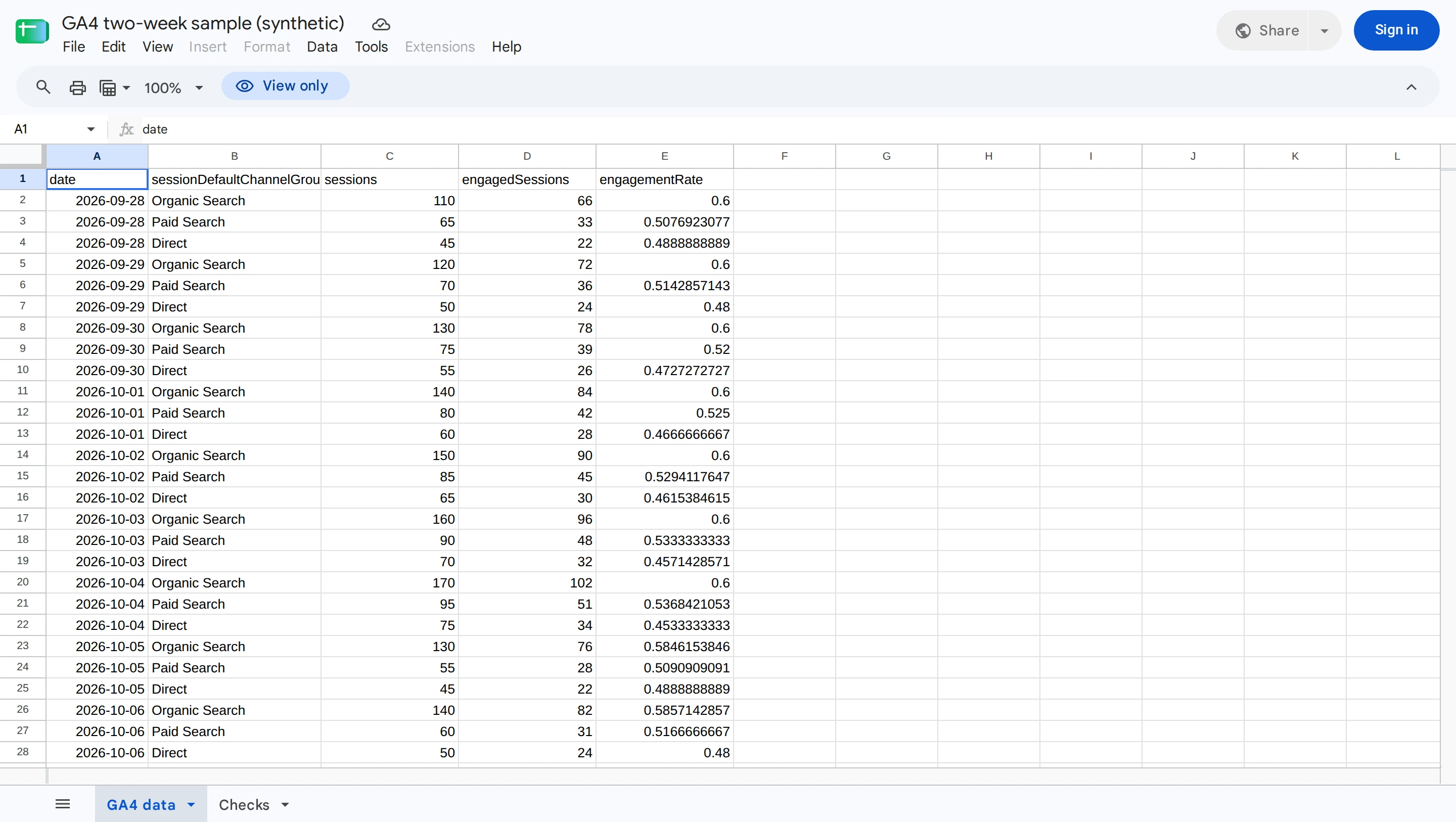
Our exported Sheet put report notes in rows 1–9, headers in row 10 and data from row 11. It omitted the Total row shown in GA4. We checked the named rows and kept the GA4 total in the check record. Inspect your own layout before choosing formula ranges.
Import a GA4 CSV into an existing Sheet
If you already downloaded a CSV, open the destination spreadsheet and use File → Import → Upload. Select the file, choose an import location and separator, then import. A new tab is a useful choice when the workbook already contains analysis. These are Google’s Sheets import steps.
Check where the actual header row begins. Keep any report title, date notes and total rows for reference, but exclude them from the range used by a formula or pivot table. Adding a supplied total to its detail rows counts the same data twice.
Export a GA4 exploration to Google Sheets
Use Explore when your question needs a different table. In a free-form exploration, add dimensions and metrics under Variables, then place them in the rows and values under Settings. Set the dates and filters, select the visualization, and choose Export data → Google Sheets. Complete the import confirmation if prompted.
Google says the export includes all available data in the selected visualization, which can exceed what is visible on screen. It is still an exploration result, not a download of every underlying event. Check the quality notices: sampling uses a subset of events, while privacy thresholds can withhold data. See Google’s exploration instructions.
Our exploration export included a grand-total row with blank channel and date cells. Keep it for reference, but exclude it from detail-row formulas. The export layout differs from a standard report’s.
For a daily channel table, use Date and Session default channel group as dimensions, and Sessions and Engaged sessions as metrics. One row should describe one date and one channel. If you also add Device category, that date–channel pair can appear several times, once for each device category. Record the new dimension before checking for duplicates.
Connect GA4 to Google Sheets for repeatable imports
For the same report each week, configure GA4 Reports Builder for Google Analytics™, published by Google. The add-on stores report settings and, when you rerun it, updates the sheet named after that report. Google’s current setup guide documents the following controls.
In our October 19 test, the add-on installed in a Google account without access to our GA4 property. Installation did not complete in the account that had access. We inspected its menus and forms, but did not run a report, refresh or schedule. The instructions below follow Google’s documentation.
In Sheets, open Extensions → Add-ons → Get add-ons. Find the Google-published Reports Builder and install it using an account with access to your property.
Open the add-on from Extensions and choose Create new report. Select the account and property, then use manual configuration.
Name the report, set dates, choose dimensions and metrics, and add any required filters or ordering.
Select Save Report Configuration, then Run Report. Inspect the output tab before adding calculations elsewhere.
For the daily channel example, choose date and sessionDefaultChannelGroup, with sessions and engagedSessions. These are the field names Google’s reporting API uses, listed in its Data API schema. For a comparison with the GA4 screen, select Session default channel group in GA4 too; a customized primary channel group can classify traffic differently.
Test a second run before scheduling
Start with fixed dates so you can tell whether the settings worked. Record the date range and two check values, then change the configuration to a different completed week and run it again. Confirm that the output now contains the requested week and that the earlier week has not simply been appended.
Keep formulas, comments and presentation charts on another tab. The report tab is the add-on’s output; a refresh should succeed without you repairing your analysis by hand. If you need an archive for a meeting, save a dated copy separately.
After the second run passes, choose a rolling range if that fits your report. For example, 7daysAgo through yesterday covers seven inclusive dates in the property’s reporting time zone. It excludes today, but yesterday’s numbers may still change. Google documents both the date-range rules and data-processing delays.
Step 1 of Google’s report-to-Sheets instructions also documents the Schedule reports option in the add-on menu. We saw hourly, daily, weekly and monthly frequency options, but saved none. Choose a schedule and save it, then check its first output; saving alone does not establish that a refresh succeeded.
When to use the Google Analytics API instead
A developer can use the Analytics Data advanced service in Apps Script to request GA4 reports and write results into Sheets. This fits custom processing or a workflow the add-on cannot express. It also means you must handle authorization, pagination, errors and API quotas yourself. Begin with the add-on when a saved report meets the need.
Check the numbers before you share the Sheet
Keep three tabs: the original report output, your check record, and the summary people will read. When a total looks wrong, this lets you identify whether the difference entered during export or during spreadsheet analysis.
Start with the first row that matches what you see, before changing the data.
What you see
What to check next
The export differs from the source
Match the property, exact dates, dimensions, filters and metric. Compare the same named row as well as the total.
The raw export matches, but the summary does not
Check formula ranges, included total rows, duplicated imports and numbers stored as text.
Last week changes after a refresh
Check retrieval times and processing delays before treating the difference as an import failure.
Don’t force a match by deleting inconvenient rows. Record the unresolved difference and return to the source definition. A spreadsheet can preserve or transform the values Google returned; exporting does not restore data excluded by a reporting limit or quality restriction. Our GA4 export reconciliation guide explains source and date checks in more detail.
Recalculate engagement rate from counts
Google defines engagement rate as engaged sessions divided by sessions. Its API returns a fraction: 0.6 means 60%. For a combined group, divide the combined counts rather than averaging the row percentages. See the metric definitions.
For example, one row has 100 sessions and 60 engaged sessions; another has 20 sessions and 18 engaged sessions. Their rates are 60% and 90%, but the combined rate is 78 ÷ 120 = 65%. An ordinary average would give 75% and let the smaller row carry too much weight.
Unique users require a different check. One person visiting on Monday and Tuesday can appear in both daily counts. Adding those counts does not produce the number of distinct people across the week. Request the user metric for the whole period you need; Google’s user-metric definitions explain what those counts represent.
For a real GA4 report, also retain the totals returned for the requested period. Google estimates session counts. If your sum of exported rows disagrees with its reported total, record the difference instead of replacing the source total. The synthetic example below uses exact counts that can be added up across rows.
The sample’s GA4 data tab holds one row per date and channel: 42 rows from September 28 to October 11, 2026, with no total row. Google Sheets screenshot of our public sample, signed out; synthetic data. Click to enlarge.
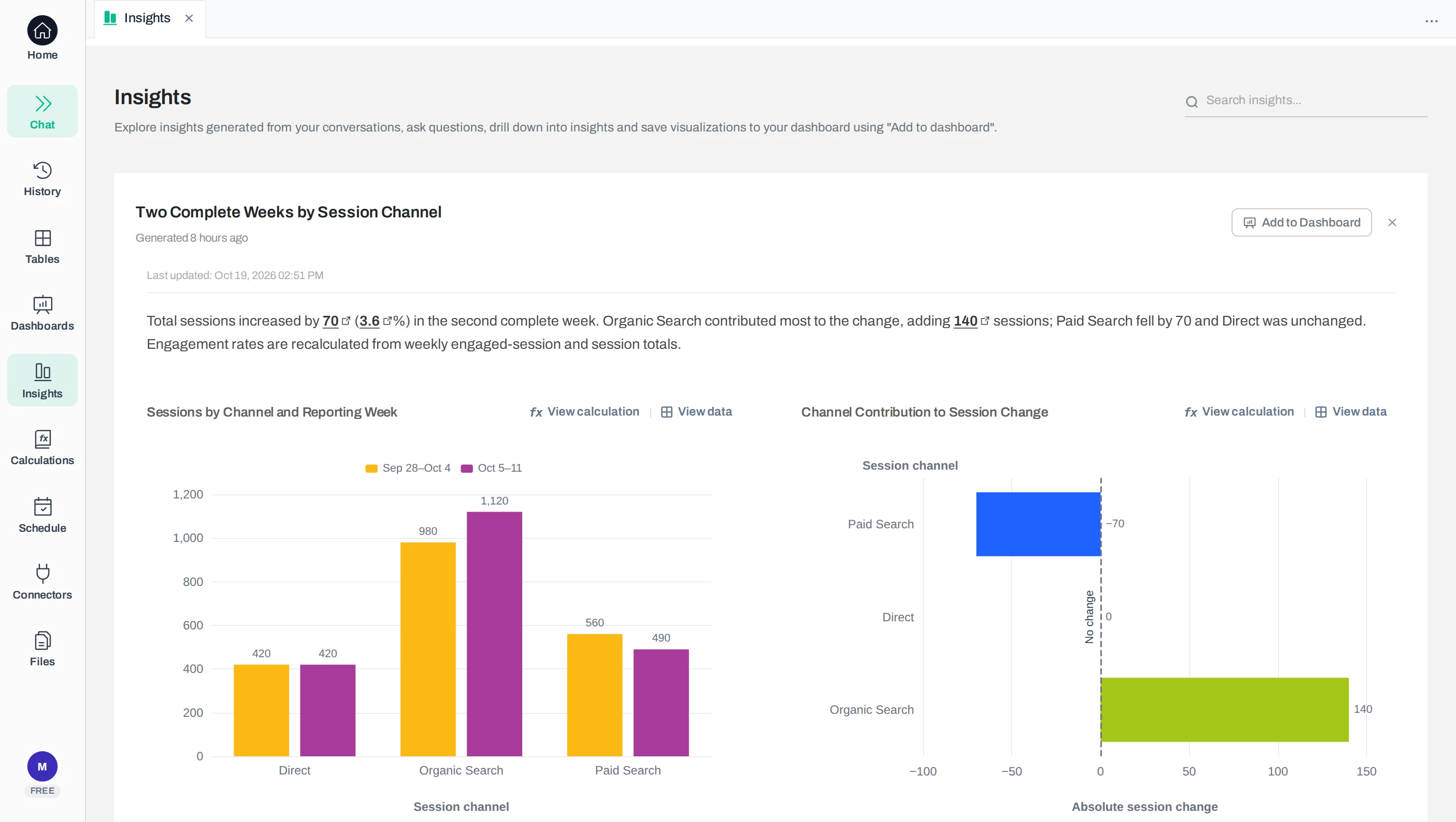
The question is simple: which channel accounts for the change in sessions? Organic Search is unpaid search traffic, Paid Search is traffic from search ads, and Direct is visits from a typed address or saved link, following Google’s channel definitions. Compare September 28–October 4 with October 5–11, 2026. Sum Sessions by channel within each period, then subtract the earlier week from the later one.
These are the expected results from the downloadable sample.
Channel
Week 1 sessions
Week 2 sessions
Change
Organic Search
980
1,120
+140
Paid Search
560
490
−70
Direct
420
420
0
All channels
1,960
2,030
+70
Sessions increased by 3.57%. Organic Search added 140 sessions, while Paid Search offset half that increase. This describes where the change appears. It does not establish why organic traffic grew or whether a campaign performed better.
Check the two weeks and the channel contributions
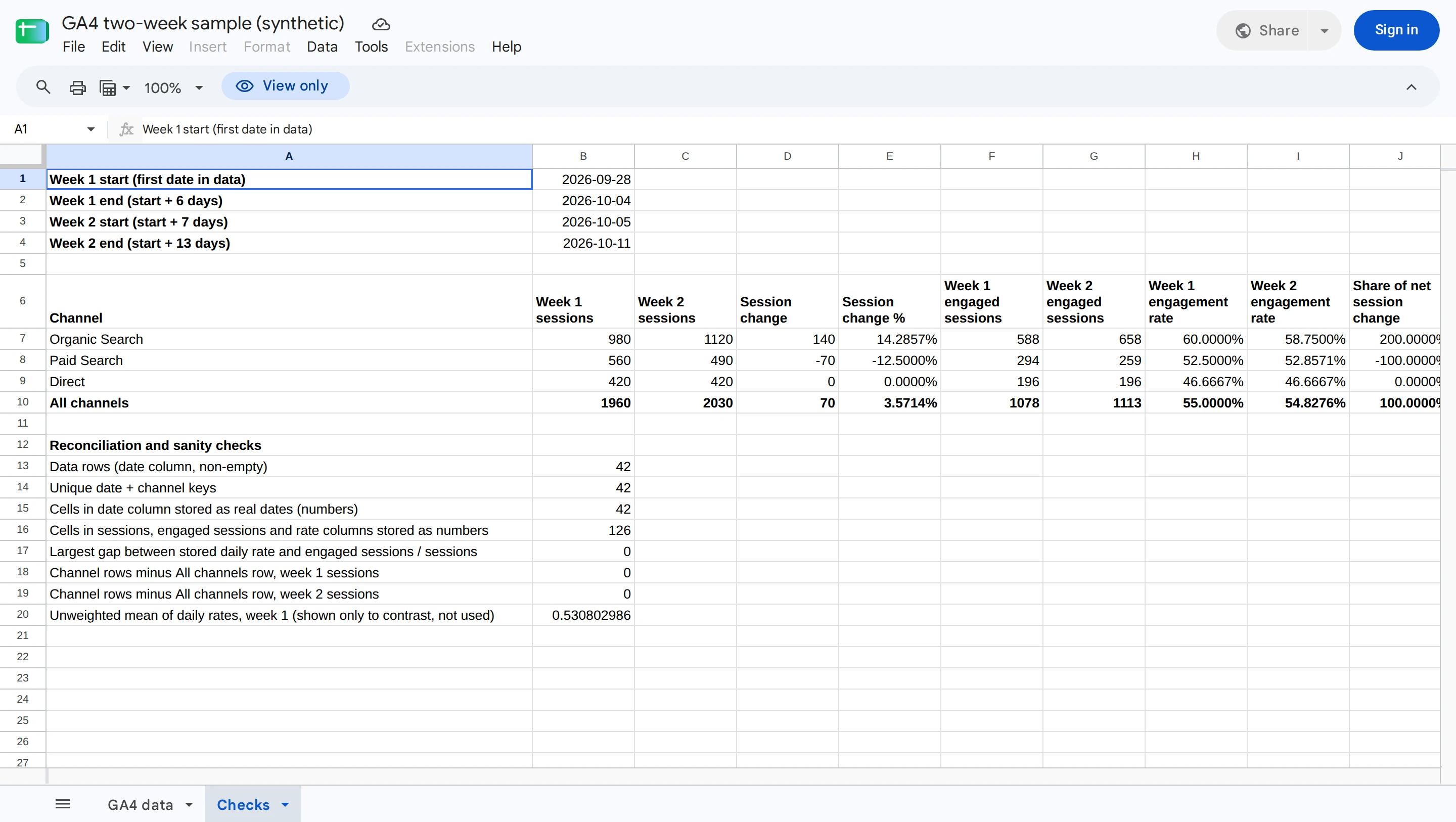
The Checks tab calculates each week’s totals, the channel changes and the weighted engagement rates with formulas, then reconciles them. It finds 42 rows, 42 unique date-and-channel pairs, and channel rows that add up to the All channels row. These match our answer key, a separate file of expected totals and rates that we calculated independently. Google Sheets screenshot of our public sample, signed out; synthetic data. Click to enlarge.
If you import the CSV unchanged, Sessions is column C and Engaged sessions is column D. The first week occupies rows 2–22. Name the imported tab GA4 data, then put this formula on your summary tab and format the result as a percentage:
=SUM('GA4 data'!D2:D22)/SUM('GA4 data'!C2:C22)
The result is 1,078 engaged sessions ÷ 1,960 sessions = 55.00%. The second week, rows 23–43, gives 1,113 ÷ 2,030 = 54.83%. Traffic rose while the engagement rate fell slightly. The fixed row ranges are for this unchanged sample; use date-based selections when rows or periods change.
This gives +140 sessions. Selecting one channel inside the formula gives that channel’s change instead of the all-channel +70. When you build a filtered summary or pivot table, check that it also returns the selected channel’s figures.
Before sending your own report, make these final checks:
The reader can see the property, reporting period and retrieval time.
The source total and one named row agree with the exported values, or an unresolved difference is disclosed.
The summary excludes supplied total rows, and combined rates use combined counts.
A refreshed report shows the intended dates, and a dated meeting copy remains available if needed.
Analyze the exported data in Anomaly
For follow-up analysis, you can use Anomaly, our AI data analyst. Connect a Sheet you have permission to share, or upload its CSV. Our Google Sheets analysis guide covers the connection steps. Anomaly starts with your exported data; it is not exporting GA4 into Sheets.
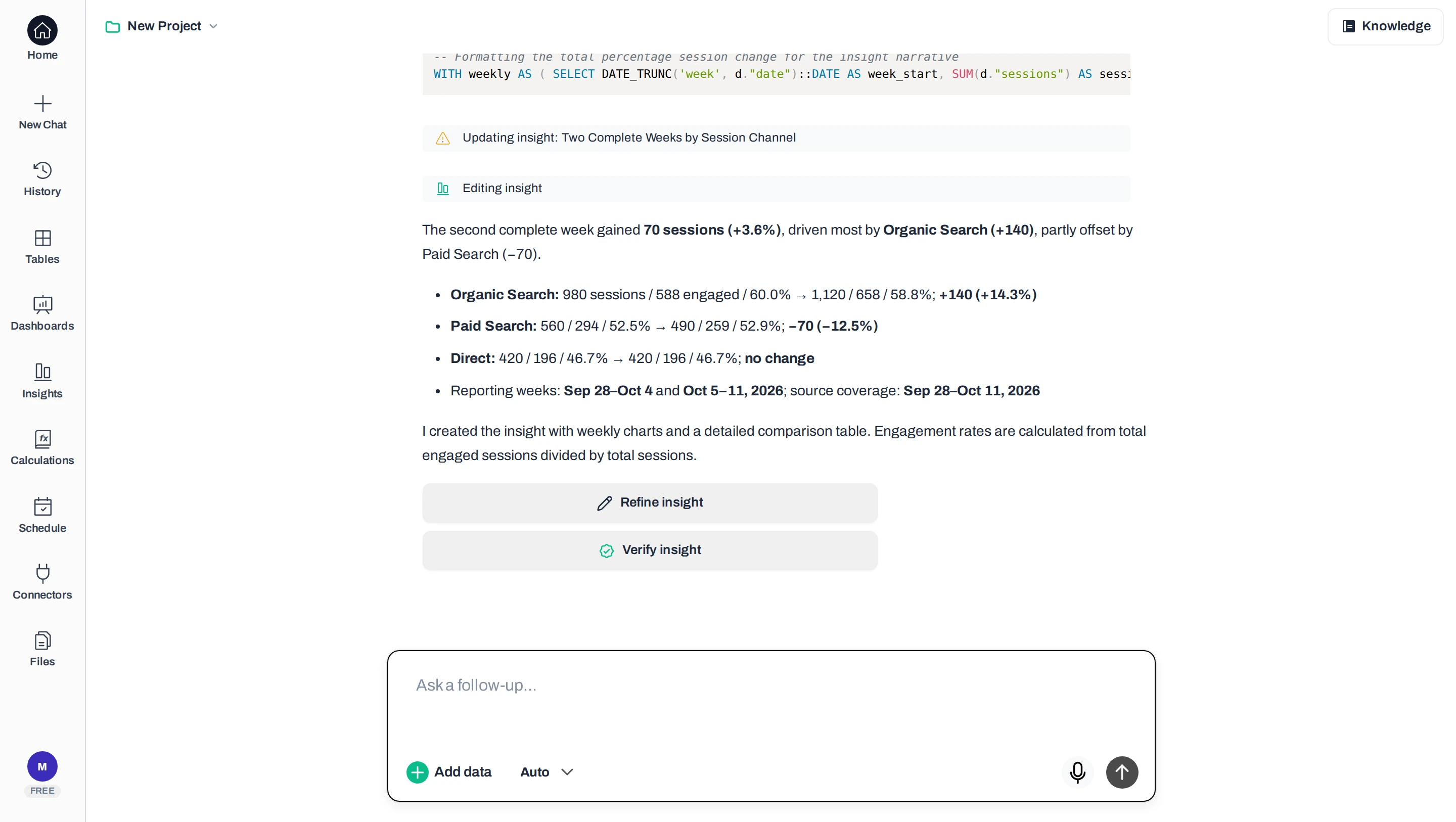
On October 19, 2026, we tested Anomaly with a CSV downloaded from this sample, using an internal development account with extra usage credits added for testing. Connecting the live Google Sheet did not complete in our test browser. Anomaly’s answer from the CSV correctly identified Organic Search’s +140 and Paid Search’s −70, but omitted all-channel weekly totals and overall engagement rates.
Anomaly’s answer from the synthetic CSV
This is the completed answer to the one prompt we sent in our test. The warning row above it shows the app trying again to save the answer as an insight (Anomaly’s saved summary with charts) after the first save failed; the retry succeeded. Each channel’s engagement rate is rounded to one decimal place. First-party Anomaly screenshot from a development test account; synthetic data. Click to enlarge.
The saved insight with both charts
This is the insight Anomaly saved from the same answer. It shows each channel’s change but not the all-channel weekly sessions or overall engagement rates. First-party Anomaly screenshot from a development test account; synthetic data. Click to enlarge.
Our test used a shorter request. To request the missing totals and two-decimal rates explicitly, try this expanded prompt; we have not rerun it:
Compare September 28–October 4 with October 5–11, 2026. Each row is one date and session channel. Show sessions and engaged sessions by channel and an all-channel total for each week, plus the change in sessions. Calculate engagement rate as total engaged sessions divided by total sessions, shown to two decimal places. Identify which channels account for the net change. Show the supporting table and distinguish observed changes from possible explanations.
Check the answer against the downloadable answer key, including the +70 overall change and both weekly rates. Keep the checked spreadsheet as the reference when sharing the finding.
How do I import GA4 data into an existing Google Sheet?
Download the GA4 report as CSV, then use File → Import → Upload in your spreadsheet. Choose an import location that preserves your existing work. For a report you will rerun, configure Google’s GA4 Reports Builder add-on in that spreadsheet instead.
Which Google Analytics add-on should I use for Google Sheets?
Google’s current add-on is GA4 Reports Builder for Google Analytics™. Check that the Google Workspace Marketplace lists Google as the publisher and that the instructions refer to GA4. Older tutorials about Universal Analytics, the Google Analytics version before GA4, use different configuration fields.
Does exporting a GA4 report create a live connection?
A downloaded report is a snapshot. For repeatable imports, save a report configuration in the GA4 Reports Builder add-on and rerun it. Check the output after a second run before depending on a schedule.
Can I export the Google Analytics demo account to Sheets?
No. Google disables report and exploration exports in its demo properties and does not allow Analytics Data API access. Use a property you are authorized to export, or use this guide’s synthetic CSV to practise the spreadsheet calculations.
Google documents the demo-account restrictions; they are specific to its demo properties. If export is unavailable in your own property, check your access and whether you are still in report customization mode before trying another method.
Ash Rai
Technical Product Manager, Data & Engineering
Ash Rai is a Technical Product Manager with 5+ years of experience building AI and data engineering products, cloud and B2B SaaS products at early- and growth-stage startups. She studied Computer Science at IIT Delhi and Computer Science at the Max Planck Institute for Informatics, and has led data, platform and AI initiatives across fintech and developer tooling.